
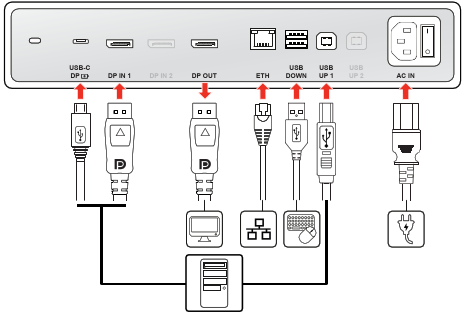
Connect the cables
- Connect the display to your workstation using either a DisplayPort or USB-C cable connected to the display’s DP IN 1or USB-C DP port.
If connecting via DisplayPort, you must also connect the USB upstream port (USB UP 1) to a USB host on your workstation. This connection is required to enable the following features:
- 3D functionality
- The display's USB downstream ports for peripherals (keyboard, mouse, etc.)
- The integrated Ethernet port
- Registration to QAWeb Enterprise
If your display is connected via USB-C DP, a single cable handles all these features directly, so no additional USB cable is needed.
Connect an Ethernet cable from the display's ETH port to an available network port.
The display transmits the network signal from the Ethernet cable to your workstation through the single USB-C cable or the DisplayPort and USB upstream connections.
- Connect peripherals to control your workstation (keyboard, mouse, etc.) to the USB DOWN ports on the display.
- To daisy-chain your display to a second display, use a DisplayPort cable to connect the DP OUT port to a DisplayPort input on the next display. must be enabled in the OSD menu, see “DisplayPort MST (Daisy chain)”.
- Connect the AC power cable to the power input on the display.