7.2.3 Take over sharing

Availability
About taking over

Taking over simplifies which connected user device is sharing to the meeting room displays. Any connected user device can stop the sharing of another user device and immediately start sharing at any time. This reduces the amount of actions that must be done to switch between user devices.

Prerequisites

At least two different user devices must be connected to the ClickShare. One of these user devices must be sharing to the display. For more information, see:

Note: Only one mobile device can be connected. One of the other user devices must be sharing before the mobile device can take over the sharing.
ConnectingSharing
How to take over
  1. Take over sharing using one of the following methods:
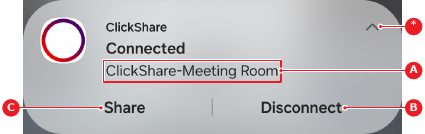
    • Using the ClickShare notification, tap Share (reference C).
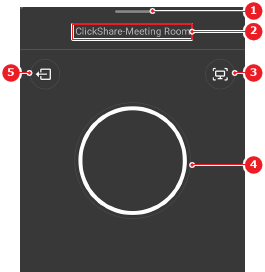
    • Using the Mobile App, tap and hold the share button (reference 4).
    Note: If the sharing menu in the Mobile App is not visible, tap the toggle bar (reference 1).
    Image 7–18 Example of the Mobile App on Android
    1
    Toggle bar
    2
    Connected meeting room name
    3
    Screenshot menu
    4
    Share button
    5
    Disconnect button
    Image 7–19 Notification example on Android
    A
    Connected meeting room name
    B
    Disconnect button
    C
    Share button
    *
    Collapse or expand notification

    A casting window is shown.

  2. Select what must be shared from the casting window drop down (reference 5).
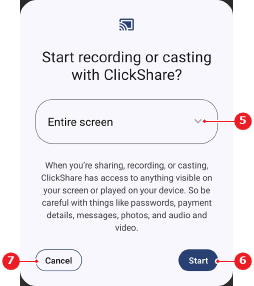
    • A single app (default)
    • Entire screen
    Image 7–20
    5
    Share selection drop down
    6
    Start button
    7
    Cancel button
  3. Tap Start (reference 6, Image 7–20).
  4. Is app sharing selected?

    • If yes, tap on the content using the pop-up.
    • If no, no further actions required.

    The selected content is shown on the meeting room displays.