5.5.4 Dual display connection

Note: Only supported by the Hub Pro.
About dual display

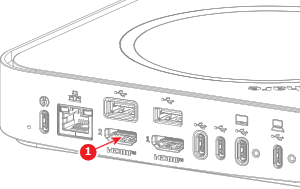
Two displays can be connected to the Base Unit at the same time. Only the display connected to ‘HDMI 1’ can transmit touch data to the Base Unit. Meaning if the second display is also a touch display, any interactions on that second display will not be registered by ClickShare.

The display that is connected to ‘HDMI 1’ will be seen as the main display or display ‘1’ in the software. The display that is connected to ‘HDMI 2’ will be seen as display ‘2’ in the software.

Prerequisites

The main display must be connected before a second display can be connected. For more information, see “Primary display connection”.

Note: Microsoft Teams requires a pro room license to allow a second display. For more information, see the Microsoft Teams policy.
How to connect
  1. Connect an ‘HDMI’ cable from the ‘HDMI in’ port of the display to the ‘HDMI 2’ port (reference 1) of the Base Unit.

    Tip: The display with the highest resolution must be connected to ‘HDMI 1’. ‘HDMI 2’ supports less resolutions compared to ‘HDMI 1’.
    Image 5–57