9.1 USB software update

About software update

The Base Unit software version dictates the software versions of all connected ClickShare peripherals. When the Base Unit is updated to a newer or older version, then the compatible software versions are sent to the connected peripherals immediately. The Button updates wirelessly while connected to a computer that is not sharing or when being paired to the Base Unit.

It is recommended to keep the Base Unit updated with the latest software version.

Prerequisites

The Base Unit must be active before the software can be updated. For more information, see “Waking the Base Unit”.

Required parts

4 GB+ USB stick formatted in FAT32

How to update
  1. Download the newer software from the product support page on the Barco website.

    Tip: Store the downloaded .zip file in an easy to access location.
  2. Extract the .zip file.
  3. Copy the .clsh file to the root of the USB stick.

    Tip: It is possible to have software update files of other Base Unit models on the USB stick. ClickShare will automatically select the correct file for the connected Base Unit.
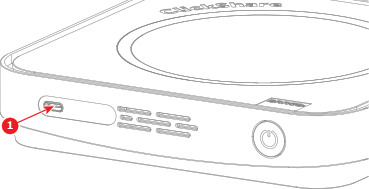
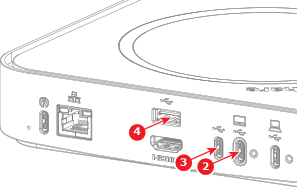
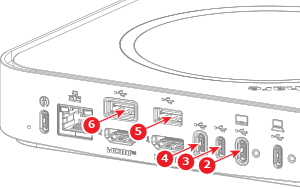
  4. Insert the USB stick into any free ‘USB’ port (reference 1 to 6) of the Base Unit.

    Image 9–1
    Image 9–2
    Image 9–3
  5. Is plug and update enabled?

    Note: By default, plug and update is enabled.
    • If yes, the standby button LED of the Base Unit will begin flashing once the update has started. Go to next step.
    • If no, follow the instructions in “Manage firmware update”.
  6. Wait until the Base Unit restarted.

    A confirmation notice is shown on the connected Control Panel and/or display.

  7. Pair all Button devices again to update them to the same software as the Base Unit. For more information, see “Pairing the Button”. (recommended)