
To connect the cables
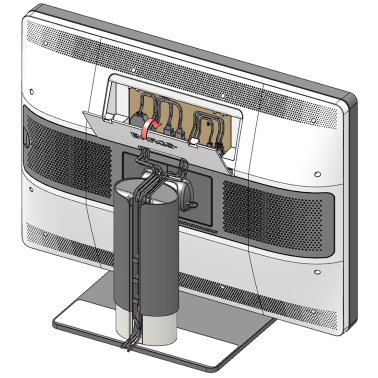
- Remove the connector cover.
Connect the DisplayPort inputs with the DisplayPort outputs on the workstation.
Note: To obtain full resolution and full refresh rate, two DisplayPort video input cables must be connected to the display. If only one DisplayPort video input cable is connected the display will run at half of the specified refresh rate.
- Connect the USB upstream connector with the USB host of your workstation to make optimal use of QAWeb and the Barco Intuitive Workflow Tools, and to use the Barco Touchpad.
Connect the Barco Touchpad with one of the USB downstream connectors. Other peripherals like a keyboard, mouse, etc. can also be connected.

Connect the supplied external DC power supply to the power input of the display.

Route all cables through the cable routing channel in the stand of your display.
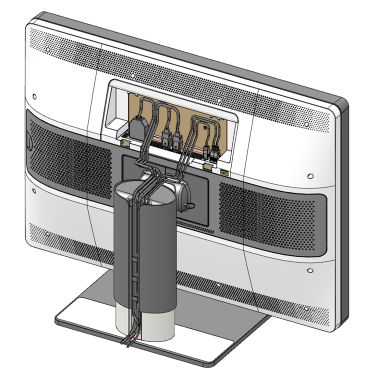

Re-install the connector cover.
- Plug the external DC power supply into a grounded power outlet by means of the proper power cord delivered in the packaging.