EAP-TLS (Transport Layer Security) is an EAP method based on certificates which allows mutual authentication between client and server. It requires a PKI (Public Key Infrastructure) to distribute server and client certificates. For some organizations this might be too big of a hurdle, for those cases EAP-TTLS and PEAP provide good alternatives. Even though a X.509 client certificate is not strictly required by the standard it is mandatory in most implementations including for ClickShare. When implemented using client certificates, EAP-TLS is considered one of the most secure EAP methods. The only minor disadvantage, compared to PEAP and EAP-TTLS, is that the user identity is transmitted in the clear before the actual TLS handshake is performed. EAP-TLS is supported via SCEP or manual certificate upload.
Start up for EAP-TLS
Select the radio button next to EAP-TLS and click Next.
The EAP-TLS mode window opens.
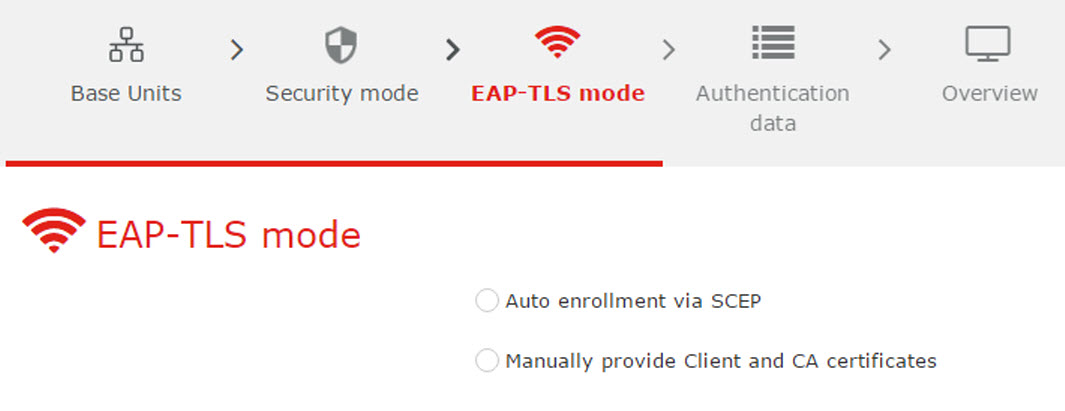
Image 3–52EAP-TLS mode
Two choices are possible:
Auto alignment via SCEP
Manually provide Client & CA certificates
Using SCEP
Select the radio button next to Auto enrollment via SCEP and click Next.
The Simple Certificate Enrolment Protocol (SCEP) is a protocol which enables issuing and revoking of certificates in a scalable way. SCEP support is included to allow a quicker and smoother integration of the ClickShare Base Unit and Buttons into the corporate network. Since most companies are using Microsoft Windows Server and its active directory (AD) to manage users and devices our SCEP implementation is specifically targeted at the Network Device Enrolment Service (NDES) which is part of Windows Server 2008 R2 and Windows Server 2012. No other SCEP server implementations are supported.
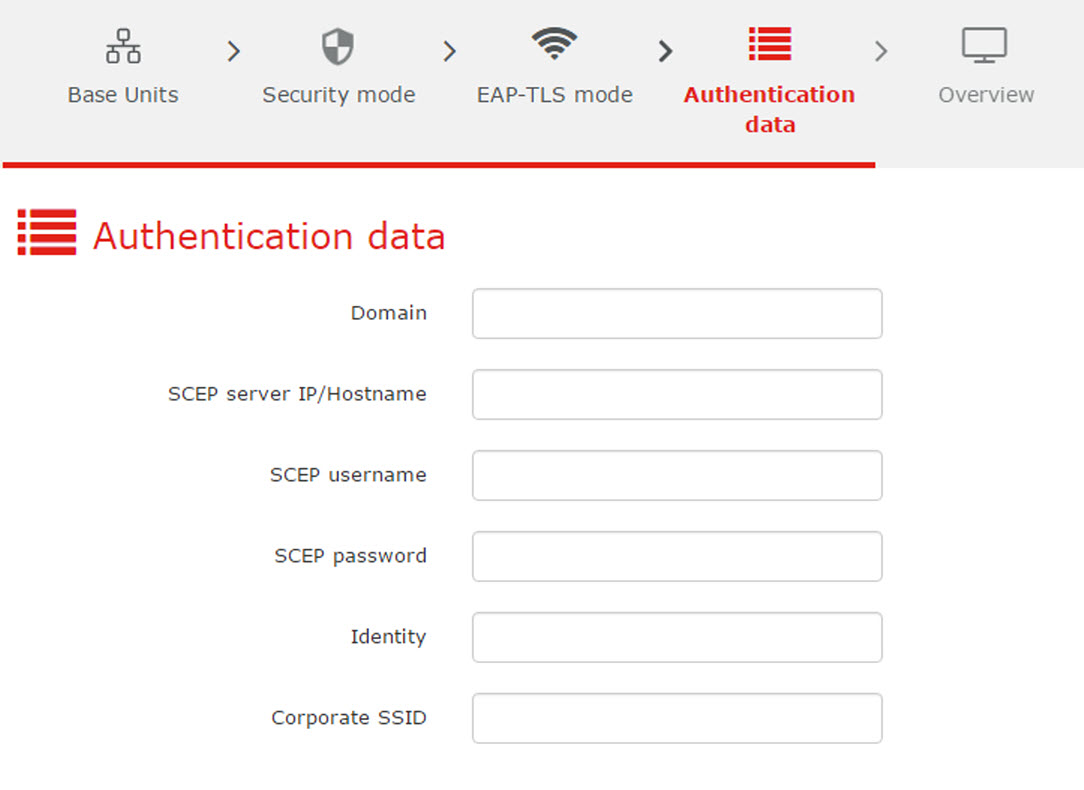
Image 3–53SCEP, authentication data
About NDES
The Network Device Enrolment Service is Microsoft’s server implementation of the SCEP protocol. If you want to enable EAP-TLS using SCEP make sure NDES is enabled, configured and running on your Windows Server. For more details about setting up NDES, please visit the Microsoft website[3]. SCEP uses a so called “challenge password” to authenticate the enrollment request. For NDES, this challenge can be retrieved from your server at: http(s)://[your-server-hostname]/CertSrv/mscep_admin.
After you enter the necessary credentials into the setup wizard, the Base Unit will automatically retrieve this challenge from the web page and use it in the enrollment request, thereby fully automating the process.
Necessary Data to continue:
Domain
The company domain for which you are enrolling, should match with the one defined in your Active Directory.
SCEP ServerIP/hostname
This is the IP or hostname of the Windows Server in your network running the NDES service. Since Internet Information Services (IIS) supports both HTTP and HTTPS, also include which of the two you want to use. If not provided it will be default set to HTTP.
E.g.: http://myserver or https://10.192.5.1 or server.mycompany.com (will use http)
SCEP User name
This is a user in your Active Directory which has the required permission to access the NDES service and request the challenge password. To be sure of this, the user should be part of the CA Administrators group (in case of a stand-alone CA) or have enroll permissions on the configured certificate templates.
SCEP Password
The corresponding password for the identity that you are using to authenticate on the corporate network. Per Base Unit, every Button uses the same identity and password to connect to the corporate network.
Domain
The company domain for which you are enrolling should match the one defined in your Active Directory.
Identity
Identity of the user account in the Active Directory which will be used by the ClickShare Buttons to connect to the corporate network. When using EAP-TLS make sure that the necessary mapping exists between the Client Certificate issued by your CA and this user account.
Corporate SSID
The SSID of your corporate wireless infrastructure to which the ClickShare Buttons will connect.
Using manually upload of certificates
Select the radio button next to Provide certificates manually and click Next.
If your current setup does not support SCEP or you prefer not to use it but you still want to benefit of the mutual authentication EAP-TLS offers, it is also possible to manually upload the necessary certificates.
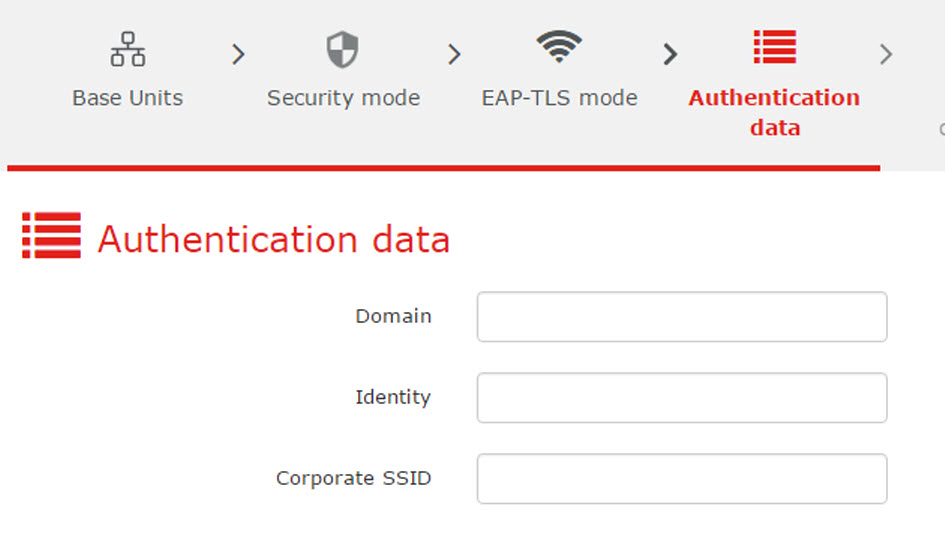
Image 3–54Manually upload
Necessary Data to continue:
Domain
The company domain for which you are enrolling, should match with the one defined in your Active Directory.
Identity
Identity of the user account in the Active Directory which will be used by the ClickShare Buttons to connect to the corporate network. When using EAP-TLS make sure that the necessary mapping exists between the Client Certificate issued by your CA and this user account.
Corporate SSID
The SSID of your corporate wireless infrastructure to which the ClickShare Buttons will connect.
Click Next to continue with the upload of the client certificate.
Click Upload Client Certificate.
The client certificate you provide should be signed by the authoritative root CA in your domain and should be linked to the user you specify in the Identity field. Also, make sure that the client certificate you provide contains the private key – this is necessary to set up the TLS connection successfully.
ClickShare supports 2 formats for uploading a client certificate:
PKCS#12 (.pfx) - An archive file format for storing multiple cryptography objects.
Privacy Enhanced Mail (.pem) – A Base64 encoded DER certificate stored between 2 tags:
"-----BEGIN CERTIFICATE-----" and "-----END
CERTIFICATE-----".
Note: When the provided PKCS#12 file also contains the necessary CA certificate the Base Unit will extract it and verify the chain of trust to avoid that you have to separately provide the CA certificate.
CA certificate
The CA certificate is the certificate of the authoritative root CA in your domain and will be used in setting up the EAP-TLS connection. During the wizard the Base Unit will ensure that it can validate the chain of trust between the Client and CA certificates you provide.
ClickShare supports the common .crt file format which can contain a Base64 encoded DER certificate.
Note: When having problems connecting the Button to your corporate network, to get feedback from the Button please have a look at the ClickShare Client log. This log can be pressing the holding Shift key when starting the Client executable. Look for the lines “EDSUSBDongleConnection::mpParseDongleMessages”. An error code and a short summary of the issue should be logged.
[3] NDES White Paper: http://social.technet.microsoft.com/wiki/contents/articles/9063.network-device-enrollment-service-ndes-in-active-directory-certificate-services-ad-cs-en-us.aspx