
3.7.3.2 Reboot Base Units
How to reboot
Select Support & updates and click on Troubleshoot (1).
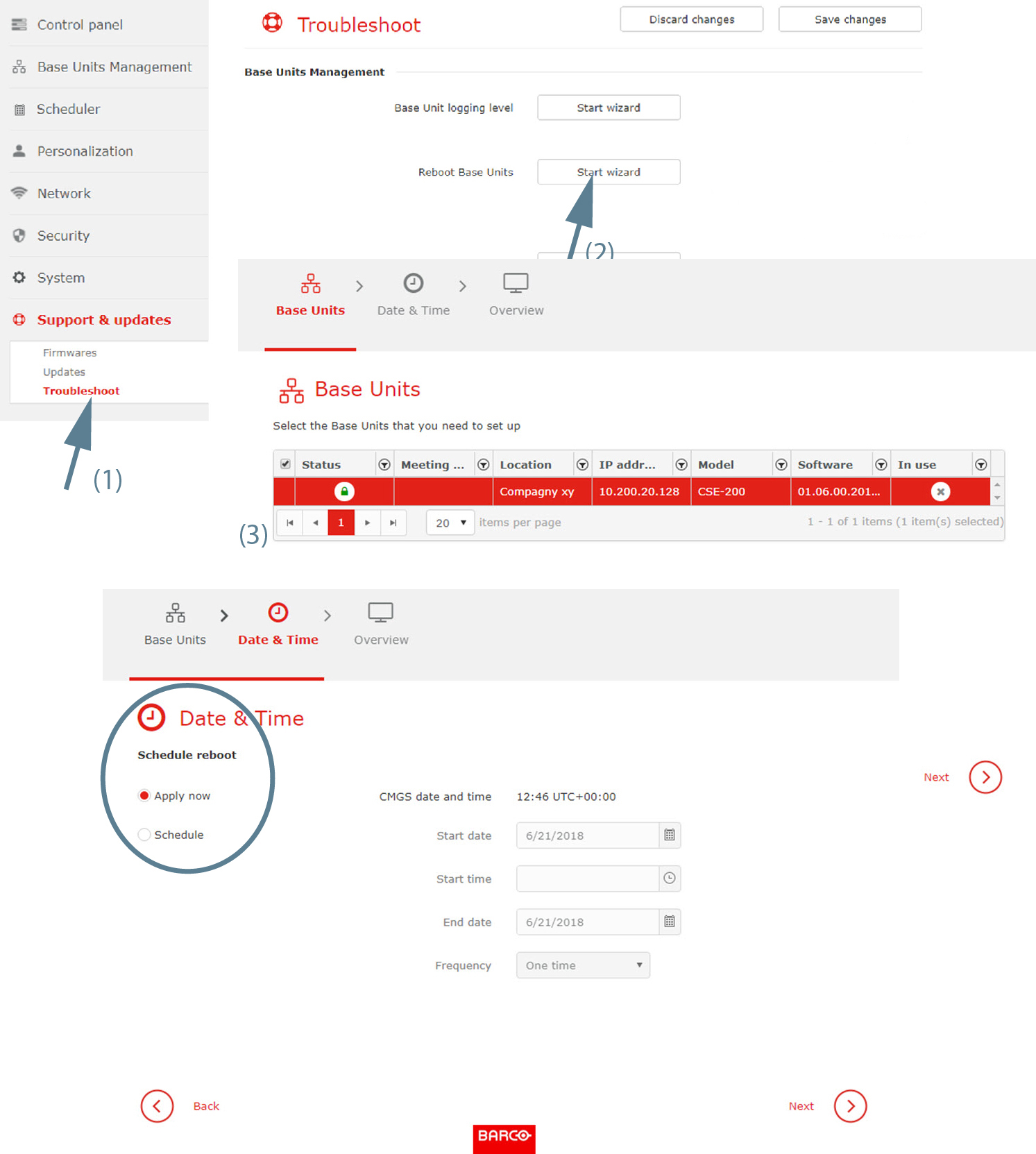
Image 3–91 Reboot Base Unit(s) - Click Start wizard next to (2).
- Select the Base Unit(s) (3) and click Next.
To reboot immediately, check the radio button next to .
To reboot on a scheduled time, check the radio button next to . Continue with next step.
To enter the date, click on the calendar icon and select the date. Enter the time (hh:mm) or click on the clock icon and select a predefined time.
To change the year and month, click on the left or right arrow key next to the month-year name (1).
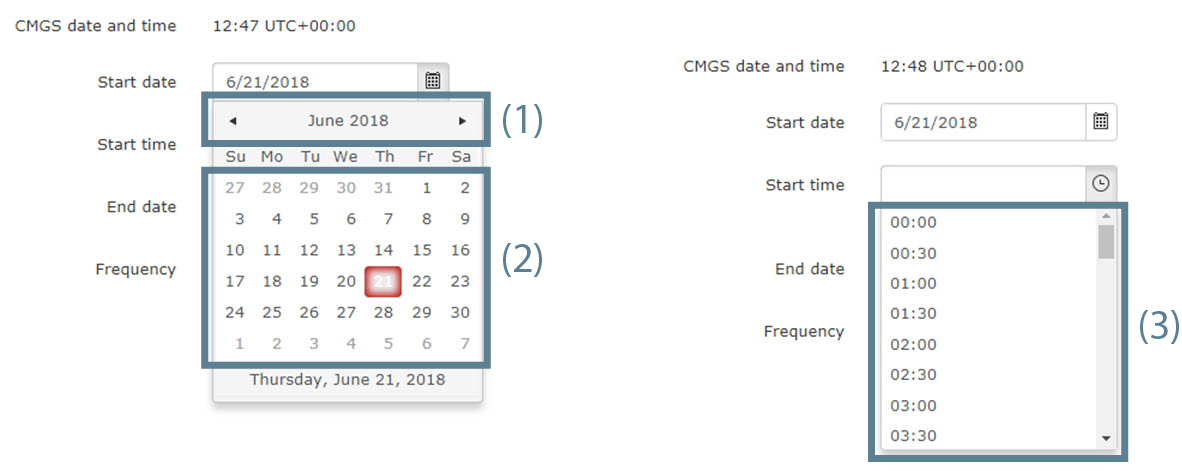
Image 3–92 Time and date setup - To change the day, click on the desired day in the calendar (2).
- To set the desired time comparing to the server time, click on the icon and select a predefined time (3).
orenter the start & end date (mm/dd/yyyy) and time (hh:mm) by clicking in the input field and changing the values.
- Click Next to continue.