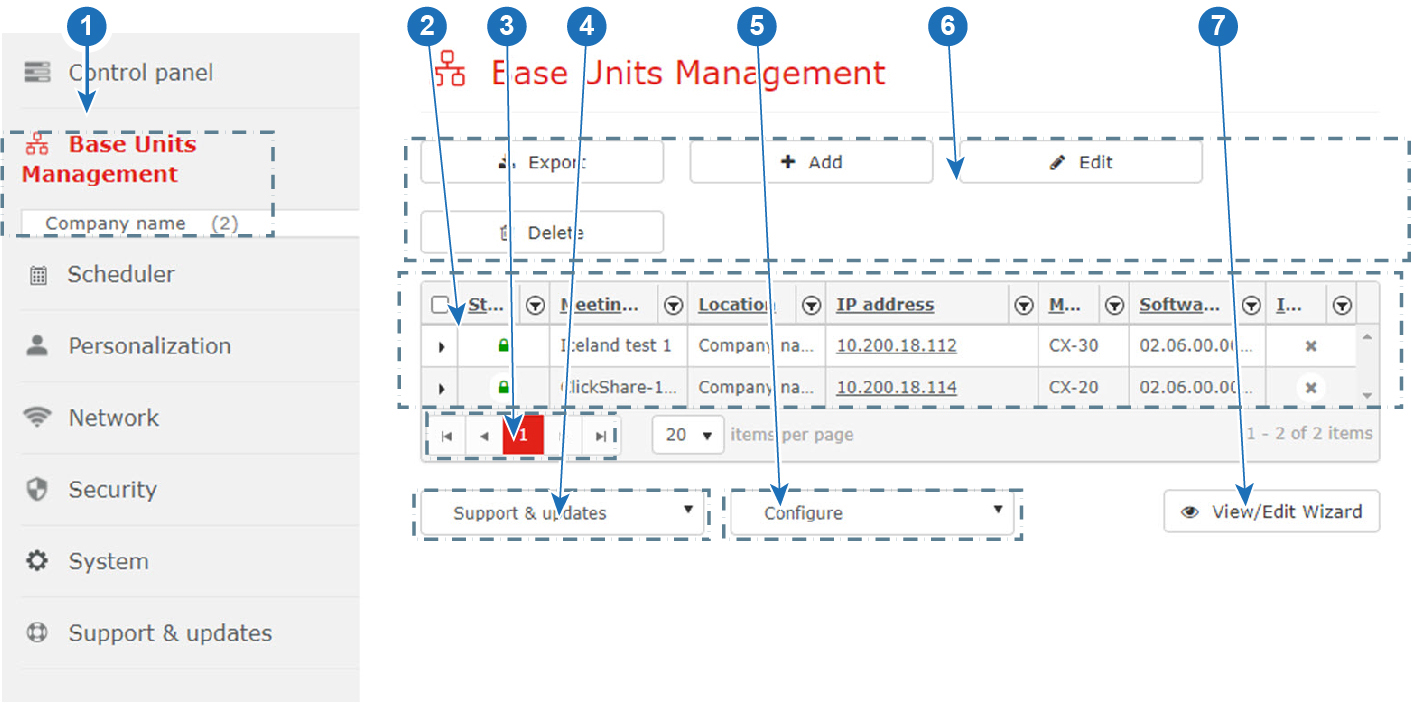
| 1 | Menu pane. Selected menu is expanded and menu title is displayed in red. When different location are sub-locations are available, a tree will be shown. The number behind the location indicates the number of Base Units in that location or sub location. |
| 2 | Overview Base Units of selected location branch. The following information is displayed[2]: The "Status" column of the Base Units grid contains an icon that shows if the device is working properly or not: - Meeting room name, automatically added when connection is established.
- Location, filled out while adding the Base Unit in XMS (virtual) Edge.
- Hostname, automatically added when connection is established.
- Model, automatically added when connection is established.
- Software, automatically added when connection is established.
The column "In use", of the Base Units grid, contains one of the following icons: - A gray 'x' for a Base Unit that is not connected to a source, not sharing, nor ready to share.
- A gray circle, Buttons are connected, or device is connected with a source but nothing is sharing.
- A red spinning circle, if the device is connected to a source or Buttons are connected, and sharing.
- nothing (empty), for devices unknown by XMS.
|
| 3 | Page selection buttons. The added Base Units are displayed in pages. To change a page, click on the arrow buttons next to the page indication or click in the page input field, enter the desired page and click ENTER. |
| 4 | Support and Update - Download Base Unit logs: to download the logging from a selected Base Unit.
- Reboot Base Units: to reboot the selected Base Units.
- Software update: to update the software of the selected Base Units.
- Diagnose connection issues: to start the diagnostics of the selected Base Units.
|
| 5 | Configure - Clone configuration: to clone the configuration from a selected Base Unit to multiple other Base Units of the same type.
- Wallpaper: to change the wallpaper displayed by theBase Units
|
| 6 | Tool bar to export, add, edit or delete Base Units on the page. |
| 7 | To start up the view/edit wizard to configure the Base Units. |