
How to setup
- In the menu pane, select System → Date & Time.
- The current time and time zone are indicated. When necessary, select a new timezone. Click on the drop down box and select the corresponding zone.
Select mode for setting date and time. Check the check box of your choice.
- Use NTP server
- Set a date and time manually
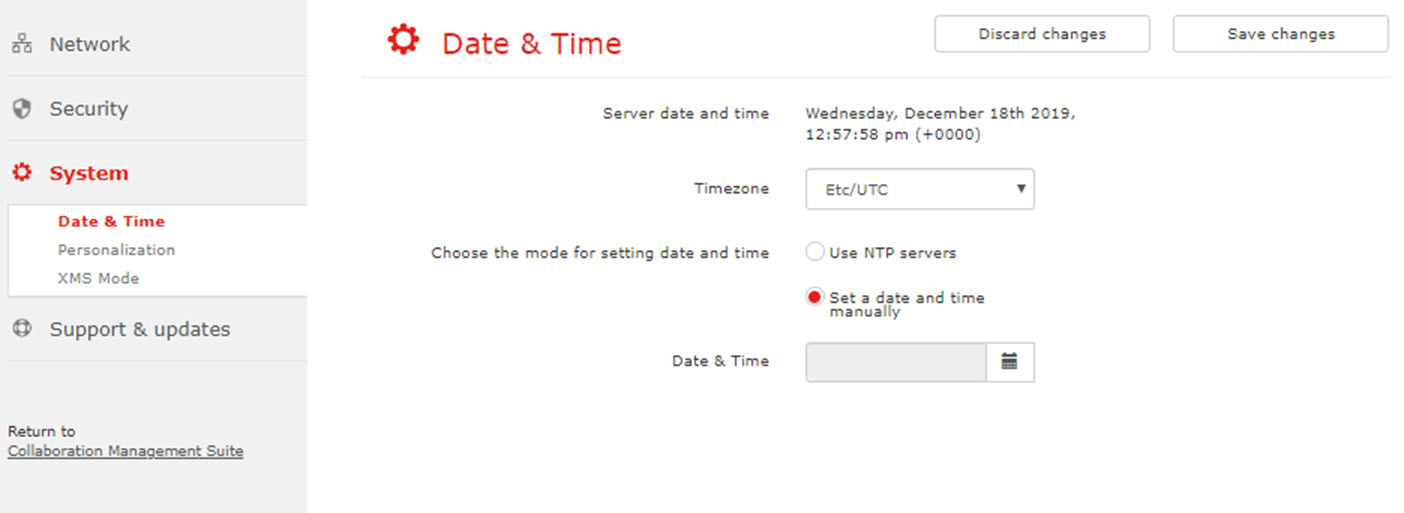
Image 2–8 Timezone and NTP server To use an NTP server, fill out the NTP server IP address or host name next to .
Up to maximum 5 servers can be added, separated by a comma.
To set a time and date manually, select the radio button next to .
Click on the date table icon and select the current date.
To select the time, click on the clock icon. Click on the up down control to set the hours, minutes and second. Toggle the period between AM and PM just by clicking on AM or PM.
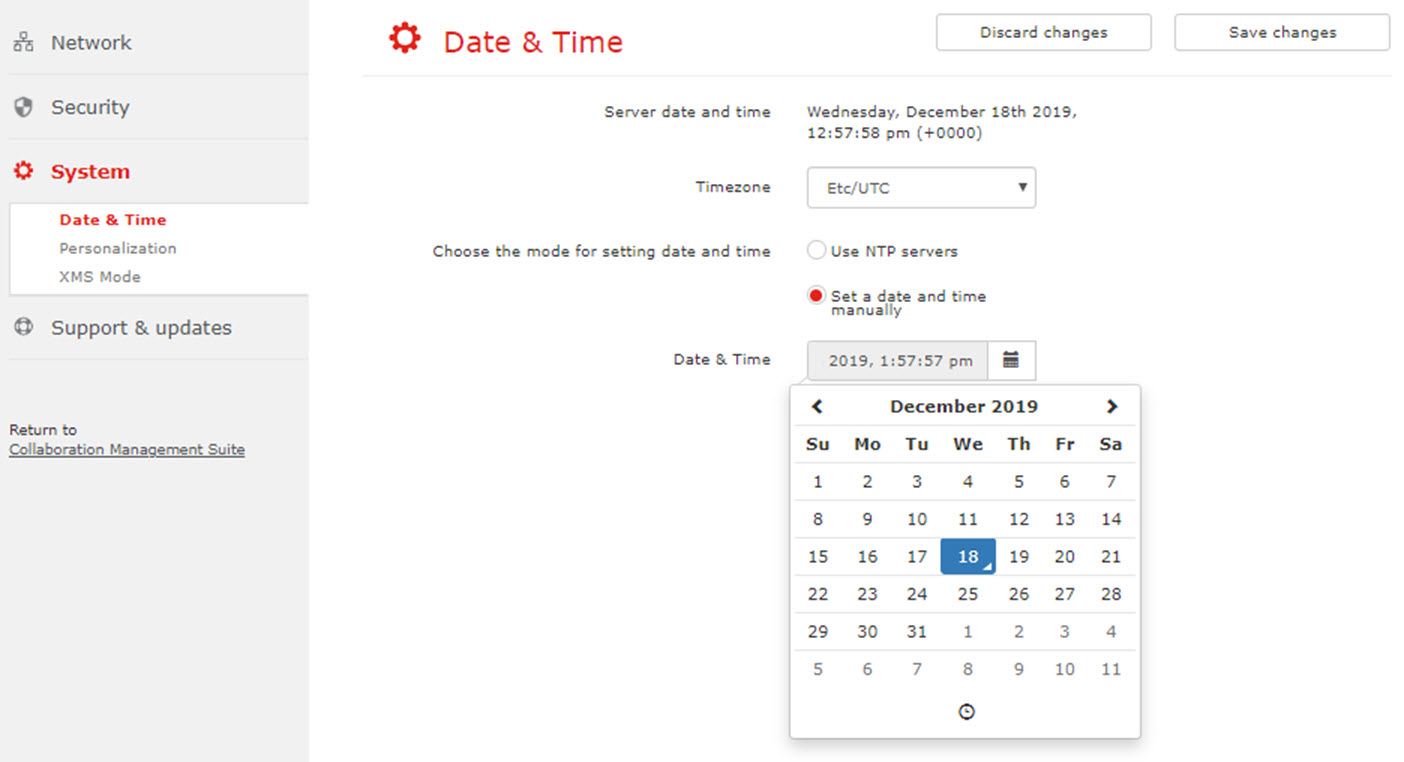
Image 2–9 Date & time - Click Save changes.