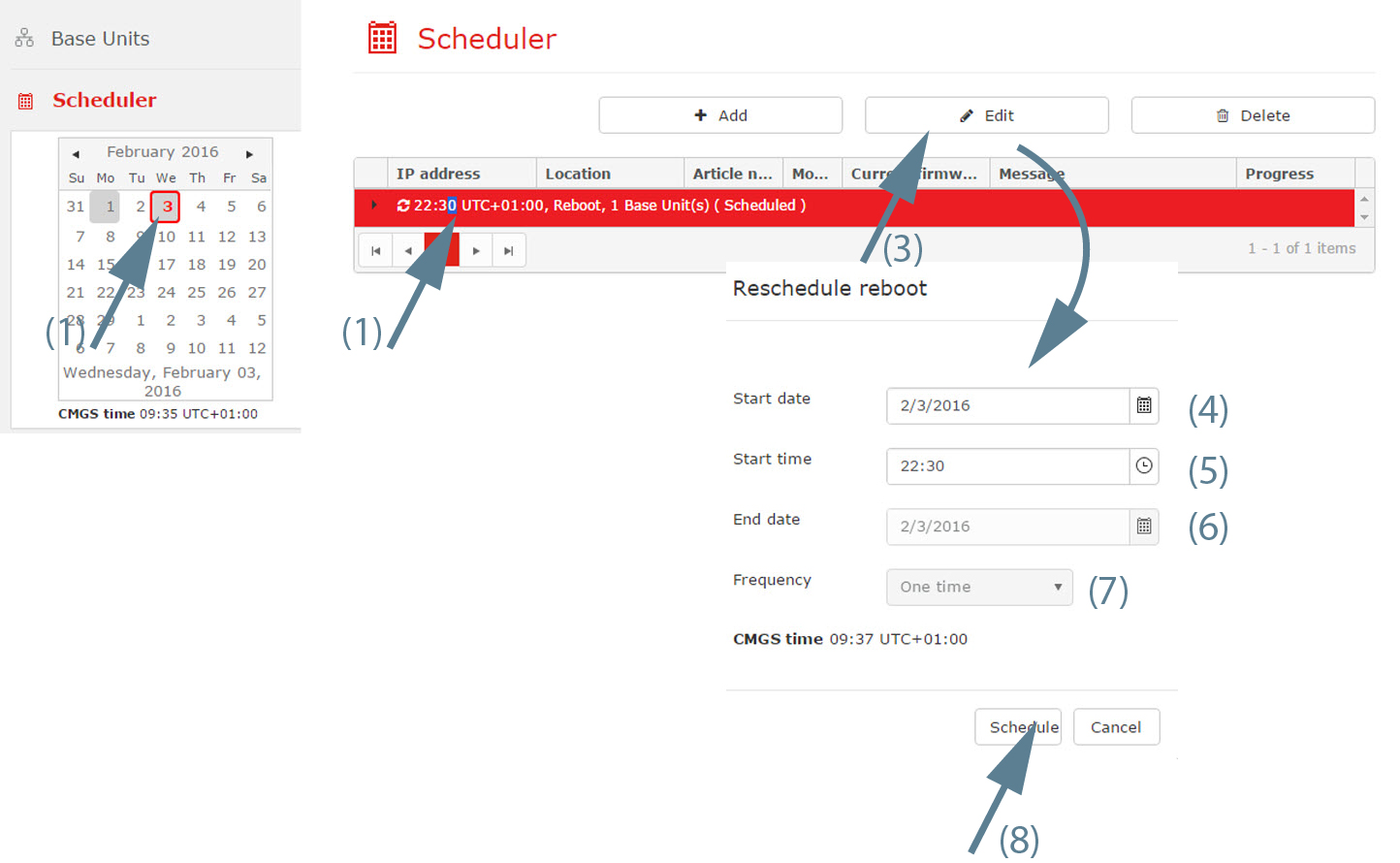
How to editGo to the month and day where the job can be found (1) and select the job to be edited (2).Image 3–26 Edit scheduled jobClick on Edit (3).The Reschedule window opens.Change the start date. To change the date, click on the calendar icon and select the new date (4).Set the new time. Click in the input field and enter the new time or click on the icon and select the new time (5).Change the end date. To change the date, click on the calendar icon and select the new date (6).Change the frequency if necessary (7).Click Schedule to reschedule the job (8).