
How to edit
Select System and click on Users to display the overview page (1).
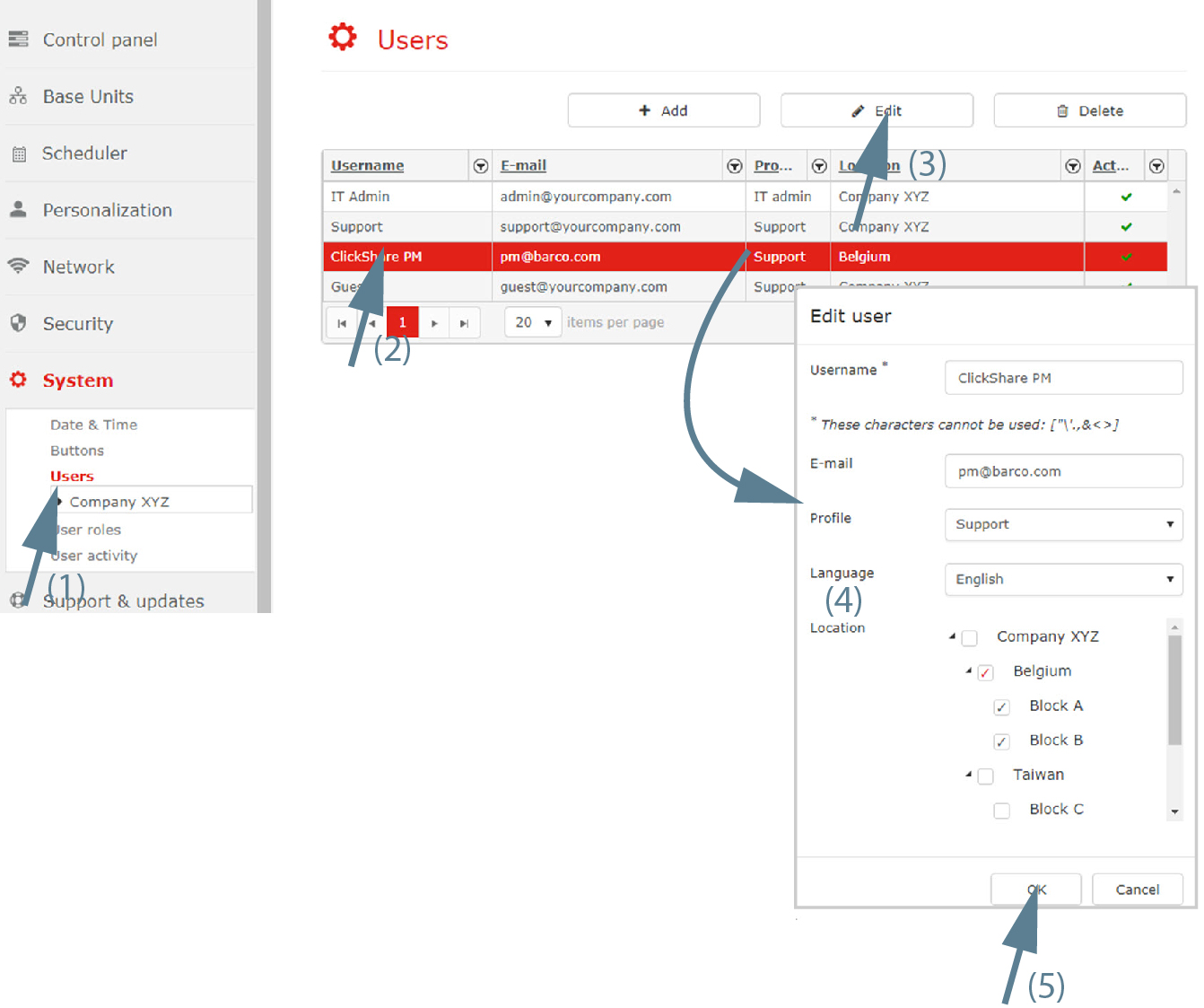
Image 3–74 Edit selected user - Select the user to edit (2).
Click on the Edit (3).
The window opens.
Edit the user settings (4).
- address
- . This can be or . See “About XMS” and look to “About user roles”.
- .
- . Check the check box in front of the desired location. If the location has sub locations, then these sub locations are selected at the same time with gray selection marks. In order to explicitly assign the user to a sub-location it should be clicked to change the check-mark from gray into red. The user will have access on both the locations checked with gray or red check-marks. This could be useful only if the sub-location is planned to be moved later to another parent node and the user should still have access on it.
- Click OK (5).