3.4.4.5 Network integration, WPA2-PSK security mode

About WPA2-PSK

WPA2-PSK does not distinguish between individual users, there is 1 password (PSK – Pre-Shared Key) for all clients connecting to the wireless infrastructure. This makes setup very straightforward. Once connected, all data transmitted between client and AP (access point) is encrypted using a 256 bit key.
Start up for WPA2-PSK
  1. Select the radio button next to WPA2-PSK and click Next.

    The WPA2-PSK mode window opens.

    Necessary Data to continue:

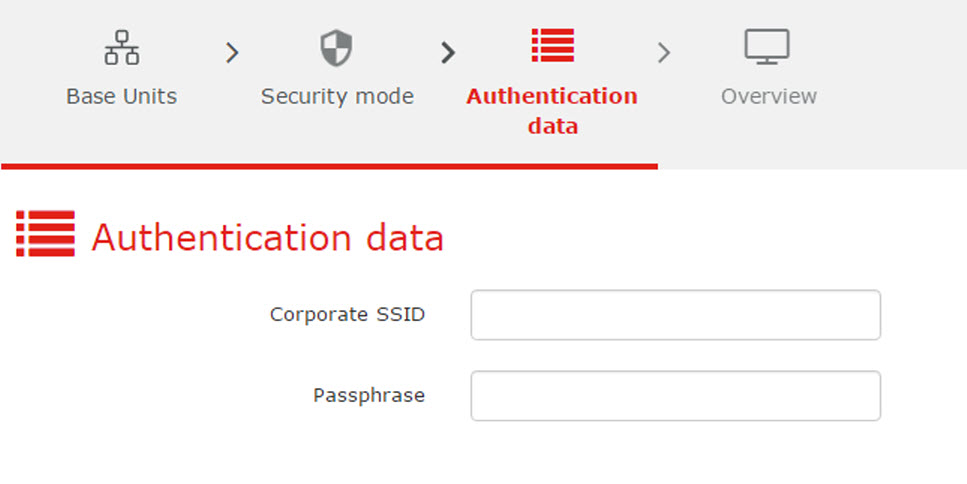
    Image 3–57 WPA2–PSK, authentication data
    Corporate SSIDThe SSID of your corporate wireless infrastructure to which the ClickShare Buttons will connect.
    Passphrase (Pre-shared key)The key used in WPA2-PSK to authenticate onto the wireless infrastructure. This can be a string of 64 hexadecimal digits or a passphrase of 8 to 63 printable ASCII characters.
  2. Click Next to continue.

    The Overview window is displayed.

  3. Click Finish.

    When having problems connecting the Button to your corporate network, to get feedback from the Button please have a look at the ClickShare Client log. This log can be enabled by holding shift when starting the Client executable. Look for the lines “EDSUSBDongleConnection::mpParseDongleMessages”. An error code and a short summary of the issue should be logged.