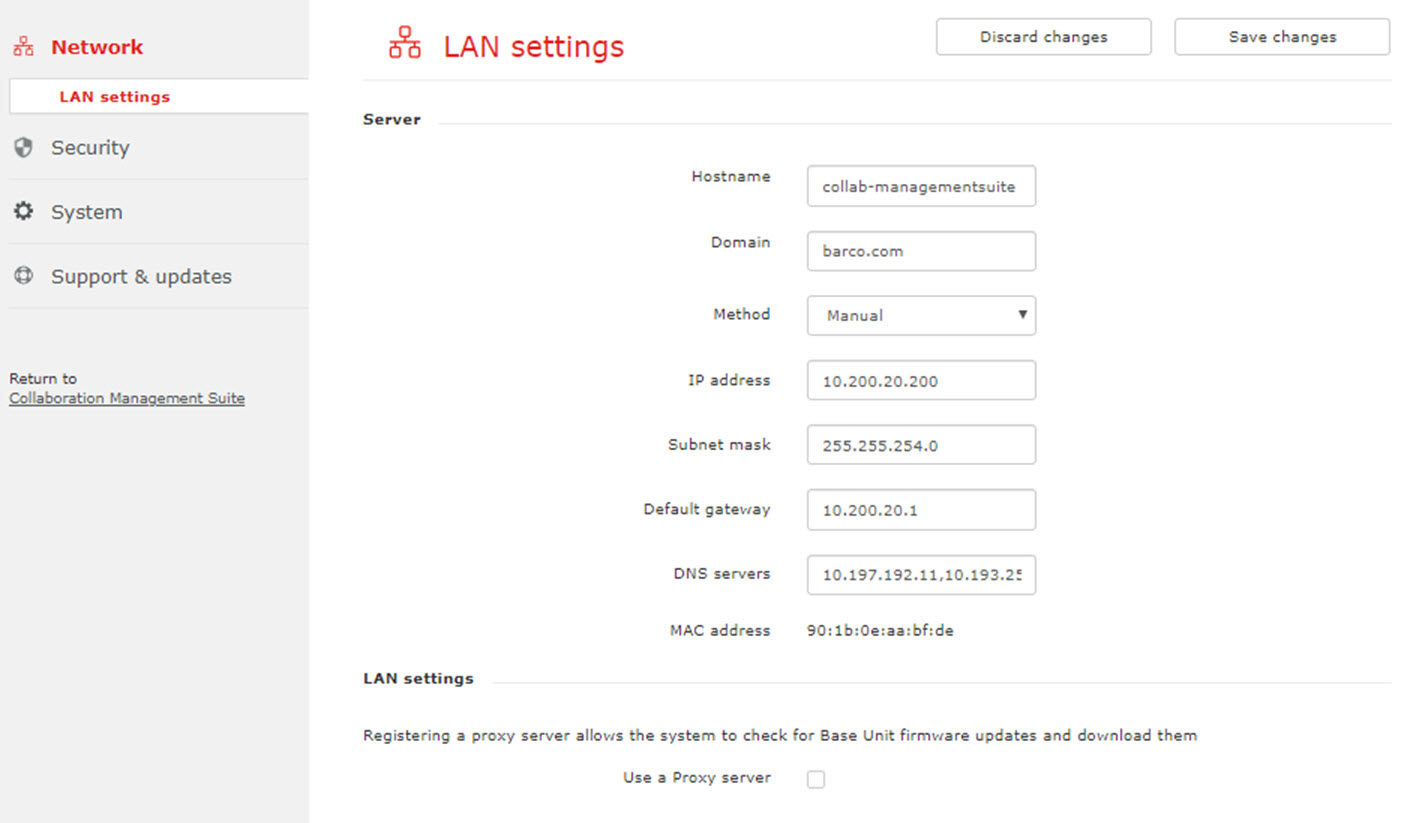
2.2 Network, LAN settings

About LAN settings

For the Server settings, only the method to obtain an IP address can be changed between Automatic and Manually.

For the LAN settings itself, the choice can be made to use a Proxy server.

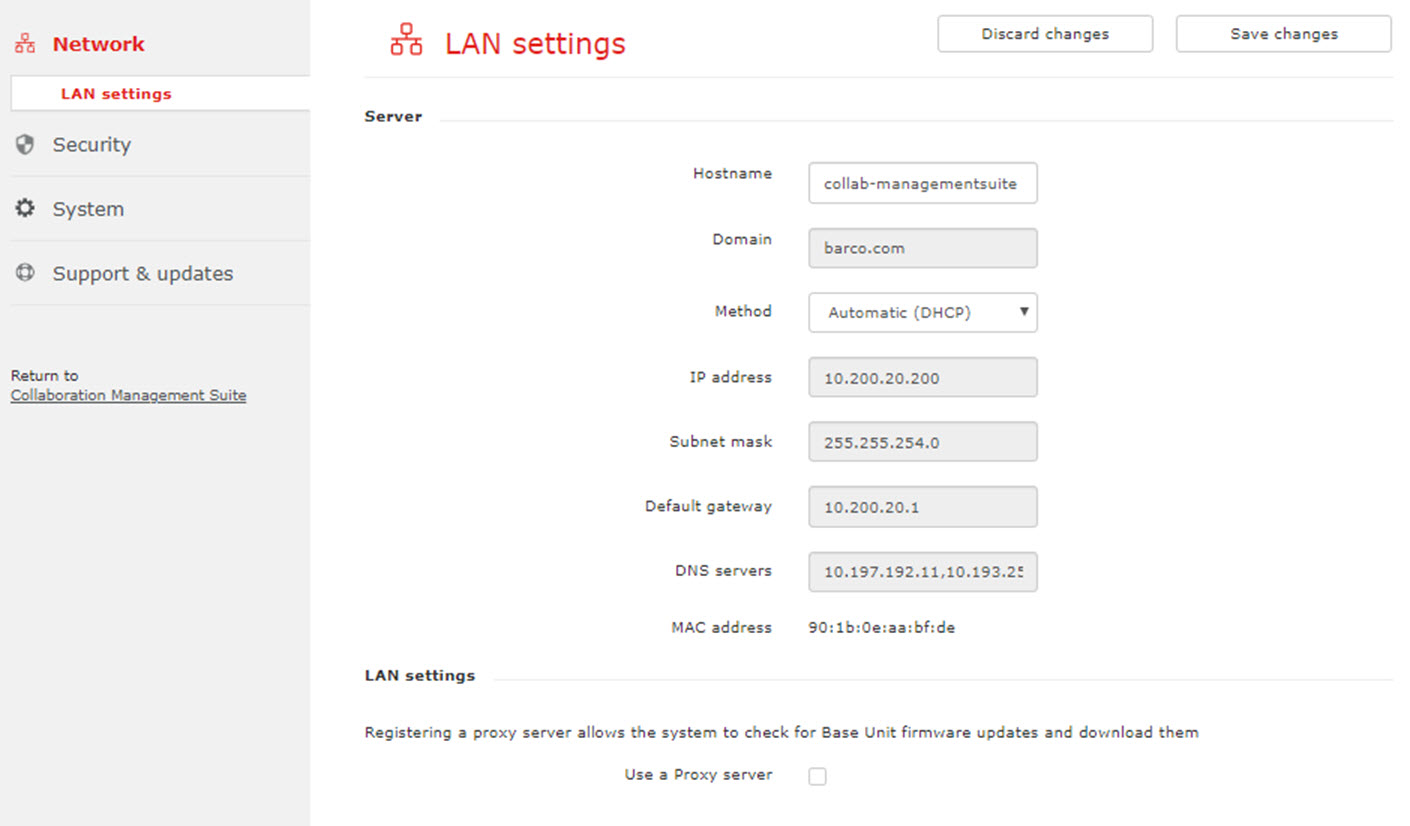
Server settings, method
  1. Click on the drop down next to Method and select Automatic (DHCP) or Manual.

    Image 2–2 Network, LAN settings, method
    • Automatic (DHCP): an automatic IP address will be obtained.
    • Manual: an manual IP address, subnet mask and gateway can be set. Continue with Manual (fixed) IP address.
Manual (fixed) IP address
  1. Click on the drop down box next to Method and select Manual.

    Image 2–3 Network, LAN settings, manual

    The IP address, subnet and gateway input fields are activated.

    The current IP addresses are filled out.

  2. Click in the input field of the IP address and fill out the 4 octets.

    Note: An address contains 4 octets with a maximum value of 255.

    This must NOT be 0.0.0.0 for static IP-Address assignment

  3. Click in the Subnet mask input fields and fill out the 4 octets as appropriate for the local subnet.
  4. Click in the Default Gateway input fields and fill out the 4 octets. Set the Default-Gateway to the IP-Address of the router (MUST be on the local subnet!).

    Note: This must NOT be 0.0.0.0.

    If there is no router on the local subnet then just set this field to any IP-Address on the subnet.

  5. Click Save changes to apply the settings.
Note: Do not use IP address 192.168.2.x for a Subnet mask 255.255.255.0 and IP address 192.168.x.x for a Subnet mask 255.255.0.0
LAN settings, proxy server
  1. Check the check box next to Use a proxy server.
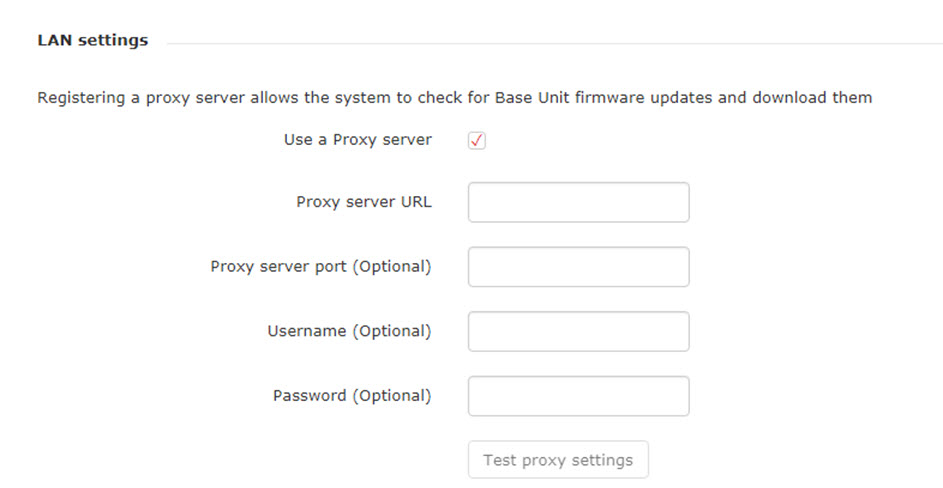
    Image 2–4 Proxy settings

    The proxy settings become available.

  2. Enter the proxy server URL. Enter the IP address or hostname.

    Some proxy servers need a port number, user name and password, for others is this optional.
  3. Optionally, enter the used server port.
  4. Optionally, enter the user name.
  5. Optionally, enter the password.
  6. Click Test proxy settings to test the input.
  7. Click Save changes to apply the settings.