1.3 From online to offline access

Switching to offline access

XMS (virtual) Edge can act both as a gateway between the Base Units and XMS Cloud, as well as an on-premise management solution for the ClickShare and wePresent Base Units. The device and software are both by default configured as a gateway and require to be manually switched to the offline mode for on-premise management.

Note that in order to switch to the offline mode, the XMS (virtual) Edge first needs to be added to an XMS Cloud tenant. For more information, see the XMS Cloud user guide: https://www.barco.com/en/support/docs/R5900109
How to get offline access
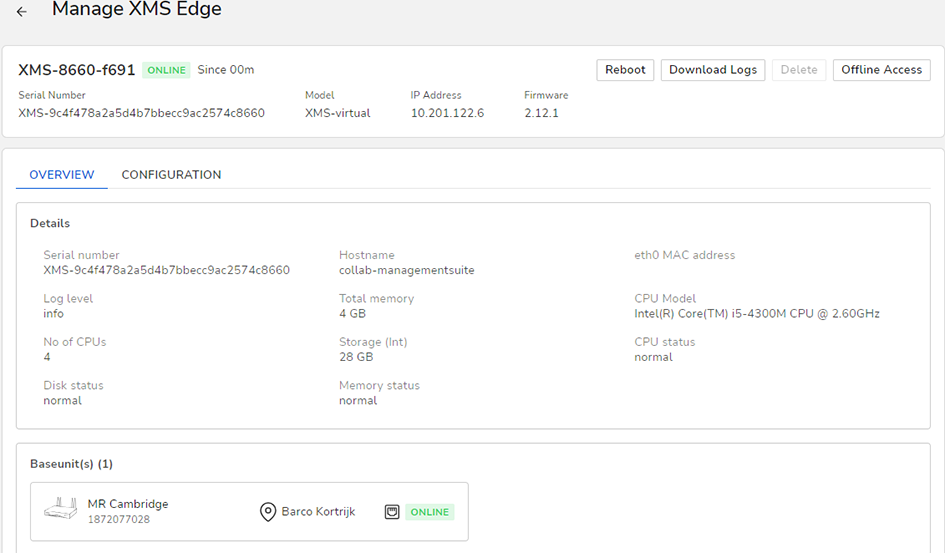
  1. While in the XMS Edge window, click on the manage icon of the desired XMS Edge system.

    The manage XMS Edge window is displayed.

    Image 1–1 Example of an XMS Edge manage window, Overview tab
  2. Click Offline Access.

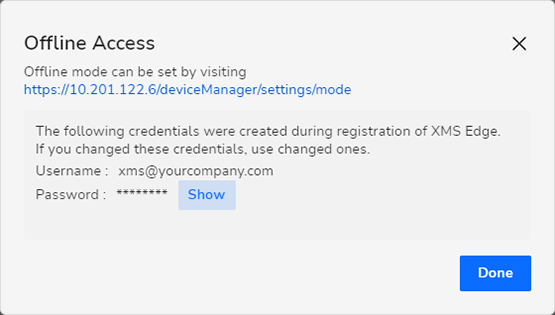
    The Offline Access dialog is displayed, with the basic information in order to log in

    Image 1–2
  3. Click Show to see the current password. At the same time that password is copied to your clipboard.
  4. Click the link in the Offline Access window to start.

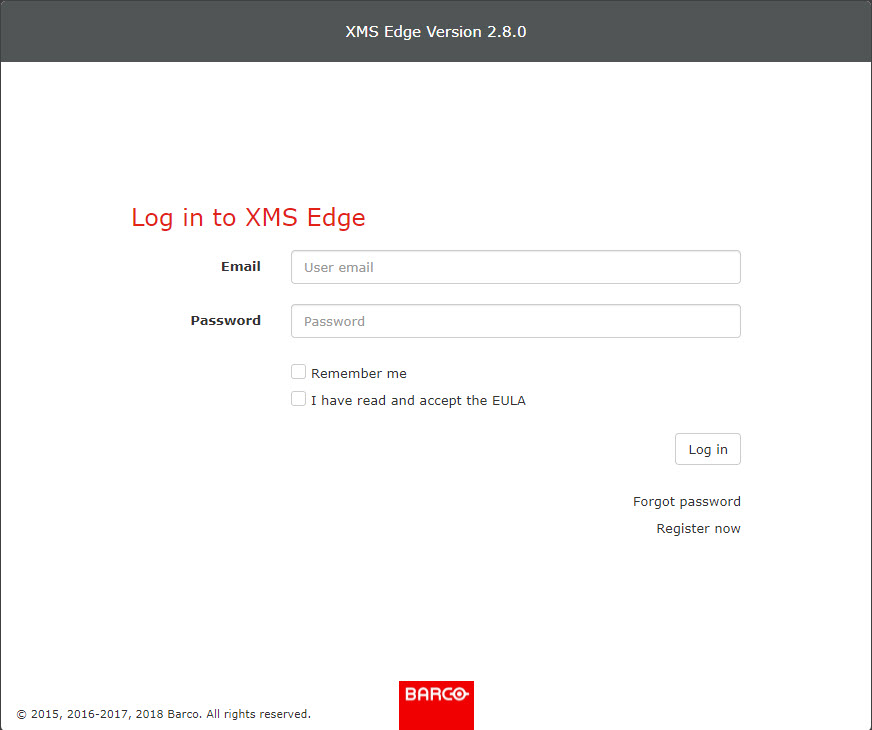
    The login window opens.

    Image 1–3
  5. Enter the access credentials to continue.

    All settings from XMS Cloud will be available in XMS Edge.