6.7 Manage configuration files

About Manage configuration files

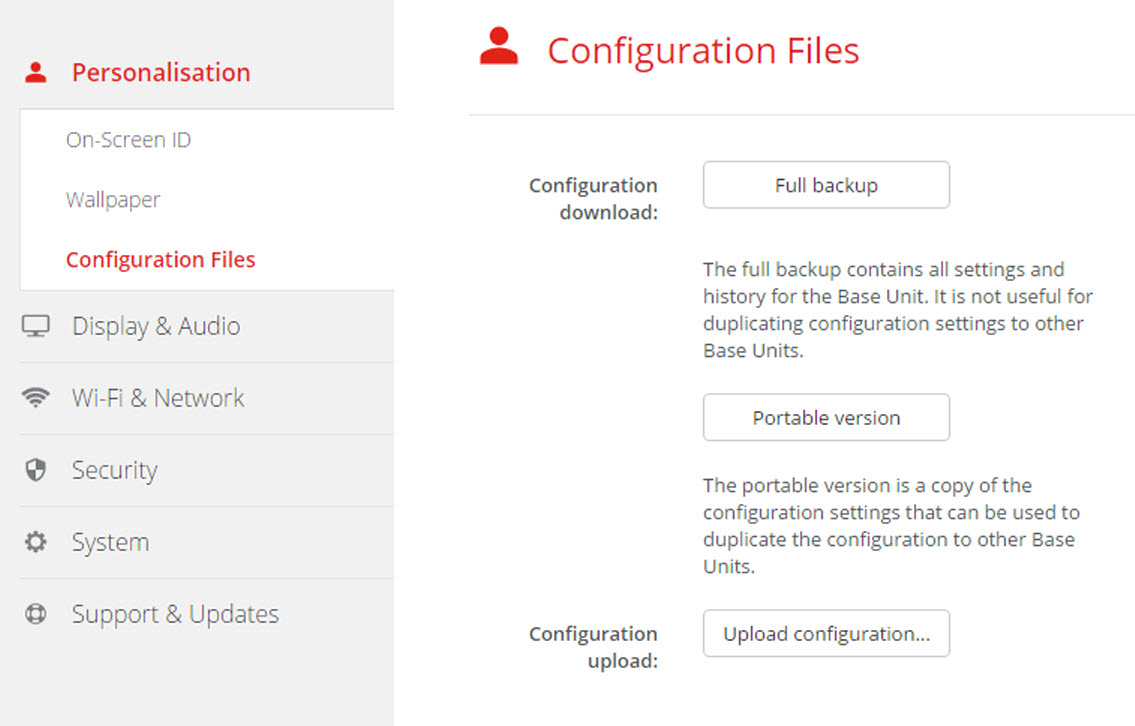
A full backup can be downloaded but cannot be used to duplicate configuration settings to other Base Units. Therefore, it is possible to download a Portable version. This portable version can be uploaded via the upload configuration button on other Base Units (same type). Via the same button, the full backup can be uploaded on the original Base Unit.

A portable backup contains:

To manage the configuration files
  1. Log in to the Configurator.
  2. Click PersonalisationConfiguration Files.

    Image 6–14 Configuration files
  3. To download a full backup, click on Full Backup.

    An xml file, containing all information and history will be downloaded. This file can be reused on the same Base Unit only.

  4. To download a portable version, click on Portable Version.

    An xml file, containing portable information to duplicate settings on another Base Unit.

  5. To upload a configuration, click on Upload Configuration.

    A browser window opens. Navigate to the upload file (xml file) and click Open to upload.

    A full backup can be uploaded on the Base Unit where the backup was created and a portable version can be uploaded on any other Base Unit of the same model.

Note: When uploading a config file, the history of software updates and paired Buttons is lost. Paired Buttons will however remain functional if the Base Unit has not changed from SSID or wireless password.