About security levels
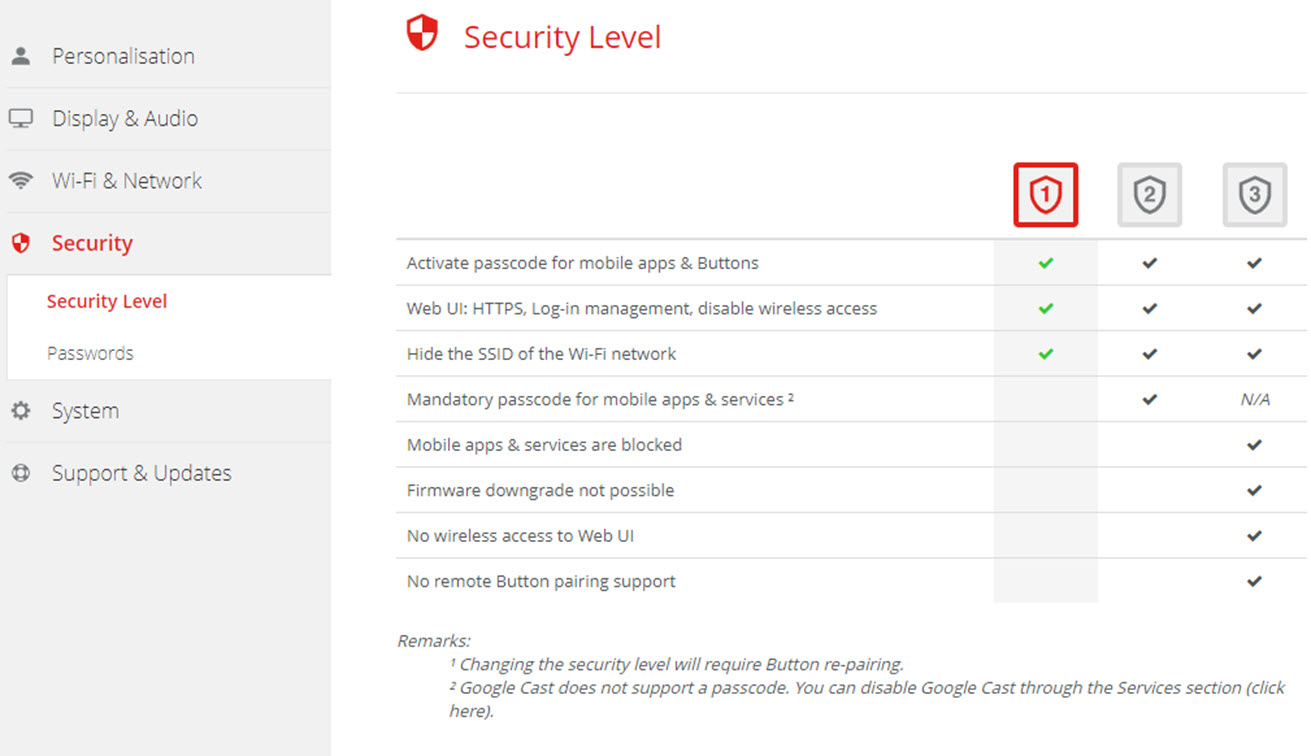
For the use of the ClickShare system, a security level can be set. By default, level 1 is activated. A security level is a predefined set of settings which are automatically set when a level is selected.
Level 1 : offers support for normal day-to-day operations in any organization.
Level 1 contains the standard security options and encryption of audio and video data.
The standard security options are:
- PIN code activation for mobile apps and Buttons,
- ClickShare Configurator (WebUI) access via HTTPS with login management,
- no wireless ClickShare Configurator (WebUI) access and Remote control via APi,
- SSID of Wi-Fi network is hidden.
Level 2 : this level offers a higher degree of security, fit for organizations that are more sensitive to security matters.
Level 2 contains the level 1 security and a mandatory PIN code for mobile devices. Alphanumeric PIN codes for mobile apps and Buttons and the Buttons require a certificate for pairing.
Level 3 : this level is used for organizations that have extremely strict requirements with regards to security.
Level 3 contains the level 2 security extended with blocking of mobile apps, downgrading firmware not possible and no wireless access to the Configurator (WebUI).
When a security level is set, the individual items included in that security level can be changed using the individual item in the Configurator. When changing an individual item the security level indication will be adapted accordingly, but no other settings will be changed automatically.
E.g. when level 3 is set and you change mobile app blocking to allowed, then the security level indication will change to level 2. But all other items initially in level 3 remains in the level 3 state.