5.1 Pairing

Pairing of the Buttons with the Base Unit

To be able to use a Button it should be assigned to the Base Unit you are using. This process is called pairing. By default, the Button(s) delivered with the Base Unit are already paired to that specific Base Unit.

In case you buy additional Buttons or when a Button should be assigned to another Base Unit, the Button needs to be paired (again). The Button software update runs in the background and will not impact users while using the system. When downgrading or updating to an older version of the Base Unit software the Buttons need to paired manually to update their software and that only in case the Button update over Wi-Fi is disabled.

Note: A Button can only be paired to one Base Unit at a time.

The Button will always make connection to the Base Unit it was last paired to.

Pairing a Button can be done in two ways:

To pair a Button to the Base Unit by plugging in
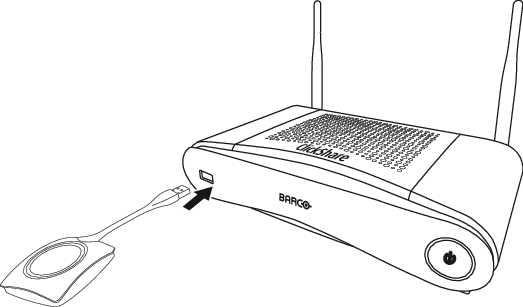
  1. Insert the Button in one of the USB port available on the Base Unit you are using (image is only given as example, all USB connectors can be used).

    Note: For some ports or Buttons, it can be necessary to use a convertor.
    Image 5–1

    Both the LEDs of the Button and the LEDs of the Base Unit are blinking white. This means pairing is in progress.

    The Base Unit automatically checks whether the software of the Button is up to date. If not, the Base Unit updates the Button software. This may take more time.

    During the pairing and update process, a small status bar is display.

    The result of the pairing process can be as follows:

    • When the LEDs become static white, the Button is paired to the Base Unit, but no software update was needed. You can unplug the Button from the Base Unit.
    • When the LEDs become static red, the Button is paired to the Base Unit and the software update has finished. You can unplug the Button from the Base Unit.
  2. Unplug the Button from the Base Unit.

    The Button is now ready for use.

To pair a Button to the Base Unit using the Button Manager

Via the Button Manager client application running on your laptop, up to 4 Buttons can be paired simultaneously to a Base Unit without plugging the Buttons to the Base Unit. The Buttons are plugged in to your laptop. For more information about the Button Manager, consult the Button Manager’s user guide which can be downloaded from Barco’s website.