About a personalized wallpaper
Via the Configurator it is possible to upload personalized backgrounds or wallpapers.
The upload file should be a JPEG, PNG, BMP or TIFF format with a maximum size of 2.5MB.
Maximum 5 wallpaper can be uploaded.

Via the Configurator it is possible to upload personalized backgrounds or wallpapers.
The upload file should be a JPEG, PNG, BMP or TIFF format with a maximum size of 2.5MB.
Maximum 5 wallpaper can be uploaded.
Click → .
The selection pane is shown. The current selected wallpaper is shown with a red border.
Hoover your mouse over the free place and click on Choose image.
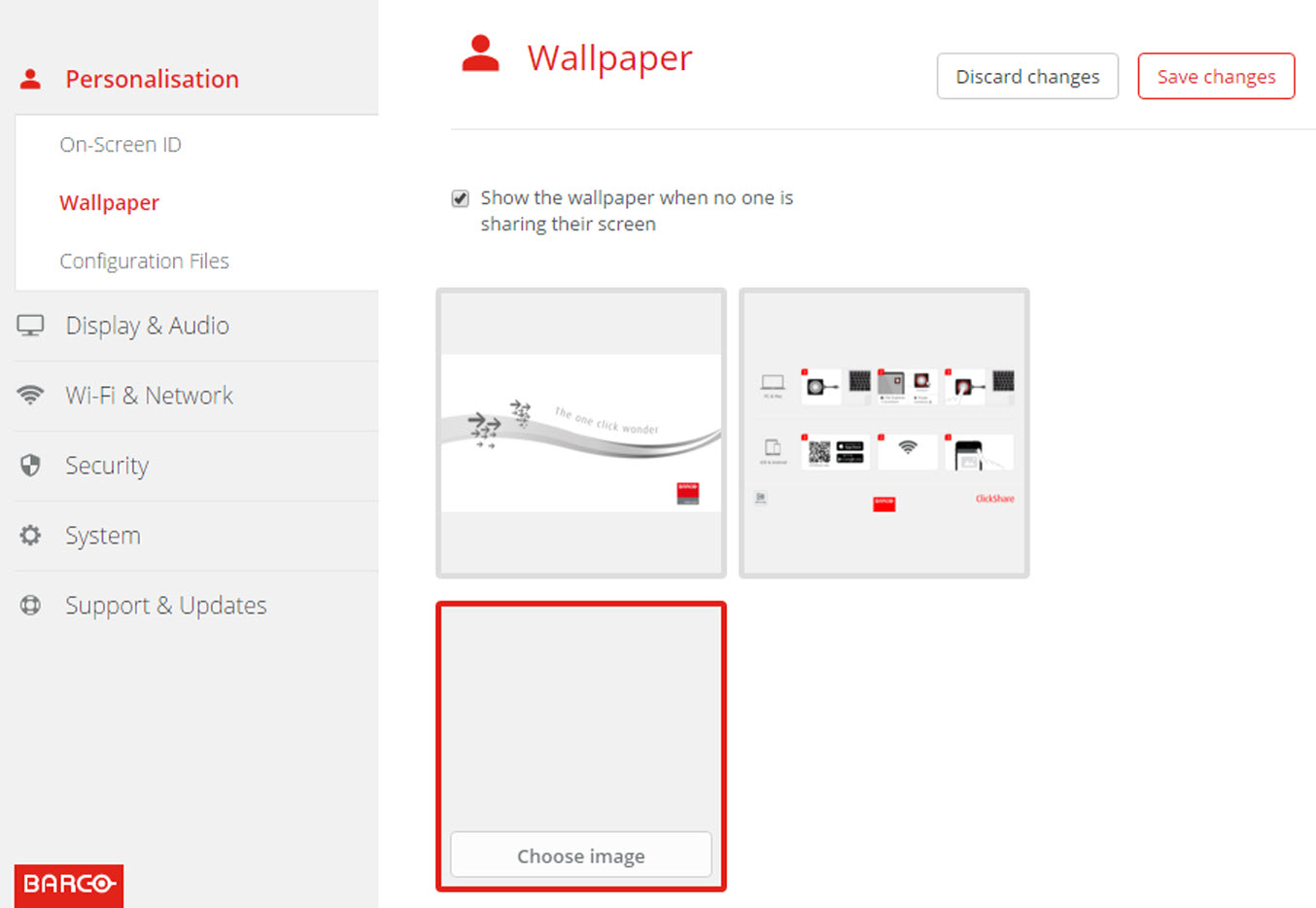
A browser window opens.
Browse for the desired image, click Open to load the image.
The content of the file is checked and when valid (format and size), the file is uploaded. The new wallpaper gets a red border.
Click on Save changes to apply the personalized wallpaper
The message Successfully applied changes is displayed on top of the page.
Hoover your mouse over the current personalized image and click Change image.
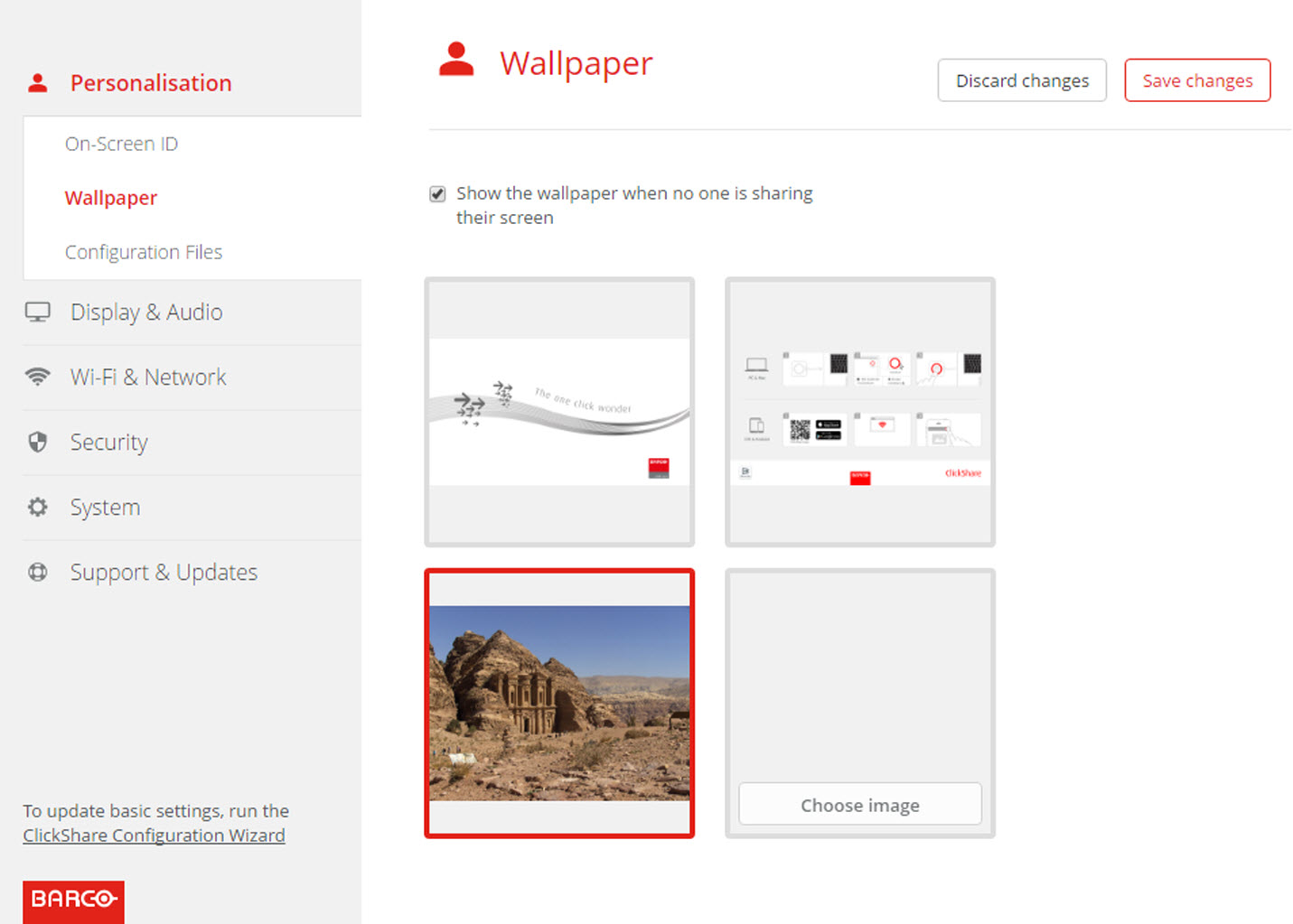
Browse for the desired image, click Open to load the image.
The content of the file is checked and when valid (format and size), the file is uploaded. The new wallpaper gets a red border.
Click on Save changes to apply the personalized wallpaper and replace the previous file.
The message Successfully applied changes is displayed on top of the page.
Hoover your mouse over the current image and click on the trash bin to remove the image.
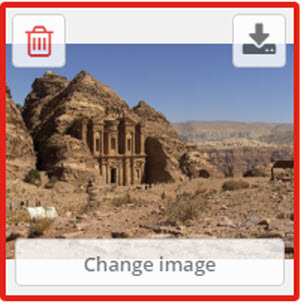
The personalized wallpaper is removed and the default wall paper is activated.