3.6 Audio configuration

Audio configuration

The connected user must control his own audio signal using the audio configuration of his computer. If he does not want to broadcast his audio signal, he has to mute audio on his computer.

For some operating system, it is necessary to set ClickShare as your default output device. Once you unplug the Button, the default setting is switched back to the previous setting.
Set ClickShare as default in Windows 10
  1. Click on the speaker icon in the system tray.

    The current setting opens.

  2. Click on the up arrow in the upper right corner to open the possible selections.
  3. Select Speakers ClickShare.
Set ClickShare as default in Windows 7
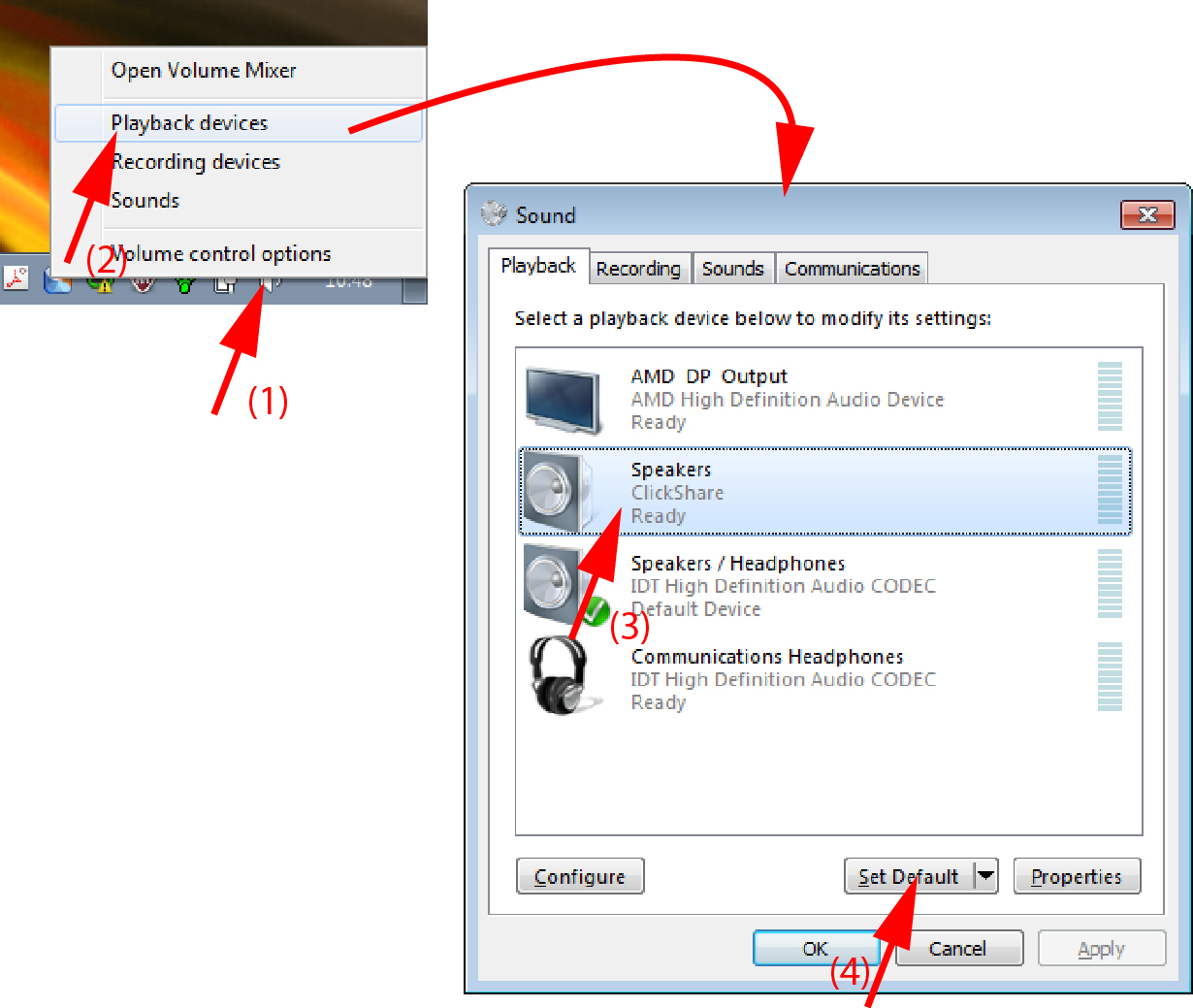
  1. Right click on the speaker icon in the system tray (1).

    Image 3–18 Speakers ClickShare, default (example Windows 7)
  2. Click Playback devices (2).

    The Sound window opens on the Playback tab.

  3. Select Speakers ClickShare (3) and click Set default (4).
  4. Click Apply or OK to activate the new setting.
Set ClickShare as default on MAC
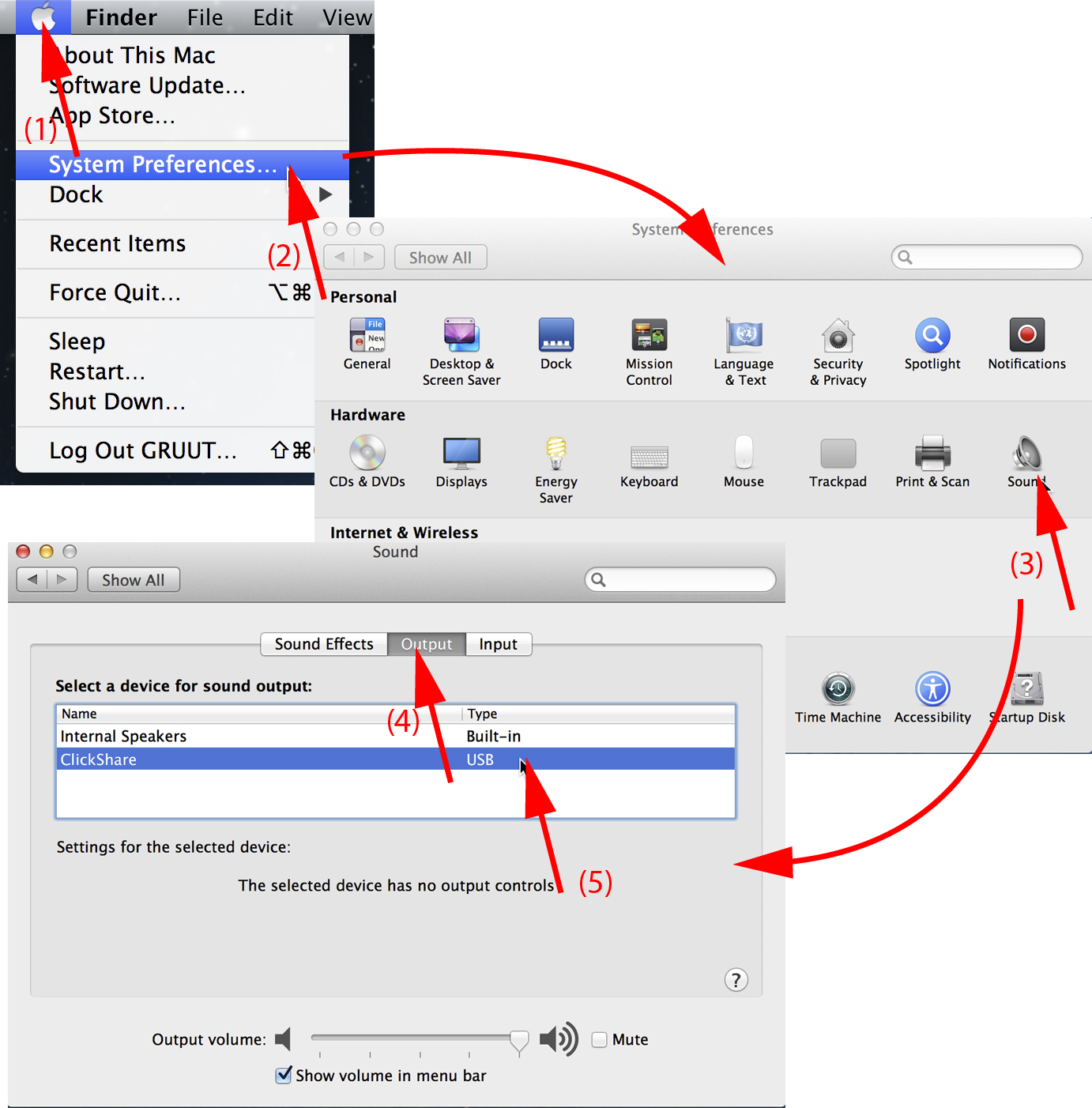
  1. Click on the Apple logo on the menu bar (1) and select System Preferences.. ..(2).

    Image 3–19 Speakers ClickShare, default
  2. Click on the Speaker icon (3).

    The Sound window opens.

  3. Select the Output tab (4) and activate ClickShare (5).
Tip: Short way to select ClickShare as audio device: Click with the mouse on the Speaker symbol in the menu bar while holding ALT. ClickShare will be visible as an option.