2.2 About the Base Unit

Base Unit functionality

The Base Unit receives the wireless input from the Buttons and controls the content of the meeting room display and the sound of the meeting room's audio system.

The Base Unit can be inside a cabinet in the meeting room, or put on the meeting room table or mounted on a wall. Check the Installation Guide for instructions on how to install the Base Unit.
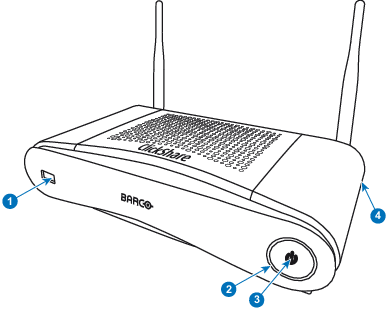
Image 2–2
1USB Type-A port
2Status LED ring
3Standby Button
4Kensington lock
USB Port

The USB port is used to update the software of both the Base Unit and the Buttons.

When plugging in the Button into the Base Unit, the Button is paired to the Base Unit. The Base Unit checks whether the software and firmware of the Button is up to date. If not, the Base Unit updates the software and/or firmware.

Use a convertor to connect a Button with an USB Type-CTM connector to the Base Unit.

Status LED ring

The color of the LED ring around the power button of the Base Unit give information on the status of the system.

LEDs behaviorExplanation
static red
  • receiving content from the Buttons and streaming towards the display.
  • pairing and software update of the Button is done. You can now unplug the Button from the Base Unit.
  • during the first phase of the Base Unit boot process.
blinking white
  • system is starting up (during the second phase)
  • Button pairing is in progress
  • software update of the Base Unit
breathing white
  • ECO standby mode
static white
  • awake and ready (i.e. showing the welcome message on the display)
  • pairing is done
red blinking
  • an error occurred
dark
  • deep standby/off
Power button

The button at the front of the Base Unit has a standby function once the Base Unit is powered.

Bluetooth

Bluetooth functionality is currently not available and Bluetooth signal is disabled.