3.3 Basic Use, with ClickShare desktop app

About the ClickShare desktop app

With the ClickShare desktop app installed on your computer you can enter a meeting room and get on the screen in a few seconds.

The ClickShare desktop app connects to the meeting room screen in order to share your content. Presence detection technology is used to do so. The ClickShare desktop app uses Wi-Fi beacons and an inaudible audio signal to detect the most nearby meeting rooms and show a list of maximum 5 most nearby meeting rooms, sorted based on signal strength on your computer. Just click on your meeting room name. This means you will never have to enter IP addresses or scroll long lists of meeting rooms before being connected to your meeting room.

The ClickShare desktop app can be used with or without a Button.
ClickShare desktop app installation

When the ClickShare desktop app is not pre-deployed in your IT environment, you can download and install the software without administrator rights from www.clickshare.app .

How to use
  1. Enter a meeting room.

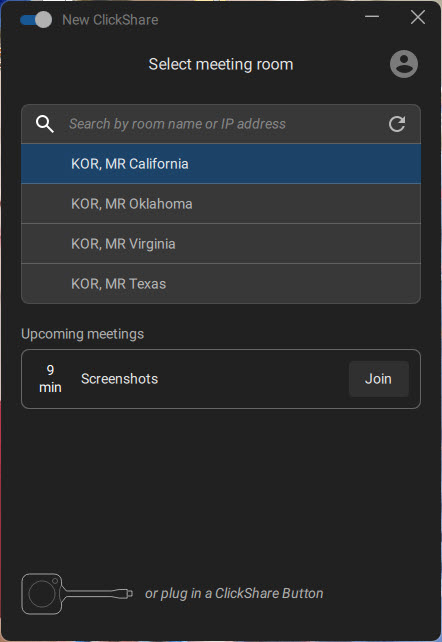
    The ClickShare desktop app will list up to 5 most nearby meeting rooms and sort them based on the signal strength.

    Image 3–7 Meeting room list
  2. Click on the desired meeting room.

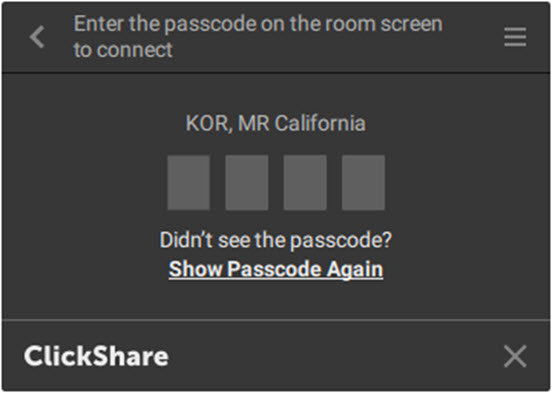
    If the use of a pin is enabled on the Base Unit, the ClickShare desktop app will prompt you to enter the pin that is shown on the meeting room screen.

    Enabling the pin on the Base Unit (this can be done in the ClickShare Configurator) provides an additional layer of security. This way you will never share your content to the wrong meeting room screen.

    Note: In case you did not see the 4 digit pin code on the meeting room screen, then click on “Show Passcode Again” to display the pin code again.
    Image 3–8

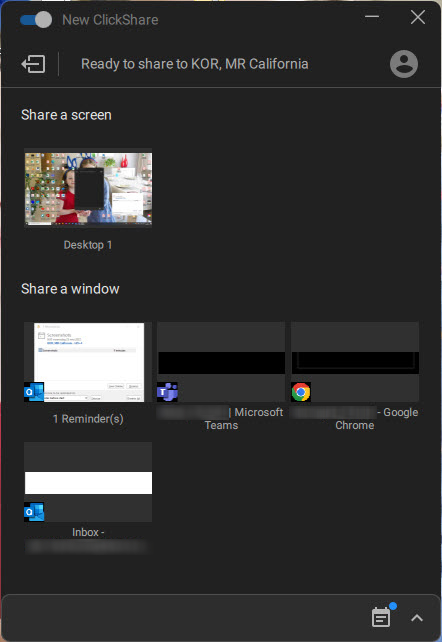
    After having entered the pin, the ClickShare desktop app will connect to the meeting room.

    Image 3–9 Ready to share
  3. Start sharing a display or a window. Click on the desired object you want to share.

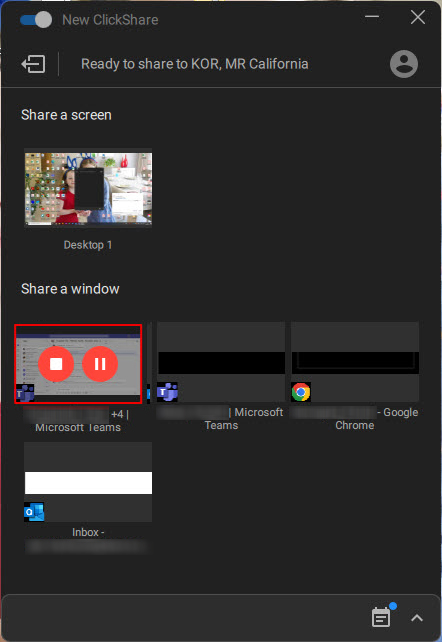
    Image 3–10

    When the sharing is started, a stop sharing and pauze icon is added on the shared window and the ClickShare desktop app will minimize after a while.

    Click on the minimized icon to open the full interface of the ClickShare app.to

    • either pause your sharing session (freeze the content) on the screen while you work on your laptop (invisible for people in the meeting room). Click on the pauze icon (reference 1).
    • stop sharing. Click on the stop sharing icon (reference 2).
  4. Disconnect from the meeting room by clicking the “leave room” icon on the upper left corner.

    or

    when you walk away from the meeting room the app will show a message indicating you probably left the meeting room and you are still connected to the screen.