About shared desktop
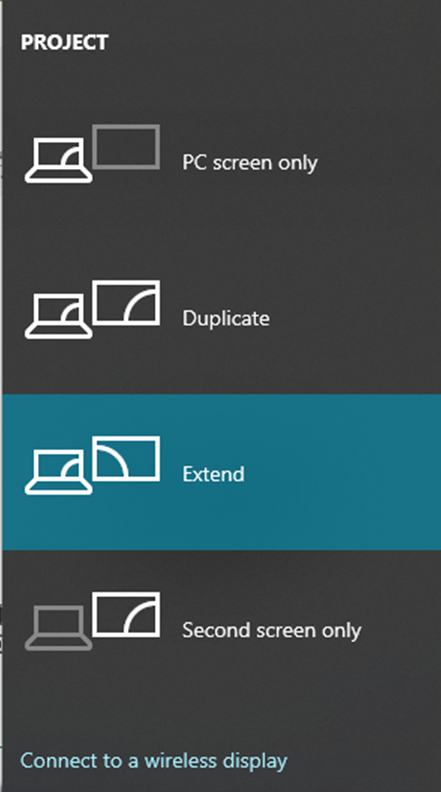
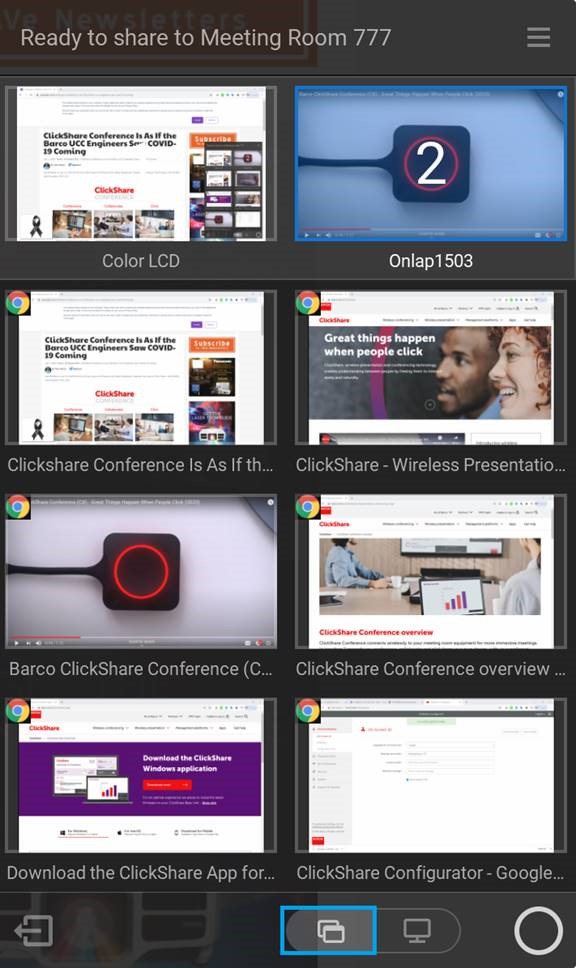
Depending on your selection, your primary screen or your extended screen will be captured and displayed via ClickShare. That extended screen can be a physical screen or a virtual screen.
With extended desktop you can take advantage of both your laptop screen and the central meeting room display. Presentation notes or other material on primary screen will not be displayed to everyone.
PC with virtual extended screen:
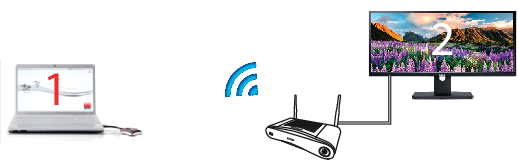
Primary screen displayed on the PC, extended screen displayed on the meeting room display.
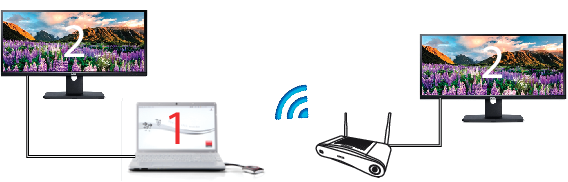
PC with one extended screen connected. That extended screen will be captured and displayed on the meeting room display.
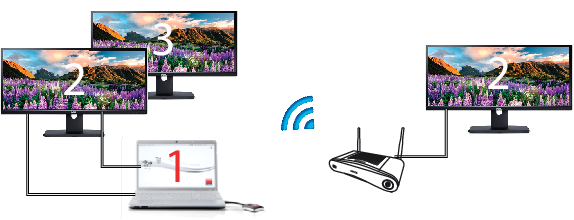
PC with two extended screens connected. The first extended screen, screen 2 will always be captured and displayed on the meeting room display.