3.7 Moderation

About moderation

The moderation functionality was specifically designed for use in larger rooms, with multiple people wanting to share at the same time. To prevent the rapid switching of screens, making the content difficult to follow, a moderator can manually select which content appears on-screen and when, thus ensuring a great experience for all attendees. The different Buttons, apps or legacy equipment are connected with the CSE-800. One participant, the moderator, connected with a Button can take the lead to moderate the meeting. Depending on the display mode he can show up to 4 or 8 contents on the displays. A specific content can be displayed full screen. The moderation function can be switched off at any time, returning the system into ClickShare's normal operating mode, with content being shared upon the click of a Button.
How to start moderation
  1. As moderator of the meeting, click on the menu icon in the ready message to open the hamburger menu.

    A context menu opens.

  2. Select Start Moderation.

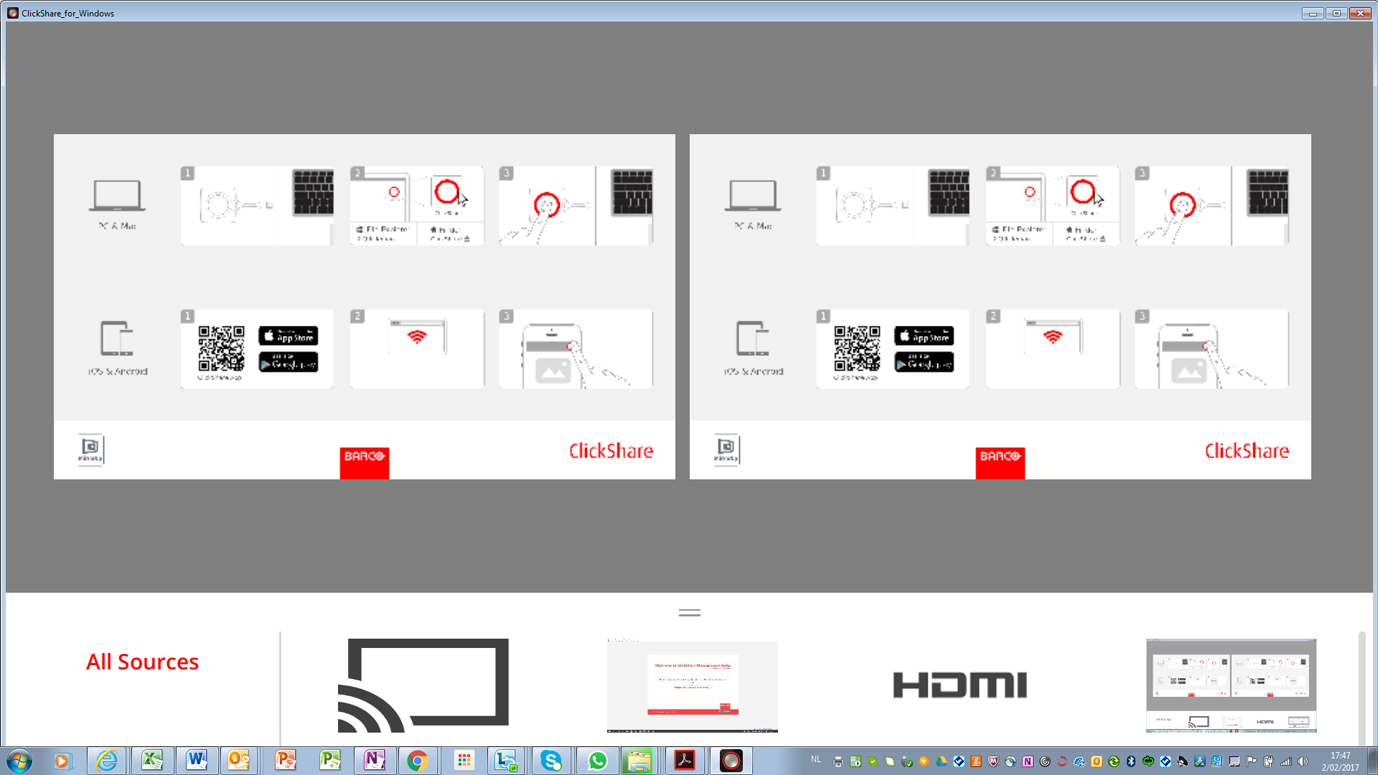
    The moderation application opens on his PC. All shared content is available.

    Image 3–25 Moderation window
  3. To stop moderation, close the moderation window.
About the different panes
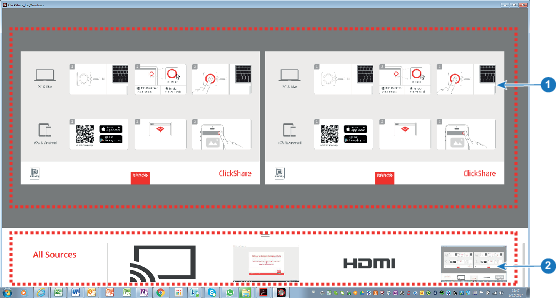
Image 3–26
1Representation of the displays with their current content.
2Sources pane: representation of all connected sources, apps and Buttons. When more than 4 sources are connected, scroll in the source pane to view the additional sources.
How to display a content
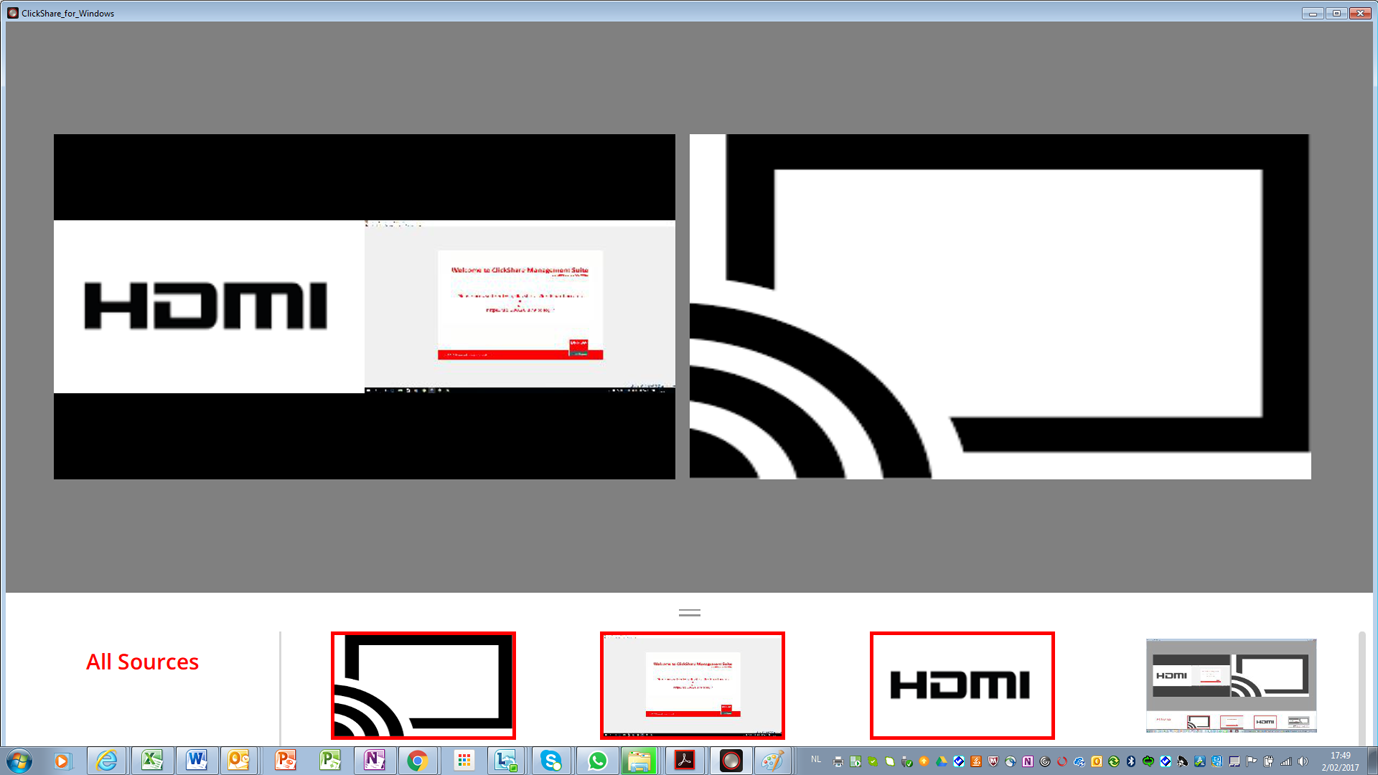
  1. Click on a content in the source pane and drag the selected source on to the screen.

    Image 3–27 Display a content

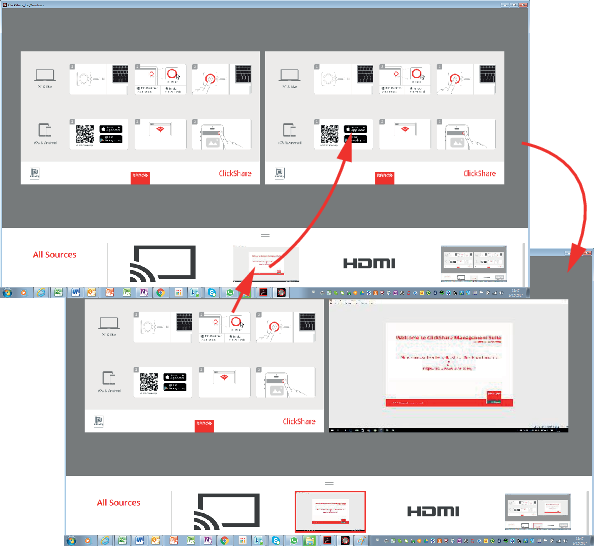
    The content will be automatically displayed on the screen. The displayed source gets a red square around its content. This red square indicates that this source is displayed on the screens.

  2. To add extra sources, click on the source and drag on to the screen.

    Image 3–28 Display multiple contents

    The new added sources are displayed on the screen. The software automatically layouts the different contents on the screen.

How to remove a content from the display
  1. Click on a content in the display view and drag and drop outside the display.

    or

    click on the trash bin when hovering over the source on the display.

How to display a content full screen
  1. Double click on the content to display this content full screen.

    The selected content is displayed full screen and all other content on the screen is removed. All removed content is still available in the source pane.