5.1 Closing the connection

About closing the connection

If the connection between the connected device(s) and ClickShare has been broken or ended abruptly, then the ClickShare system will default back to the wallpaper after some time has passed. No content will remain on screen for long periods of time, however it is still recommended to close the connection properly.

The proper methods to close the connection depend on the connection that was made and are:

Button connection closing
  1. Press the center share button to stop the sharing.
  2. Ensure no more content is being shown on the display and the wallpaper has returned.
  3. Disconnect the Button(s) from their connected device(s).
ClickShare app connection closing
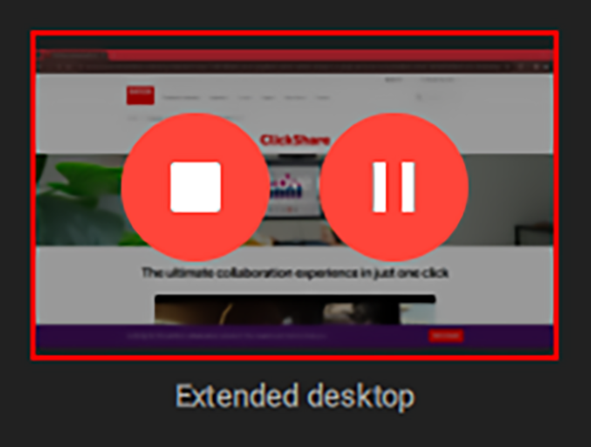
  1. Stop sharing content by pressing the stop icon on the left of the shared screen or window in the app.

    Image 5–1 Example of stop button on a shared screen
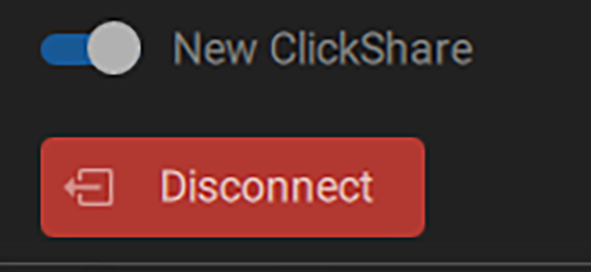
  2. Disconnect from ClickShare by pressing the disconnect button in the upper left corner.

    Image 5–2 Disconnect button
  3. Close the app (optional).