4.3.4 Pre-provisioning

Location and availability
How to modify
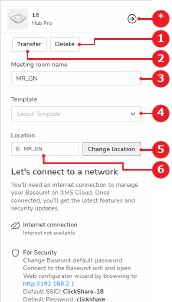
  1. Enter the name of the meeting room where the Base Unit is installed in the input field after Meeting room name (reference 3).

    Image 4–23 Example with location already assigned
    1
    Delete button
    2
    Transfer button
    3
    Meeting room name input field
    4
    Template drop down
    5
    Location tree
    6
    Assigned location label
    *
    Cancel button
  2. Select a template that must be applied to the Base Unit when it comes online from the drop down after Template (reference 4, Image 4–23).
  3. Is a location already assigned?

    • If yes and the location must be changed, click Change location (reference 5, Image 4–23).
    • If no, click Assign location (reference 5, Image 4–23).

    The location tree pop-up is shown.

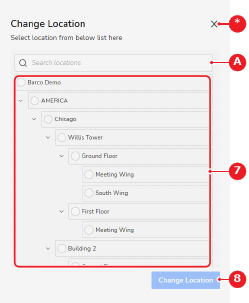
  4. Select the location from the location options (reference 7).

    Note: Start typing characters shared by the applicable location in the search field (reference A). (optional)
    Image 4–24
    A
    Search input field
    7
    Location options
    8
    Confirm button
    *
    Cancel button
  5. Click Change Location or Assign Location (reference 8, Image 4–24).

    The label (reference 6, Image 4–23) after Location is added or updated with the name of the new location.