4.3.7 Export

Location and availability
About export

Exporting enters all selected data about the Base Unit devices waiting to be linked in an export file.

How to export
  1. Click Export (reference 1).

    Image 4–31
    1
    Export button
    2
    Base Unit selection check boxes
    3
    Base Unit search input field

    A confirmation pop-up is shown.

  2. Select the information that must be included.
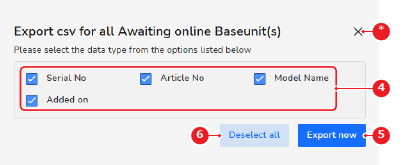
    • Click Deselect all or Select all (reference 6) to adjust all data types
    • Check the check box (reference 4) in front of the data type that must be included.
    • Uncheck the check box (reference 4) in front of the data type that must be excluded.
    Image 4–32
    4
    Data type options
    5
    Export button
    6
    Select all or deselect all button
    *
    Cancel button
  3. Click Export now (reference 5, Image 4–32).

    A pop-up is shown.

  4. Save the .csv in an easy-to-find location using the pop-up.
