4.8.2 Search

Location and availability
How to search
  1. Must the Control Panel devices share a common location to be included in the search?

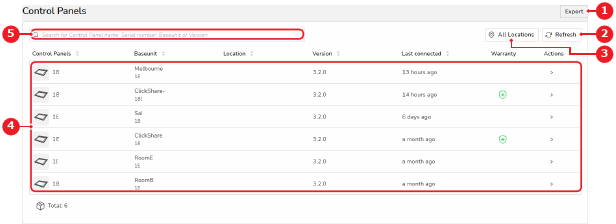
    • If yes, click on All Locations (reference 3). Go to next step.
    • If no, go to step 3.
    Image 4–57
    1
    Export button
    2
    Refresh button
    3
    Location tree overview
    4
    Control Panel list
    5
    Control Panel search box
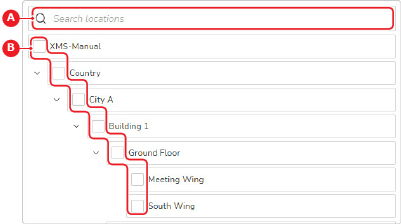
  2. Select the locations that must be included or excluded.

    Tip: If all locations must be used, uncheck every option in the locations pop-up menu.
    • Check the check box (reference B) in front of locations that must be included.
    • Uncheck the check box (reference B) in front of locations that must be excluded.
    Note: Start typing characters shared by the applicable location in the search field (reference A). (optional)
    Image 4–58
  3. Start typing characters shared by the applicable Control Panel devices in the search field (reference 5, Image 4–57). Use one of the following categories:

    Tip: The search applies to the list dynamically. For each entered character, the list is updated.
    • Control Panel name
    • Control Panel serial number
    • Base Unit name
    • Firmware version