4.3.6 Delete

Location and availability
How to delete
  1. Must multiple devices be deleted?

    • If yes, select all devices. For more information, see “Search and select”.
    • If no, click Quick View icon of the device.
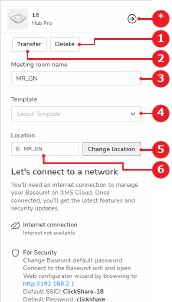
  2. Click Delete (reference 1).

    Image 4–28 Single device with assigned location
    1
    Delete button
    2
    Transfer button
    3
    Meeting room name input field
    4
    Template drop down
    5
    Location tree
    6
    Assigned location label
    *
    Cancel button
    Image 4–29 Multiple devices
    1
    Delete button
    2
    Transfer button
    *
    Cancel button

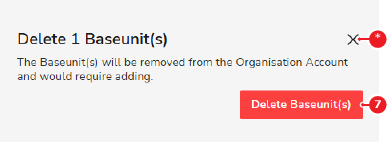
    A confirmation pop-up is shown.

  3. Click Delete Base Unit (reference 7).

    Image 4–30
    7
    Confirm button
    *
    Cancel button

    All selected Base Unit devices are removed from XMS Cloud.