Location and availability
- Menu:
 >
> 
- Base Unit: C-5, C-10, CX-20, CX-30, CX-50, C-5 Gen2, C-10 Gen2, CX-20 Gen2, CX-30 Gen2, CX-M, CX-50 Gen2, CB Core, CB Pro, Hub Core, Hub Pro
 >
> Must multiple devices be transferred?
 icon of the device.
Click  (reference 2).
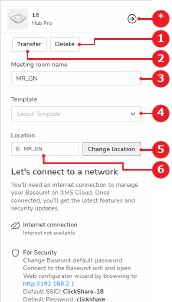

A transfer pop-up is shown.
Select the target organisation from the drop down (reference 7).
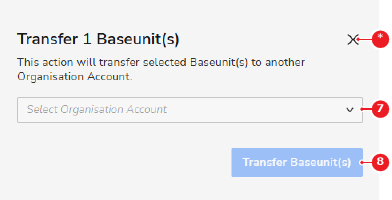
Click (reference 8, Image 4–27).
All selected Base Unit devices move to the page of the target organisation.