7.8.1 Firmware update

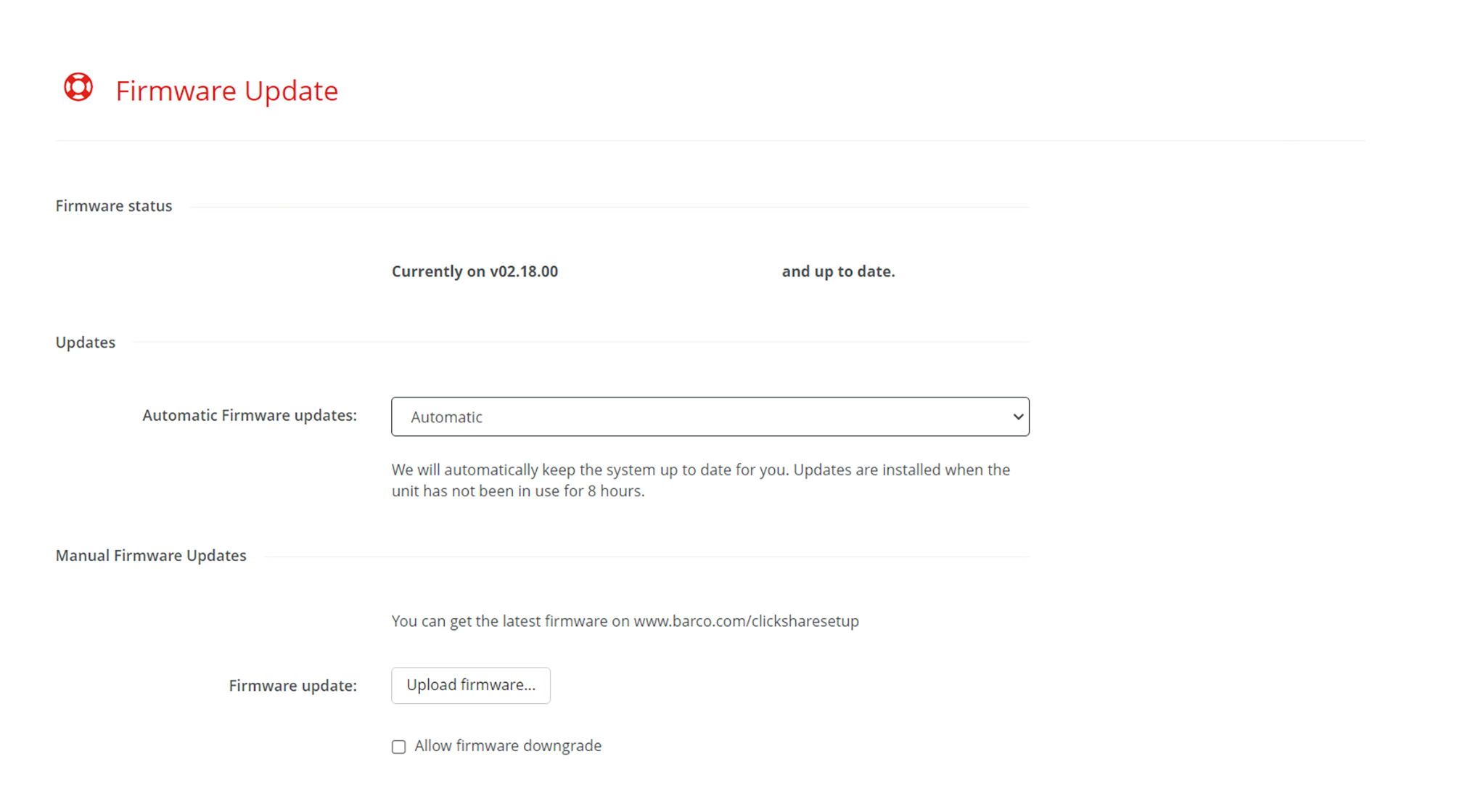
About Firmware update

Manage and review the status of the Base Unit firmware. The Base Unit firmware will also update the firmware of the Button(s) when (re)pairing. It is strongly advised to (re)pair the Button(s) when the Base Unit has been updated. For more information, see “Pairing the Button(s)

Image 7–54 Example of the firmware updates
How to manage automatic updates

Depending on the local setup different methods of updating the firmware can be preferred. There are three methods available:

Note: Automatic updates requires traffic to be allowed through the firewall. For more information, see https://www.barco.com/en/support/docs/TDE10396.

If the Base Unit is configured to use a proxy server, then the traffic will route through the proxy server. For more information on how to configure the Base Unit to work with a proxy server, see “LAN settings”.

Select the desired method from the drop-down list after “Automatic Firmware updates”.

Manually up/downgrading firmware
  1. Download the desired firmware from the Barco website.
  2. Unzip the package and save the “.enc” update file in a location that is easily accessible.
  3. Is the desired firmware lower than the currently installed firmware?

    • If no, continue with next step.
    • If yes, check the checkbox in front of “Allow firmware downgrade”.
    Note: Only downgrade the firmware if absolutely necessary!
  4. Click the push button with the text “Upload firmware...”.

    The explorer will be opened to navigate to the “.enc” file location.

  5. Wait for the update to be fully installed.

    The Base Unit will be restarted once the update has been completed.

  6. Pair the Button(s) to update them to the same software as the Base Unit. For more information, see “Pairing the Button(s)”. (recommended)

    Tip: The Button will automatically be updated when connected to a device that is not sharing.