Tip: Sharing will be enhanced by combining the use of a Button with the ClickShare desktop app!
About desktop sharing
There are two ways of sharing content through the desktop app:
Sharing a window or application
Sharing a screen
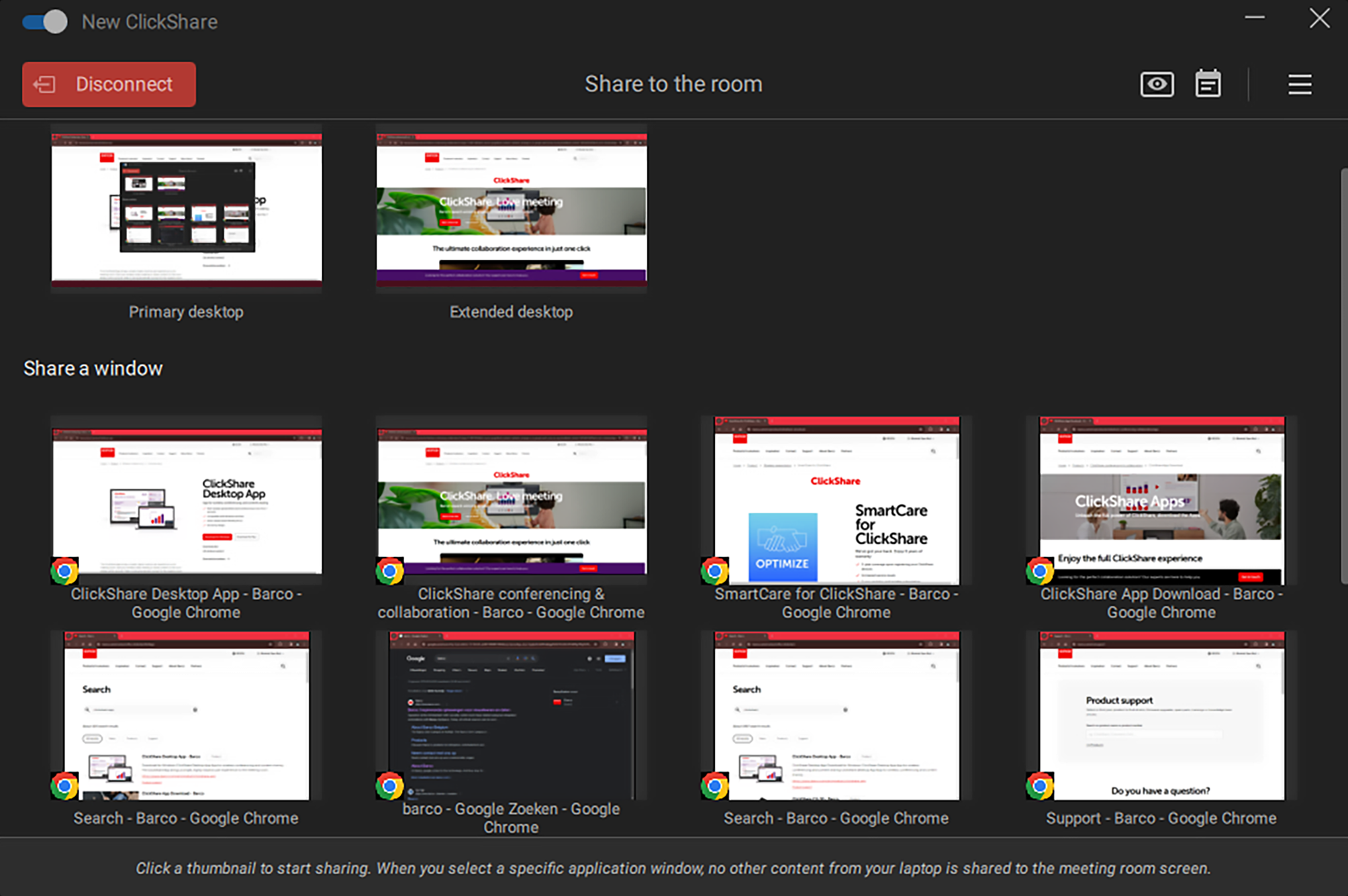
Click on the thumbnail of desired screen or application to start sharing the selected content to the meeting room monitor(s) in real time. It is possible to switch between sharing different screens or applications at any time by clicking on another thumbnail.
Image 4–17Example of the sharing window
Preview display(s)
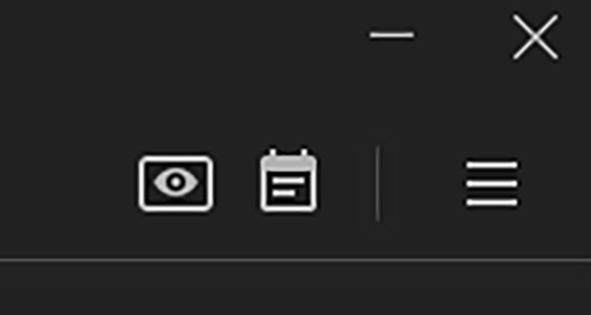
If local view is enabled on the Base Unit an eye icon in the upper right corner will be present. Clicking the eye icon will pop-up a preview window. This window will show what is currently being displayed on the meeting room monitor(s).
Note: Preview cannot be used while content is being shared, for security reasons.
Note: For more information on how to toggle local view, see the installation manual of the Base Unit: https://www.barco.com/support.
Image 4–18Preview icon located on the left
How to share single screen
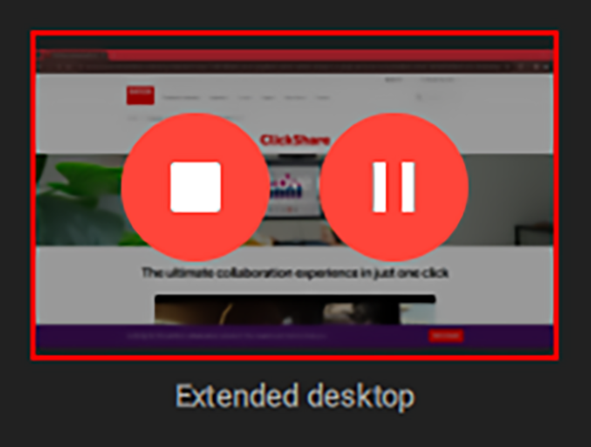
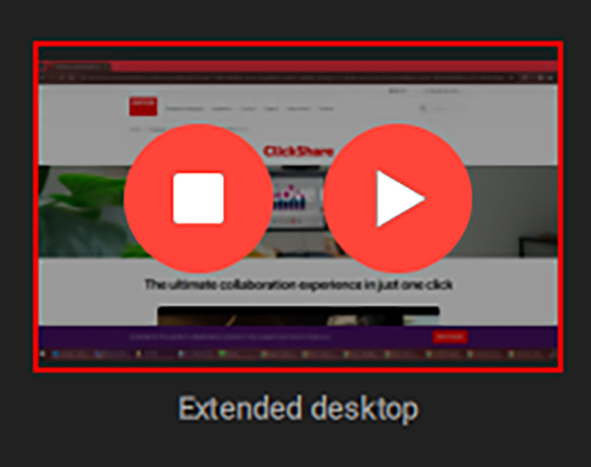
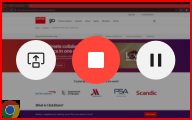
The currently shared window or application will get a red border and two advanced options as overlay:
Stop sharing: disconnects the sharing functionality.
Pause / resume sharing: will freeze / resume content that is being shared on the meeting room monitor.
Image 4–19Example of window being sharedImage 4–20Example of shared window being paused
If multiple devices are sharing at the same time, then the content will be resized and distributed across the meeting room monitor.
How to share dual screen
When sharing to two displays, two options will be available:
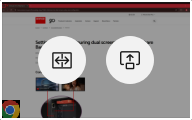
Side by side
Take over display
Image 4–21
The first window or desktop being shared will be displayed on both displays. Clicking on another window or desktop will give the two options again and depending on the choice something different will happen:
Clicking Take over display will show the window or desktop on both displays.
Clicking Side by side will show the original on the primary display and the newly selected option on the secondary display.
Content that is being shared can:
Take over both displays
Stop per monitor
Pause per monitor
Tip: To share another window or desktop, one of the shared content must be stopped or the new window or desktop must take over both screens.