10.4 Aspect Ratio

Aspect ratio
Relation between the horizontal & vertical dimension in which the window will be displayed, e.g. 4 by 3 or 16 by 9. Can also be expressed as a decimal number, such as 1.77. The larger the ratio or decimal, the wider the image (or the less the image is squared).
What can be done?

The aspect ratio setting forces the projector to project an image using a defined aspect ratio.

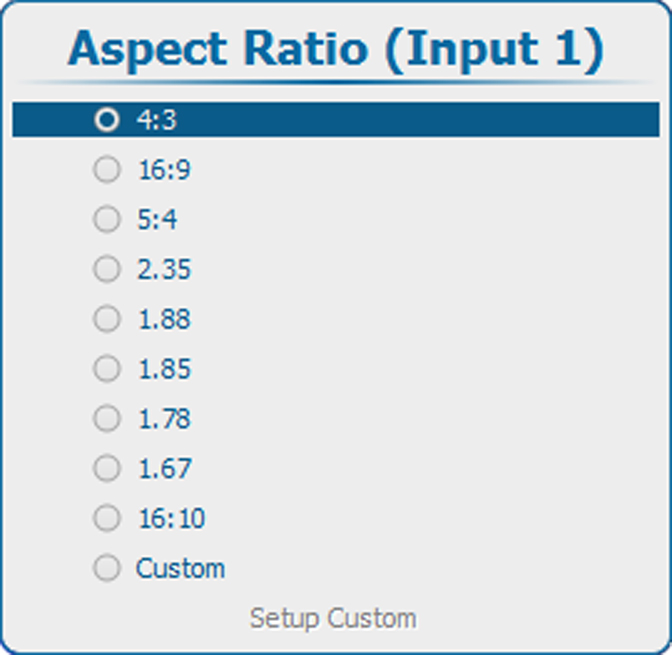
Aspect ratioDescription
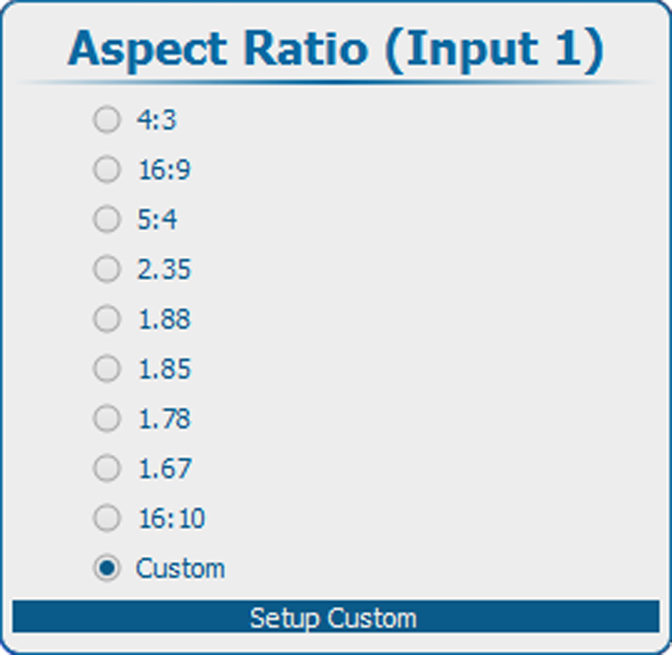
4:3Standard television format
16:9Wide screen television format / anamorphic format
5:4Workstation format
2.35Film format
1.88Digital cinema 2K aspect ratio
1.8535 mm US and UK wide screen standard film format
1.78Wide screen television format / anamorphic format
1.67European film ratio (also 1280x768)
16:10Wide screen cinema format (WUXGA format)
CustomAny custom format can be set up

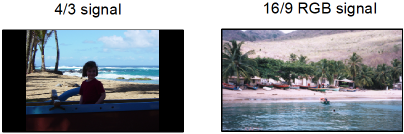
Some example images:

Image 10–47 Example images aspect ratio
How to set
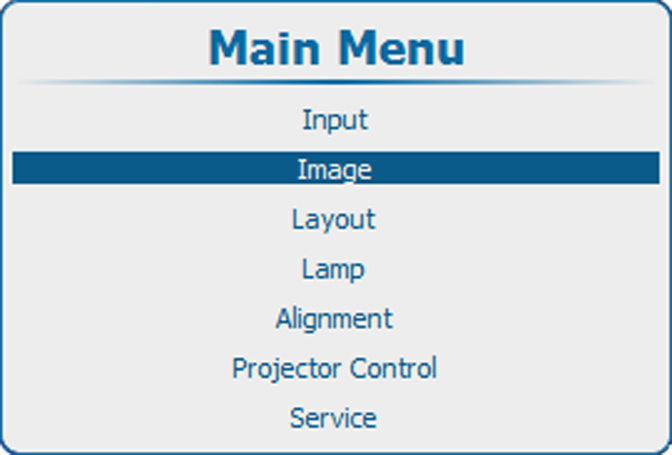
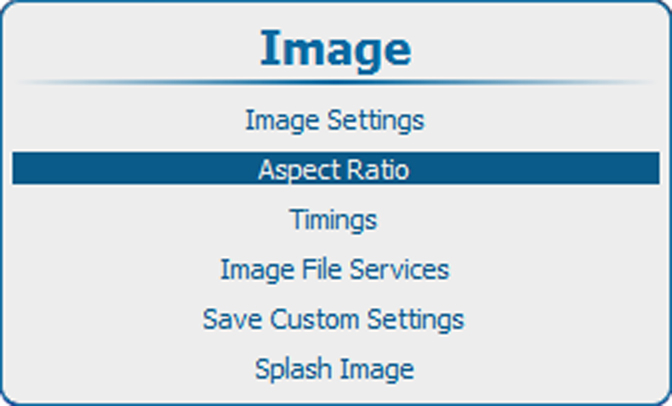
  1. Press Menu to activate the menus and select ImageAspect Ratio.

    Image 10–48 Main menu, Image
    Image 10–49 Image, aspect ratio
  2. Press ENTER to select.
  3. Use the ▲ or ▼ key to select the desired aspect ratio.

    Image 10–50 Aspect ratio
  4. Press ENTER to activate.
How to set up the custom aspect ratio
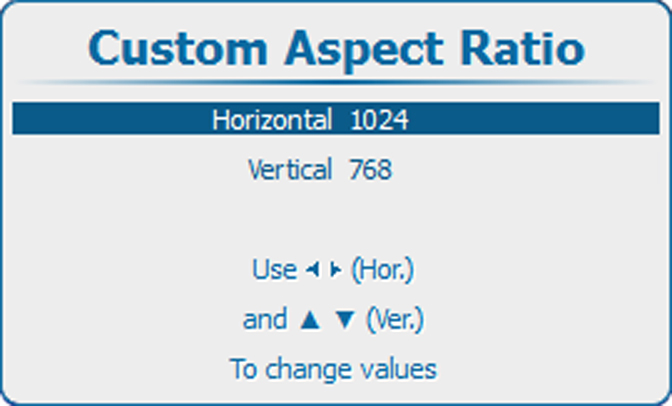
  1. While Custom is selected, use the ▲ or ▼ key to select Setup Custom and press ENTER.

    Image 10–51 Custom aspect ratio
    Image 10–52 Custom aspect ratio adjustment

    The custom aspect ratio setup menu opens.

  2. Use the ▲ or ▼ key to adjust the vertical size (height) of the image.

    Use the or key to adjust the horizontal size (width) of the image.