Purpose
2 functions are available
- Custom settings can be saved on a USB stick.
- A selection of saved settings can be (down)loaded via an USB stick on the projector.

2 functions are available
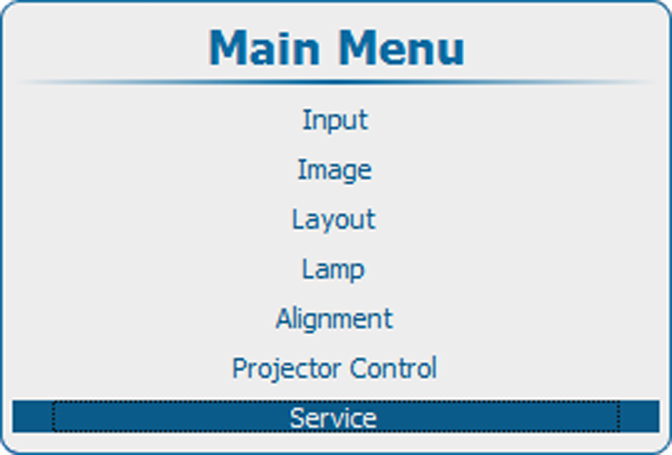
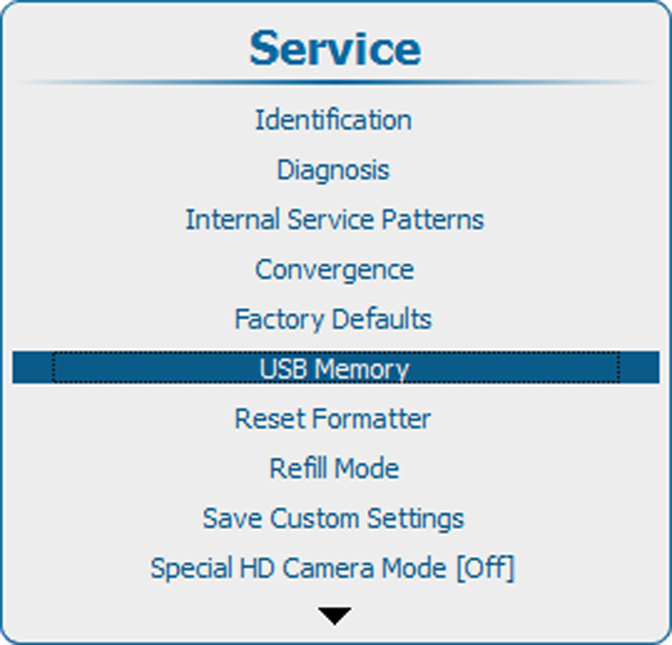
Press Menu to activate the menus and select → .
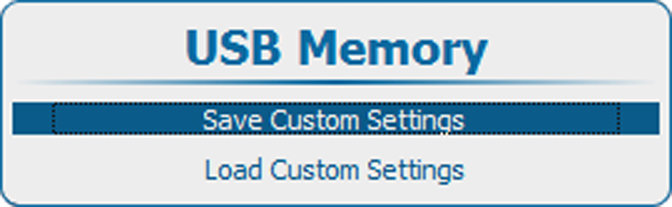
Select and press ENTER to download this set.

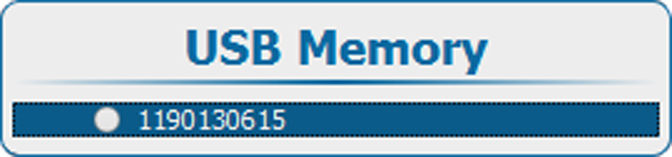
The name of the custom settings files contains the serial number of the projector from which ti is downloaded.
Press Menu to activate the menus and select → .
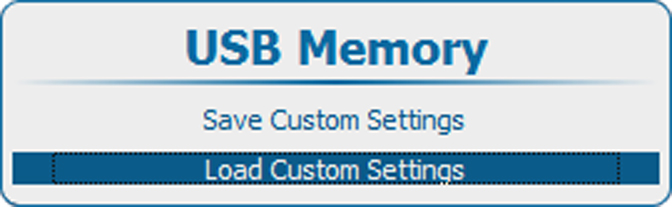
Select and press ENTER.
An overview of the available sets of custom settings is given.