13.8.10 Selecting and changing the position of a specific point

About point selection

Depending on the warp level, number of selectable points, a specific point can be selected and moved in any direction. The coordinate system works with 33 x 33 pixels (0 to 32). Depending on the warp level the cursor will jump from active point to active point.

E.g. for 5 x 5 the first point has coordinates (0,0), the second point in horizontal direction will have coordinates (12,0), etc. .
How to select a point
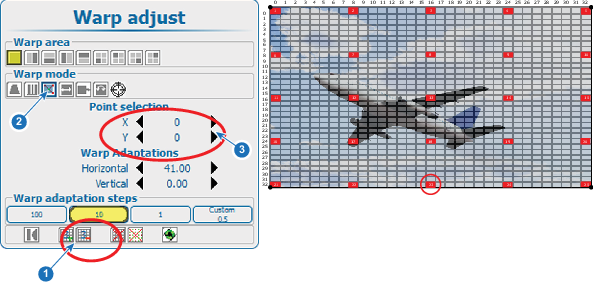
  1. Select the warp level (1).

    Image 13–46 Point selection
  2. Select Warp mode points (2).
  3. Use the ▲ or ▼ key to go to Point selection.
  4. Select alternating the X and Y coordinate and change the value (3).

    or

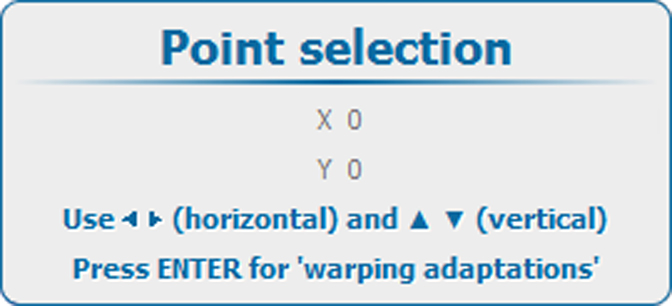
    press ENTER to open the point selection window.

    Use the 4 arrow keys to select the desired point.

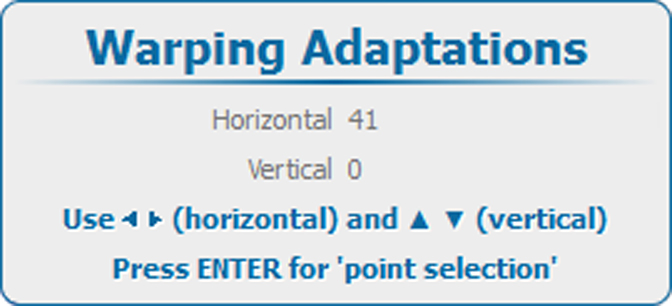
    Press ENTER to the Warping adaptations.

    Image 13–47 Point selection
    Image 13–48 Moving selected point
  5. Use the 4 arrow keys to change the position of the selected point.