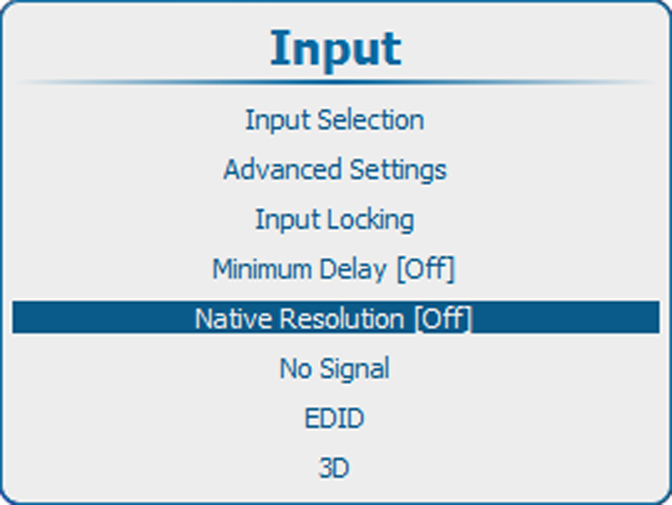
What can be done
The aim here is to always show the resolution of the source independently of the resolution of the DMD panels.
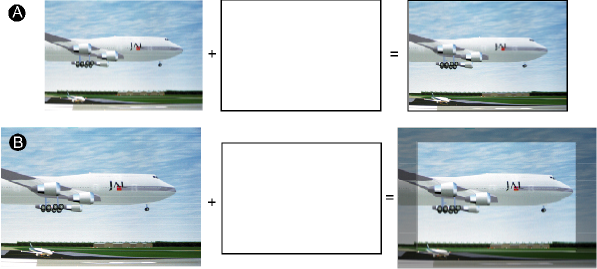
When the resolution of the source is exactly the resolution of the DMD panels, then the full content will be shown on the full DMD (A).
When the resolution of the source is higher than the resolution of the DMD panels, then only part of the image will be shown (B)
When the resolution of the source is lower than the resolution of the DMD panels, then the full image will be shown but only on part of the DMD is used.
When the function is in the ON position, the projector handles the source as follows:
| Source | Projected image | ||||
| Name | Ratio | Resolution | Ratio | Resolution | |
| XGA | 4:3 | 1024x768 | 4:3 | 1024x768 | image projected with black borders |
| SXGA | 5:4 | 1280x1024 | 5:4 | 1280x1024 | image projected with black borders |
| SXGA+ | 4:3 | 1400x1050 | 4:3 | 1400x1050 | image projected with black borders |
| UXGA | 4:3 | 1600x1200 | 4:3 | 1600x1200 | image projected with black borders left and right. |
| WUXGA | 16:10 | 1920x1200 | 16:10 | 1920x1200 | normal image projected |