13.13 Color space

Color space
A color space or color standard is a mathematical representation for a color. For example the RGB color space is based on a Cartesian coordinate system.
What can be adjusted ?

The color space (gamut), the collection of colors which can be reproduced by the projector, can be adjusted to 4 predefined stored values (one projector specific, 2 international standards and one custom preset). A temporary custom adjustment is possible. The maximum color space which can be displayed is the projector color space. This color space is measured at the factory and stored inside the projector.
How to select a color standard
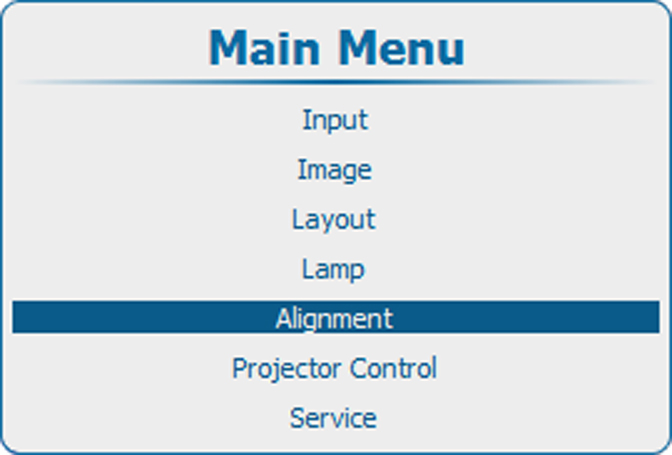
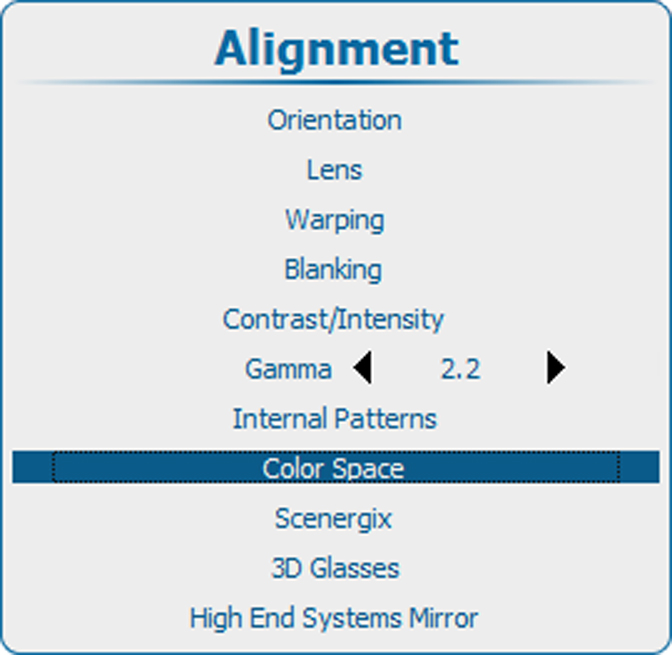
  1. Press Menu to activate the menus and select AlignmentColor Space.

    Image 13–113 Main menu, alignment
    Image 13–114 Alignment, color space
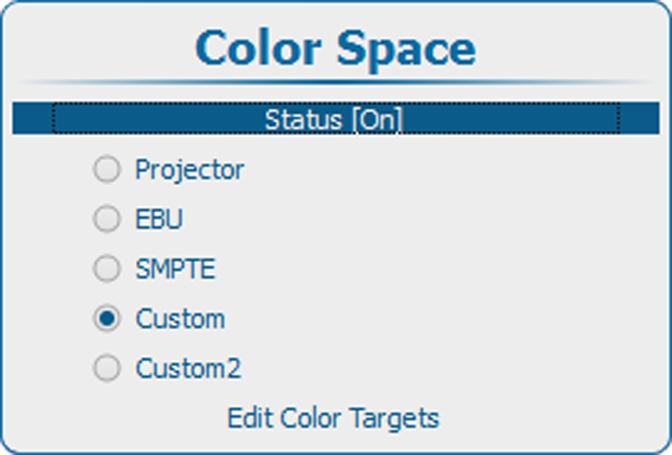
    Image 13–115 Color space
  2. Select Status and press ENTER to toggle between [On] or [Off].

    [On] : projector will use the selected color space.

    [Off] : projector will always use the Projector color space.

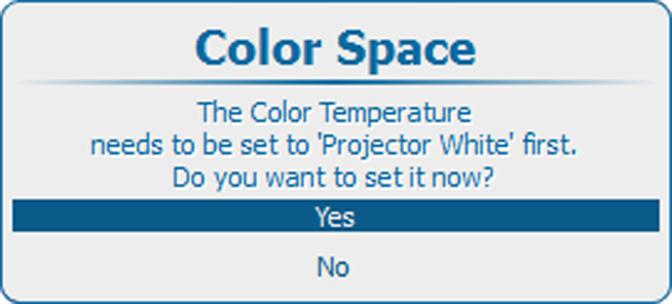
  3. When [On] is selected, depending on he color temperature setting a color space request window opens. The color temperature setting must be set to Projector White.

    Click Yes to continue.

    Image 13–116 Color space — confirmation
  4. When [On] is selected and the color temperature is correct, use the ▲ or ▼ key to select the desired color space and press ENTER to select.

    ProjectorMaximum color space
    EBUEuropean Broadcasting Union. This organization defines a European standard.
    SMPTEAmerican standard.

    Custom

    Custom2

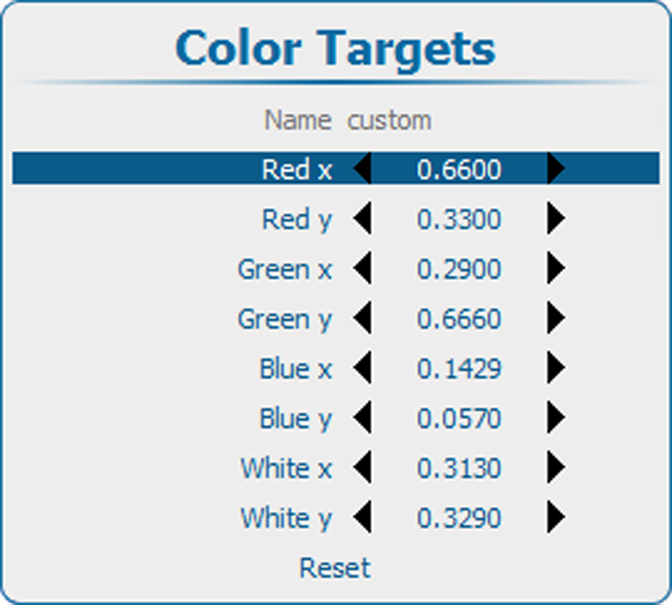
    The user can define the x and y coordinates for red, green and blue which forms the corners of the color space. By changing the coordinates, the color reproduction can be changed.
Edit color targets

Color targets will be used when Custom or Custom2 is selected.

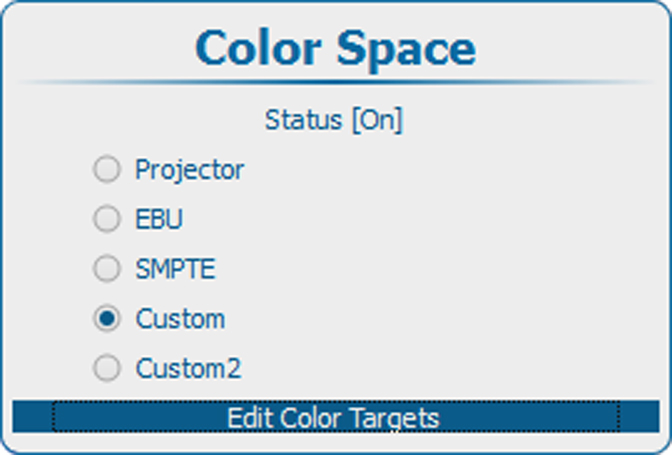
  1. Select Edit Color Targets and press ENTER.

    Image 13–117 Custom, color targets
    Image 13–118 Color targets
  2. Use the ▲ or ▼ key to select a color coordinate.

    Use the or key to change the value of the selected coordinate.

    Adjust all other coordinates in the same way.

Note: Select Reset to return to previous saved values.