What can be done ?
All custom image files can be deleted by executing a single command. Be aware that an active file can’t be deleted.


All custom image files can be deleted by executing a single command. Be aware that an active file can’t be deleted.
Press Menu to activate the menus and select → → .
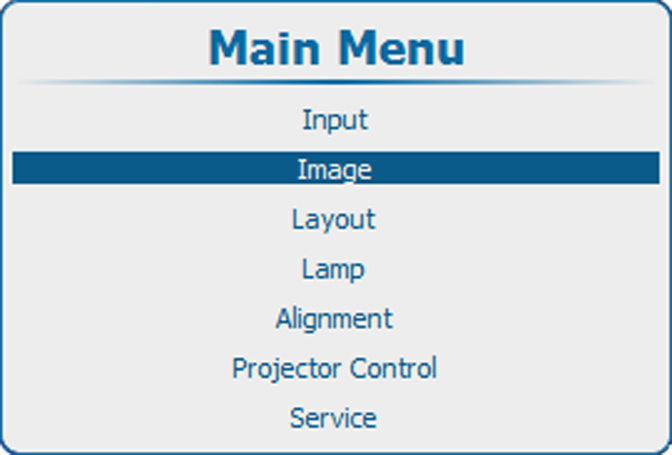
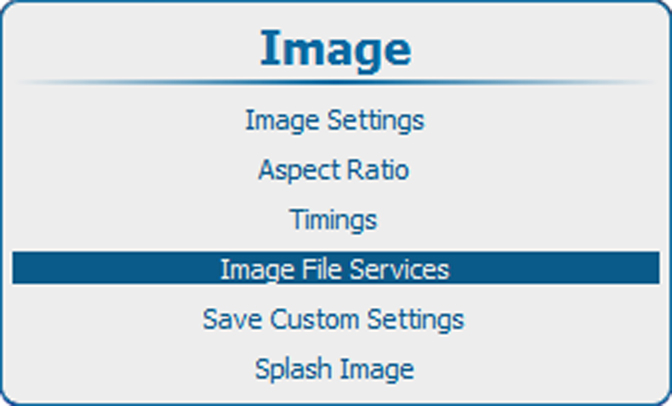
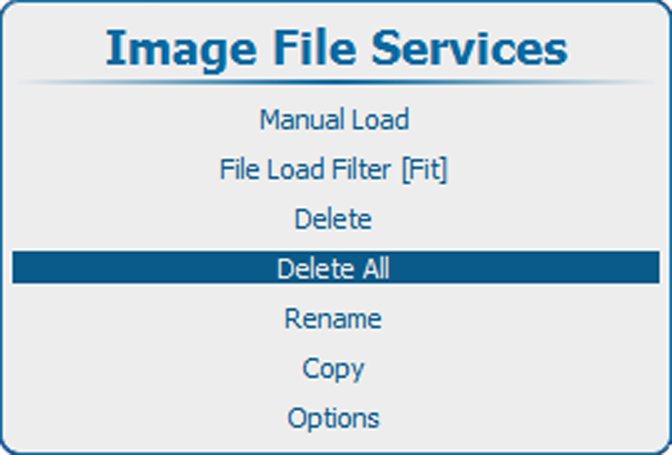
If no custom files are available, a message that no custom files are available is displayed.
Use the ▲ or ▼ key to select or .
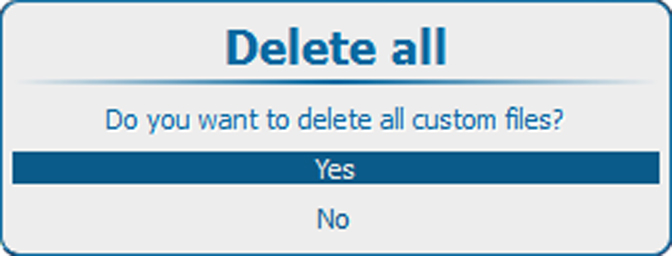
If is selected, press ENTER to delete all custom files.
If is selected, press ENTER to return to the menu without deleting any custom file.