11.4.4 PiP window, Size

What can be done?

The width and height of the picture in picture window can be changed till the desired dimensions are obtained.
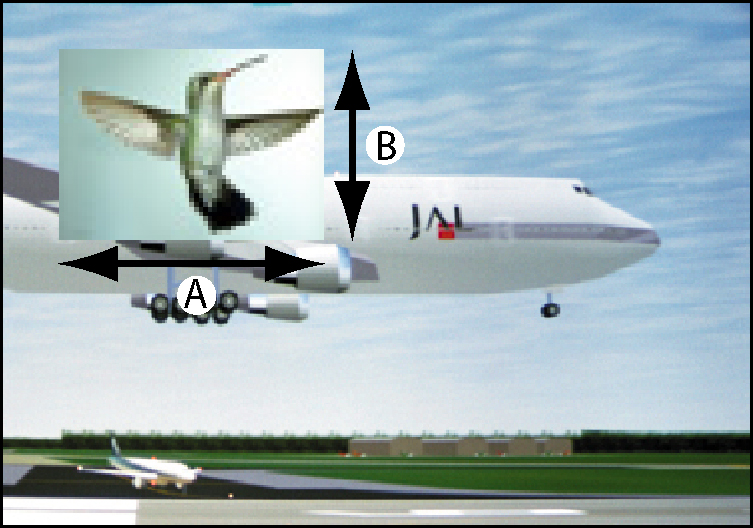
Image 11–26 Size PIP window
A
Width PIP window
B
Height PIP window

The size of the picture in picture window can be changed with respect to the original aspect ratio of the PIP image.

Remark: During adjustment of the window size, scaling artifacts can be visible.
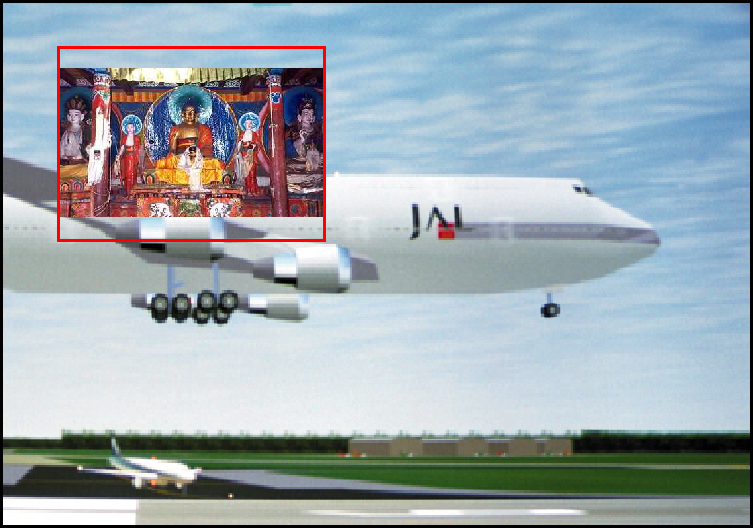
Image 11–27 Size PIP window remark
How to resize
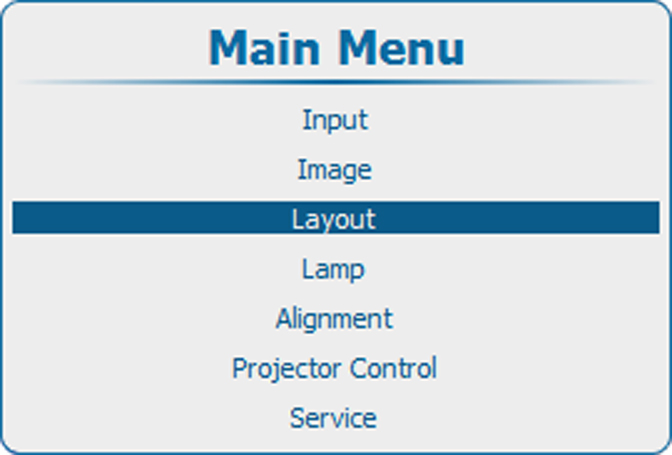
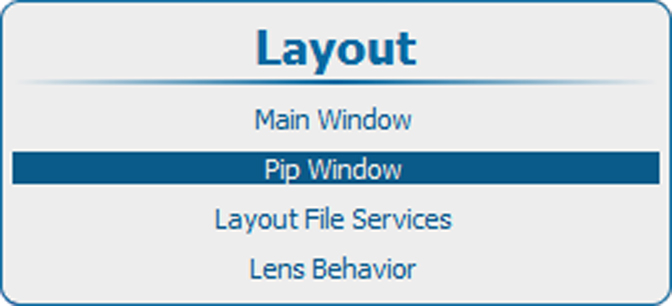
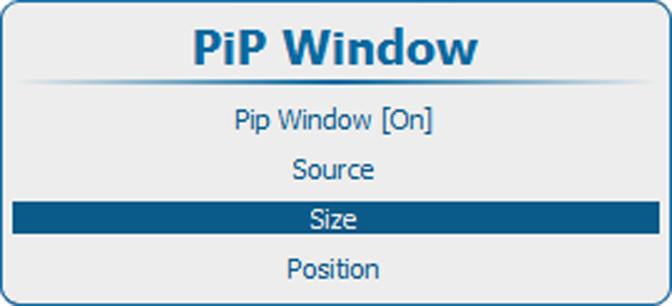
  1. Press Menu to activate the menus and select LayoutPiP windowSize.

    Image 11–28 Main menu, layout
    Image 11–29 Layout, PiP Window
    Image 11–30 PiP window, size
  2. Press ENTER to select.

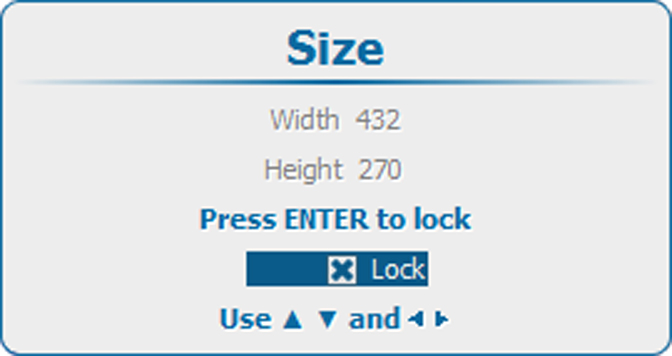
    The Size window opens.

    Image 11–31 PiP window, resize
  3. To keep the current aspect ratio, press ENTER to check Lock.

    Once Lock is checked, the width and the height will follow each other when changing one of the dimensions.

  4. Use the ▲ or ▼ key to change the height and the or key to change the width.
  5. When the desired size is reached, press EXIT.

    A Save Layout window opens.

    Image 11–32 Save layout
  6. Use the ▲ or ▼ key to select Yes and press ENTER to save.

    Select No if you want to quit without saving the current position.