Description
Selecting the Standard EDID file or an own created file can be selected from the list of Custom EDID files for the input.

Selecting the Standard EDID file or an own created file can be selected from the list of Custom EDID files for the input.
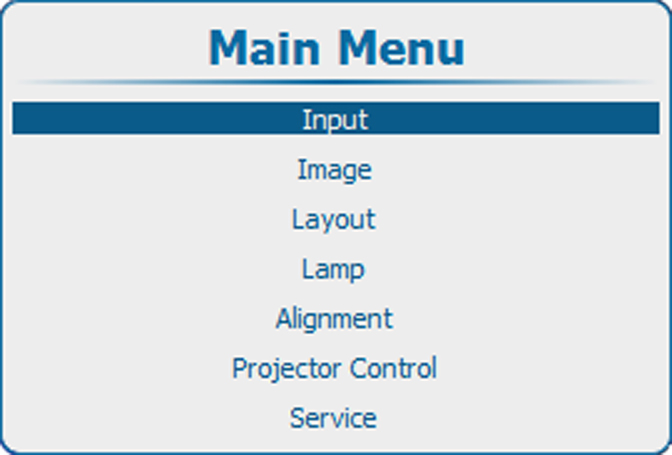
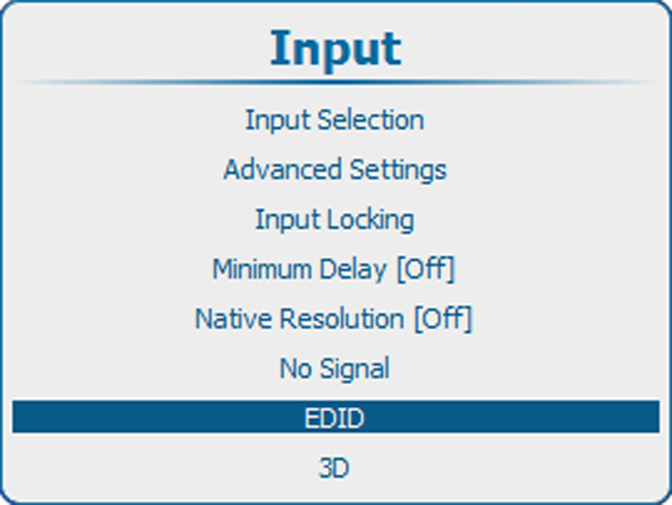
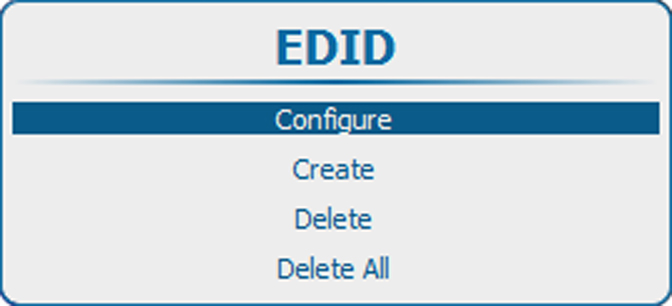
Press ENTER to open the EDID configuration menu.
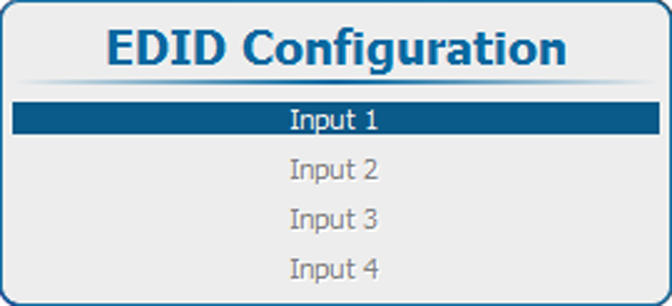
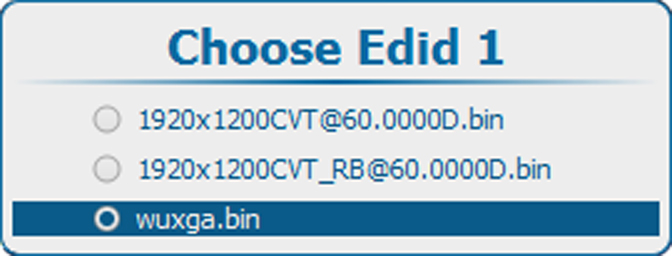
Use the ▲ or ▼ key to select the input to configure.
Press ENTER to open the selection list.
The current active file is checked.
Use the ▲ or ▼ key to select the correct file.
Press ENTER to select this file.
Press EXIT to return to the menu.
Use the ▲ or ▼ key to select Apply.
Your selection is applied and stored for this input.
The menu remains open to configure another input.
use the ▲ or ▼ key to select OK.
Your selection is applied and stored for this input and the menu is closed.