
How to set up
Press Menu to activate the menus and select → → .
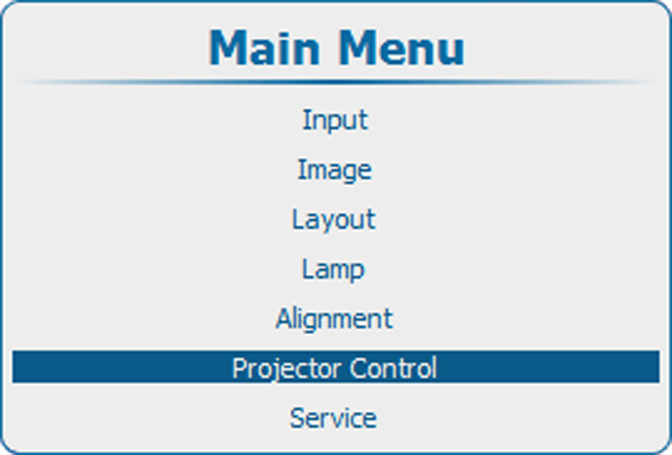
Image 14–49 Main menu, projector control 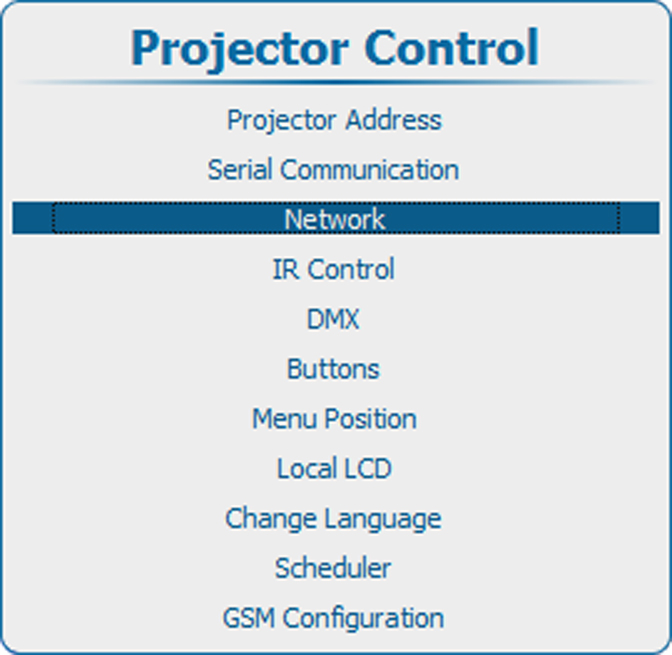
Image 14–50 Projector control, network 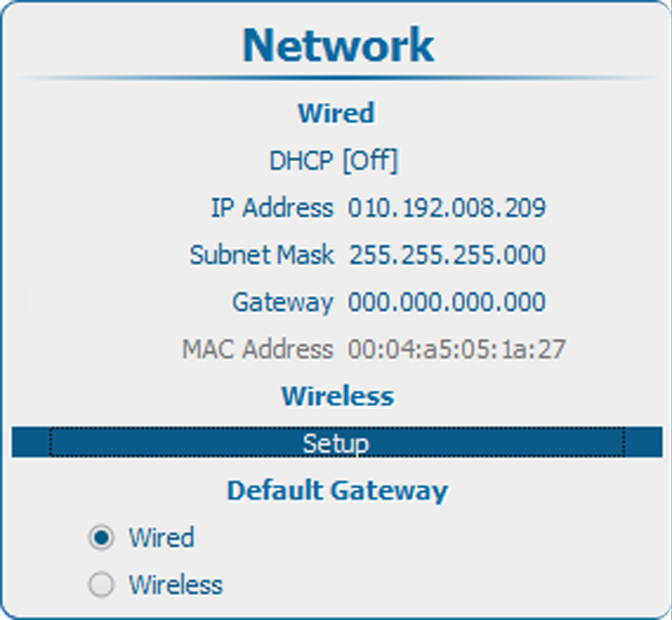
Image 14–51 Network, wireless 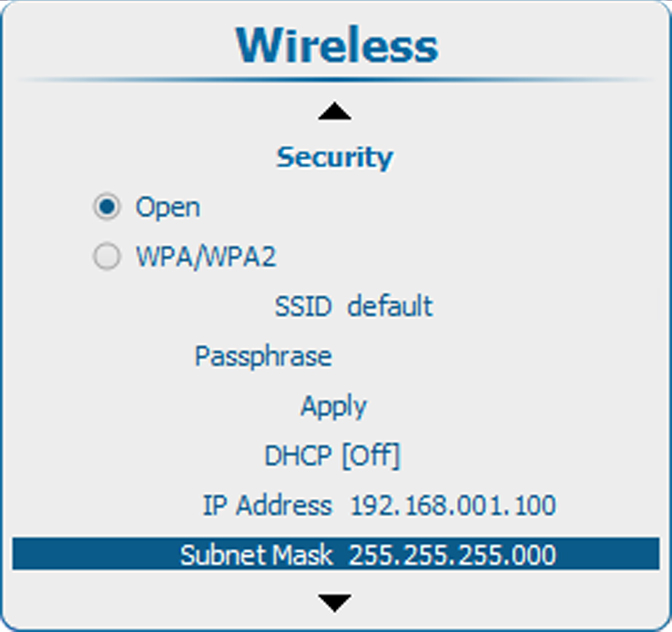
Image 14–52 Network, wireless Subnet Mask - Press ENTER to open the menu.
Use the ▲ or ▼ key to select and press ENTER to activate the input box.
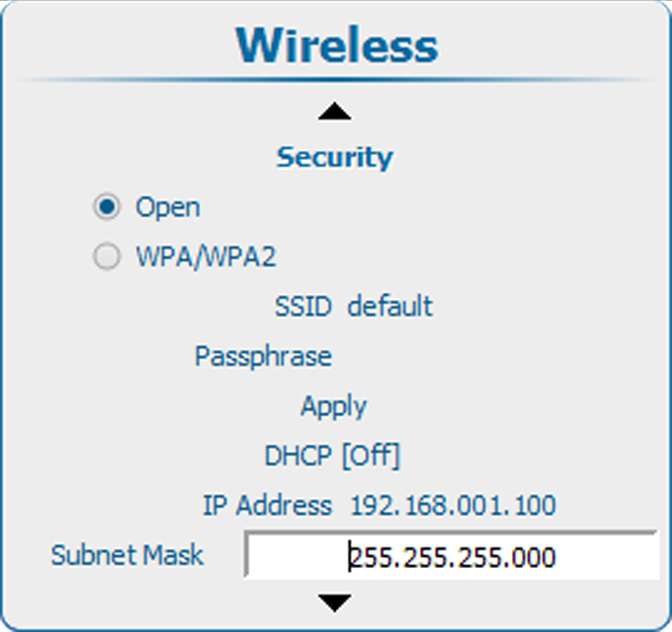
Image 14–53 Wireless Subnet Mask, input Use the ▲ or ▼ key to change the selected character.
Use the ◄ or ► key to select another character.
