General
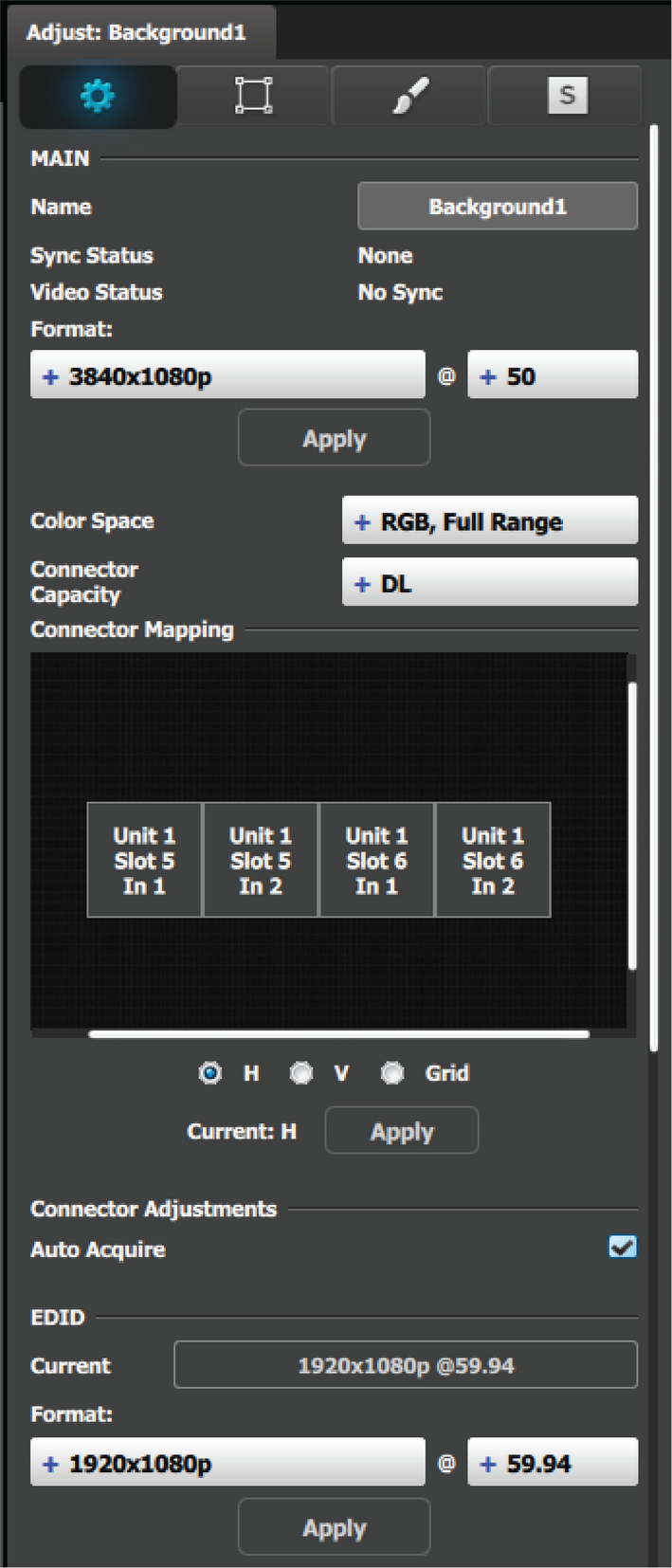
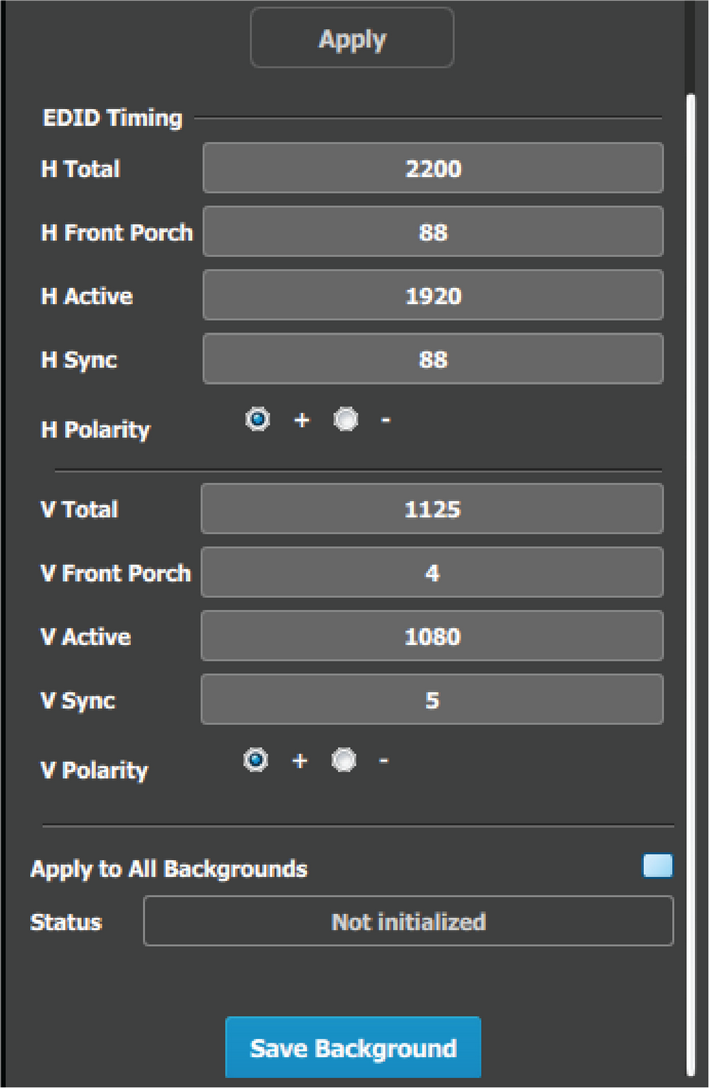
Assigning input connectors to backgrounds is very similar to creating Inputs as it was discussed in the previous section. Therefore, the menus are also very similar and for the sake of simplicity the same menus are not going to be presented in this section.
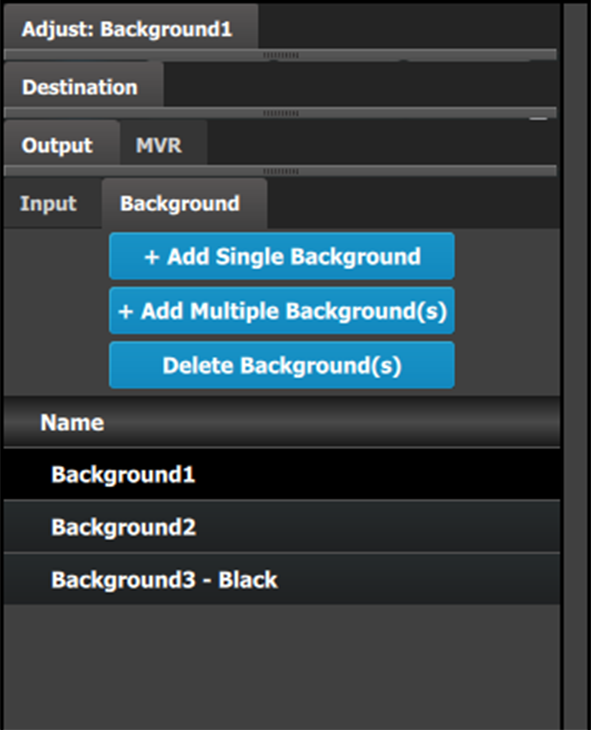 | This menu provides:
|
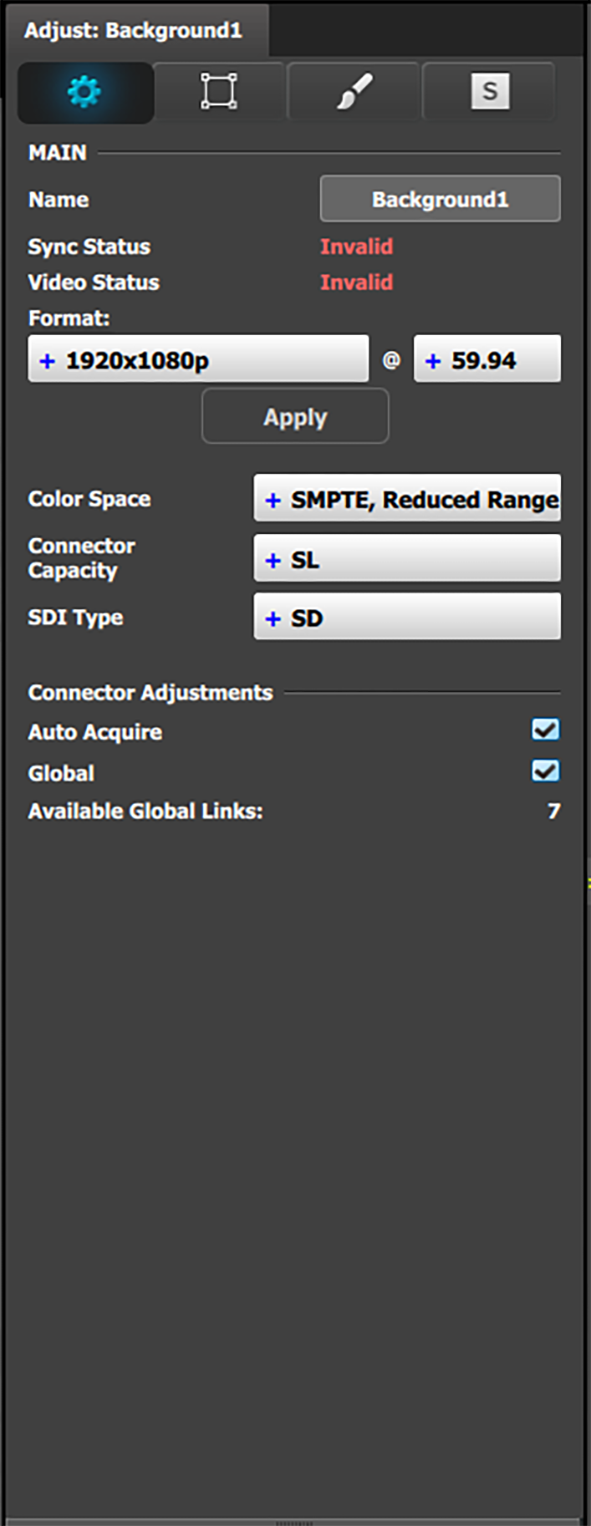
Note: Users can now link more than two E2s, or more than two S3–4Ks in a single system. In this configuration, only input expansion is supported. Users can select up to 48 SL inputs for linked E2 systems and 24 SL inputs for linked S3–4K systems to be marked it as a "Global Input." Global Input checkboxes are available in the Configuration page, under the Input and Background tabs for inputs. Backgrounds can also be designated as “Global Inputs” by checking the "Global" checkbox on the Adjust panel for the Background.
|  |
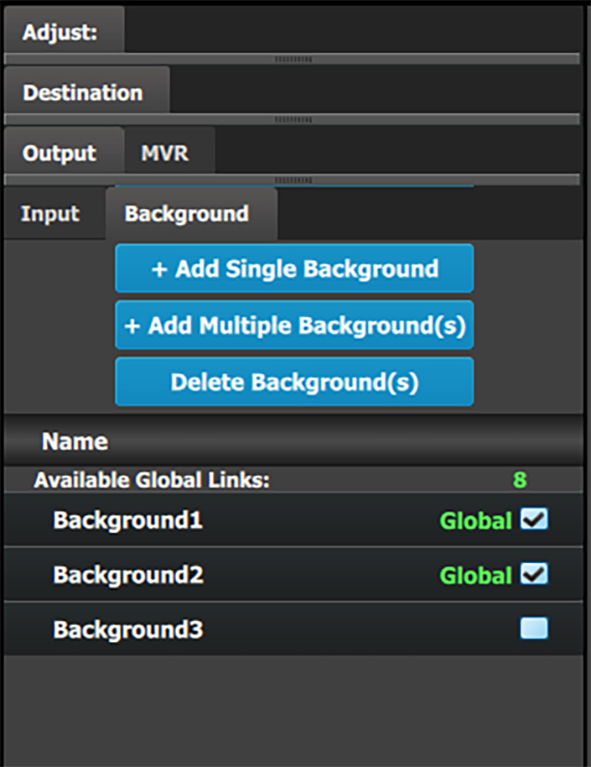
One of the differences between Inputs and backgrounds is in the number of connectors that can be assigned to each one. As it was presented in the previous section, an input can be defined from 1, 2 or 4 connectors. A background channel, however, can be defined by any number of connectors between 1 and 8. The same rules apply as in the Input definition: The connectors need be on the same card (or adjacent cards) and be of the same format.
Backgrounds can be created from all input connector types, and as many as you have available connectors.
Backgrounds can also be configured from Dual Link and 4K capacity input connectors, forming a background of one or several 3840x1080 or higher resolutions.