Cue Menu > Adjustment area
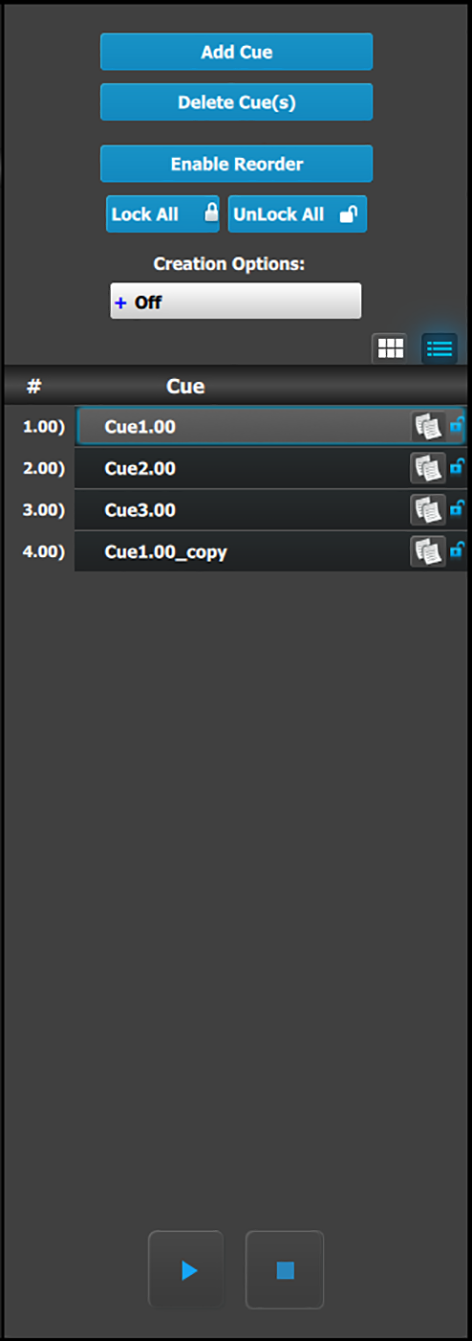 | This menu provides: - An Add Cue button to save new Cues.
- A Delete Cue(s) button to delete one or more Cues.
- An Enable Reorder button to enable the reordering of Cues in the list.
- A Lock All button to lock all the Cues in the list.
- An Unlock All button to unlock all the Cues in the list.
A button to select Creation Options to use while creating Cues. - Off: No creation options are chosen. (This is the default option.)
- AutoLock: All Cues created with the AutoLock option On are created in the locked state.
- Rename: All Cues created with the Rename option On are created with the group name highlighted, so that the Cue may be immediately renamed.
- Rename-Lock: This is a combination of the Rename and AutoLock options. All Cues created with the Rename-Lock option On are created with the Cue name highlighted, so that the Cue may be immediately renamed, then saved in a locked state.
A list of Cues. Each Cue in the list has a number, a name, and two icons. The first icon allows the user to copy a cue. (The copied cue is added to the bottom of the Cue list.) The second icon shows if the Cue is locked or unlocked. A Play/Pause button. The system displays the Play button (  ) before a selected Cue is played and when a selected Cue has been paused. ) before a selected Cue is played and when a selected Cue has been paused. The system displays the Pause button (  ) when a selected Cue is playing. ) when a selected Cue is playing. - A Stop button.
|
Once a Cue has been created in the adjustment area, it can be modified in the system modification area.
Cues can be selected and played, paused, or stopped from the adjustment area of the Cue menu.
Once a cue is active (playing or paused) selecting another cue from the Cue list in the Adjustment pane cancels the first cue and readies the second cue.
