General
This part of the Multiviewer Menu allows a user to add and position sources in Multiviewer outputs.

This part of the Multiviewer Menu allows a user to add and position sources in Multiviewer outputs.
The tabs on the top of the layout panel area allow the user to view the layouts together or individually.

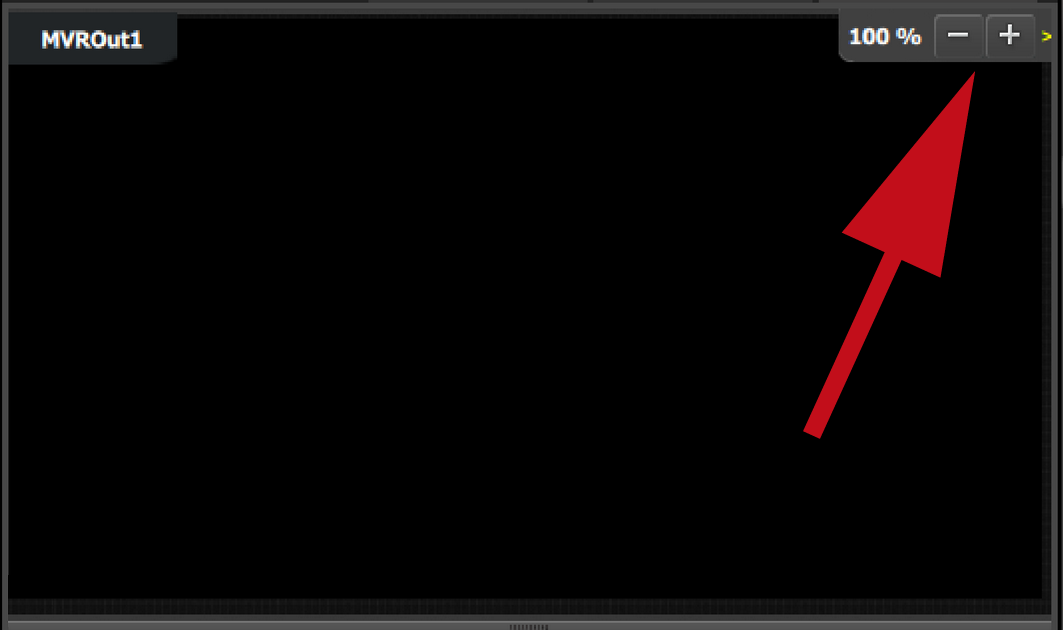
Users can zoom in / out each output individually, from 25% to 150%, in 25% increments.
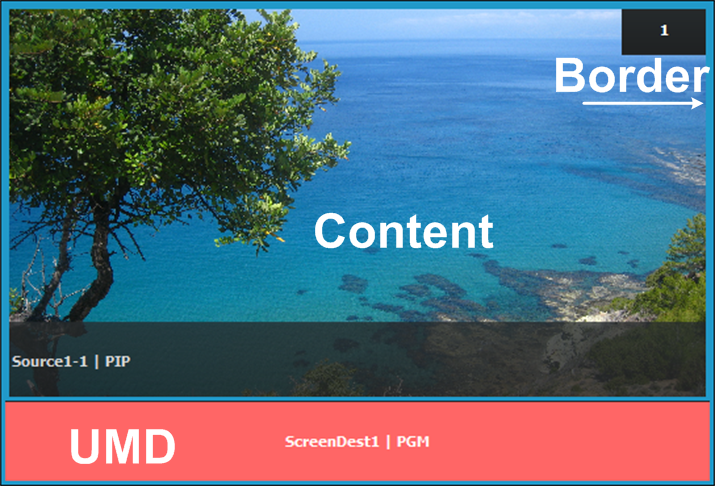
Multiviewer windows, also called Image windows, are composed from Inputs, Backgrounds, and Destination resources. There are 3 elements that make up a multiviewer image window: Content area, border and UMD (Under-Monitor-Display).
Content area
The Image window's aspect ratio follows that of the first resource that occupies it. If a new resource is dropped onto the Image window, the resource's aspect ratio will constrain horizontally to fit into the Content area.
If the aspect ratio of a resource is changed after it is placed in the MVR, the change will not reshape the Image window in the MVR. To reshape the window to the new resource, click the "Refit" button in the Modifier area, then resize the window to the desired size.
UMD
The text tracks the name of the resource in the display area. If the resource is renamed, the UMD will also change to the new name. The UMD text can be edited to override the system's resource name in the adjustment panel.
One line of text is provided. The UMD area provides for only enough characters to fit within the width of the UMD area. If the text is too long it will be terminated with “…”.
The UMD color is adjustable and adjusts all UMDs per Multiviewer output per layout. (The default color is dark charcoal gray.) The UMD is always red for Screen Destination Program Windows.
Border
The border width is fixed at 5 pixels. Border color is adjustable, with the default color white. The border will go red in case sync is lost.