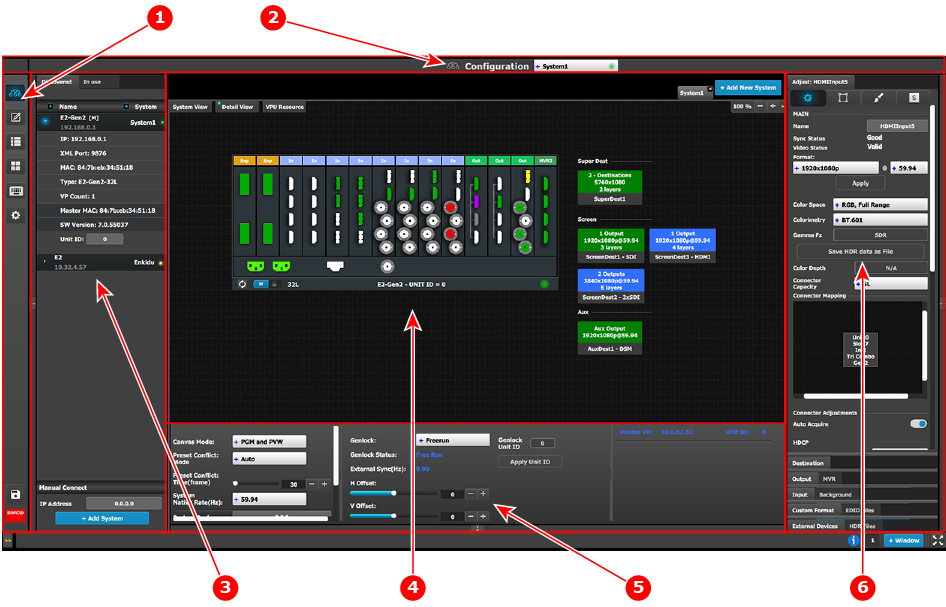
The user interface is organized around a Menu Navigation bar at the left of the screen and a Working area in the rest of the screen. The layout of the screens is similar throughout the GUI.
In order to explain the layout, we will examine the start-up screen of the Configuration Menu and describe the different components. The screens for the other menus follow the same structure and flow.
Image 6–1EM GUI: Configuration Menu
1
Menu navigation bar
2
Title bar
3
Selection area
4
Diagram area
5
Modifier area
6
Configuration area
Menu navigation bar
On the far left hand side of the screen is the Menu Navigation bar that allows users to navigate between the different screens and save or restore system configurations. This area of the screen is always visible and remains unchanged. The available buttons on the Menu Navigation bar are:
System Configuration: allows access to the System Configuration Menu.
Programming: allows access to the Programming Menu.
Cue: allows access to the Cue Menu.
Multiviewer: allows access to the Multiviewer Menu.
Controller: allows access to the Event Controllers Menu.
Settings: allows access to the Settings Menu, which contains the EMP’s web page, as well as other settings.
System Save.
Title bar
On the top of the working area a title bar indicates the name of the selected page (e.g. configuration).
Selection area
The selection area allows the users to select the System or Device that will be used.
Diagram area
In the middle, is the Diagram area where the system, Screens and Multiviewer are represented graphically.
Configuration area
On the right hand side, is the configuration area where users perform all needed adjustments.