6.18 Configuration Menu > Adjustment > Custom Formats Configuration

General

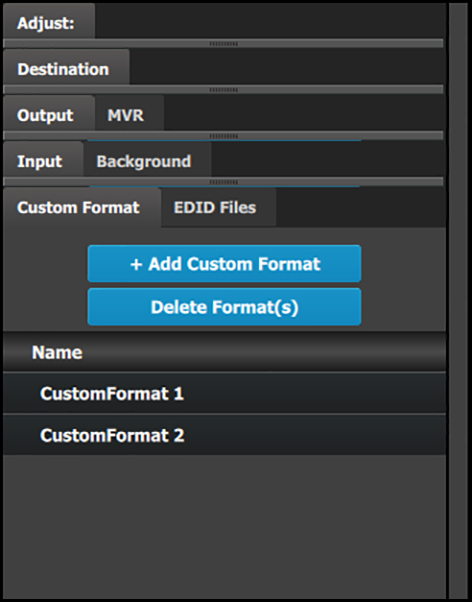
In the Custom Format configuration menu users can add and modify custom resolution configurations.

Custom format tab

This menu provides:

  • An + Add Custom Format button to manually add custom formats.
  • A Delete Format(s) button to delete selected custom formats.
  • A list of all of the custom formats that have been added to the configuration.

    The system provides a syntax number to the left of each added custom format. The names of the custom formats can be changed, as the names of inputs, outputs, destinations, etc. can be changed.

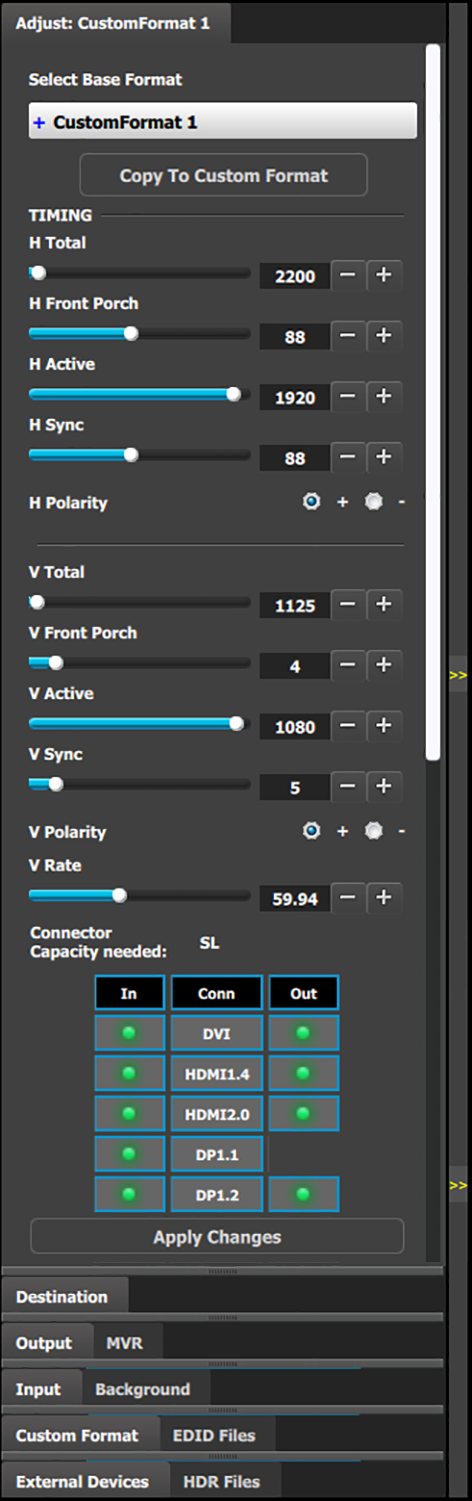
Custom Format Adjust tab – top half

This menu provides:

  • H Total: The total pixel count per line.
  • H Front Porch: The offset between the end of the active area and the beginning of H sync.
  • H Active: The horizontal size in pixels of the active area.

    The IP address may be entered manually.

  • H Sync: The H sync width in pixels.
  • H Polarity: The polarity (active High or Low) of the horizontal sync pulse (N/A in SDI).
  • V Total: The total line count per frame.
  • V Front Porch: The offset in lines between the end of the output active area and the beginning of V sync.
  • V Active: The vertical size of the output active area.
  • V Sync: The V sync width in lines.
  • V Polarity: The polarity (active High or Low) of the vertical sync pulse (N/A in SDI).
  • V Rate: Adjusts the frame rate in seconds polarity (active High or Low) of the vertical sync pulse (N/A in SDI).
  • Connector Capacity needed: Lists the connector capacity (SL, DL, 4K, etc.) that is required.

    The connector graphic shows whether the connectors can support the custom format (green LED) or not (red LED).

  • The Apply Changes button applies the changes to the custom format.
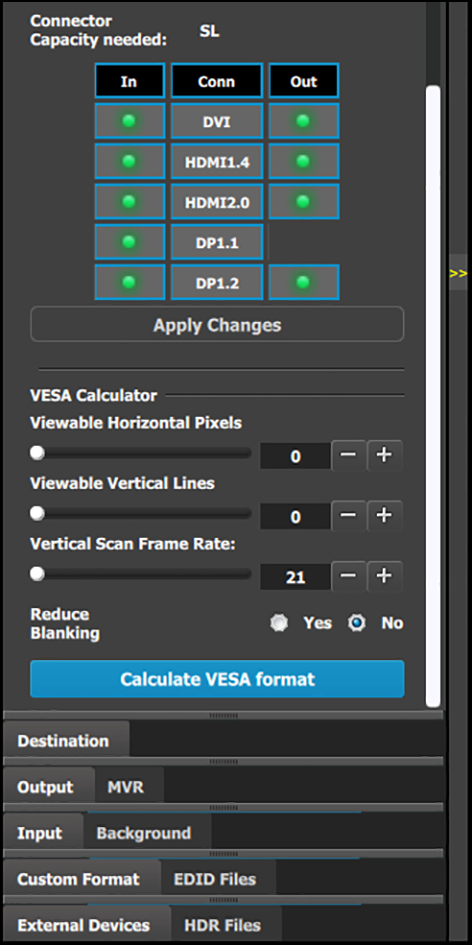
Custom Format Adjust tab – bottom half

This bottom half of this panel provides the VESA calculator.

  • Viewable Horizontal Pixels: The slider ranges from 0 to 4096.
  • Viewable Vertical Lines: The slider ranges from 0 to 4096.
  • Vertical Scan Frame Rate: The slider ranges from 21 Hz to 120 Hz.
  • Reduce Blanking: The choices are “Yes” or “No.” If “Yes” is chosen, a further dialog box allows a choice of Reduced Blank Timing Versions.
  • The Apply Changes button applies the changes to the custom format.