15.1 Registration file, connectivity

About connectivity

The projector can be registered in Barco’s Connected Services system for follow up. This registration is done by downloading a registration file which will be uploaded in Barco’s Connected Services system. That system exports a file which should be uploaded in the projector. When finished the projector is ready to be monitored. The value for valid should be on true.

The remaining value indicates the hours left to register your projector.
How to handle
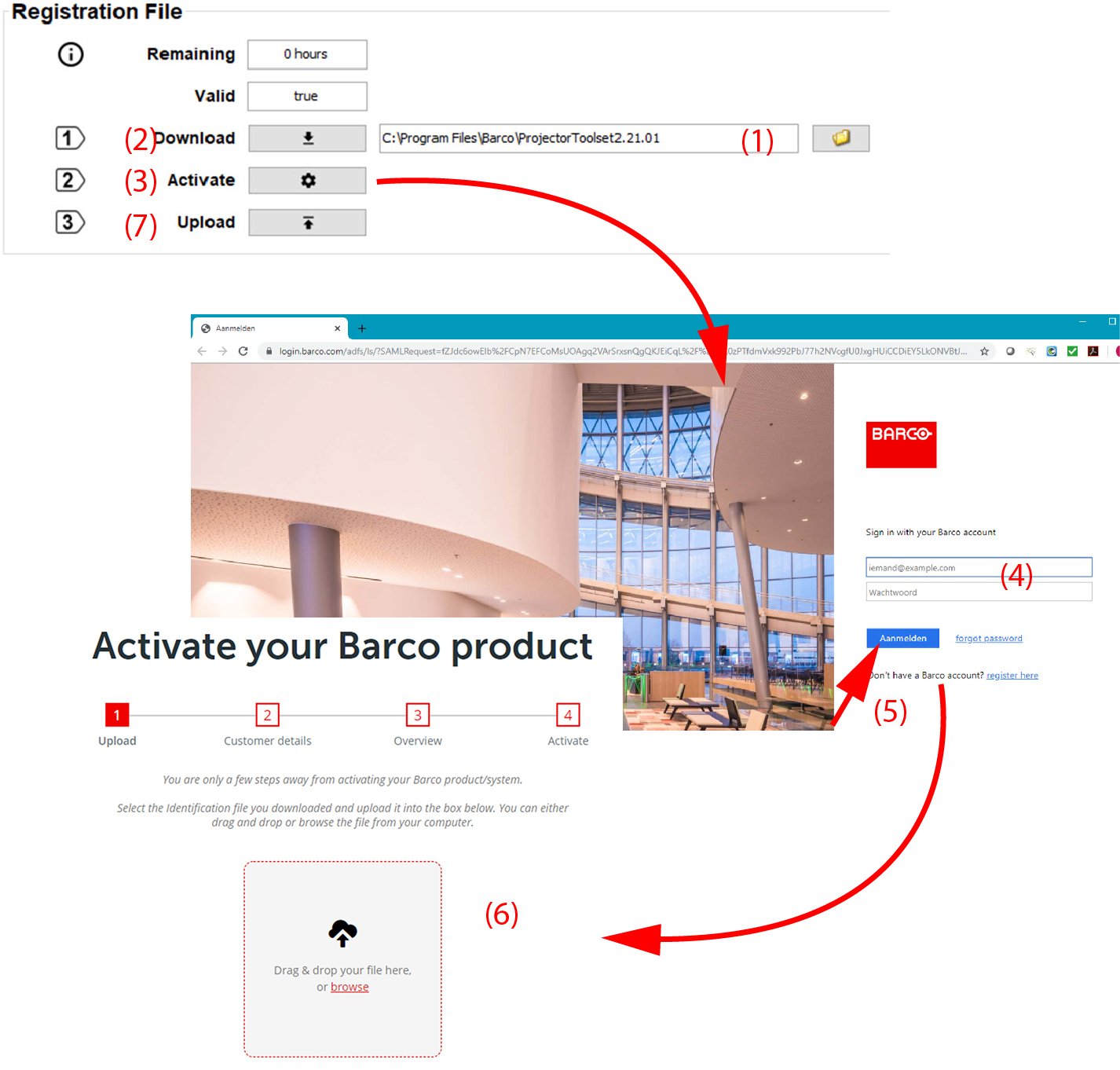
  1. Select the location for downloading the file. By default the Projector Toolset installation folder (1).

    If you want to change the folder, click on the browse icon and browse to the desired location.

    Image 15–1
  2. Click on the Download button (2).

    A license file is downloaded in the selected directory.

  3. Click on the Activate button (3).

    The activation window opens.

  4. Enter your username and password (4).

    The activation procedure starts (6). Follow the instructions as given in the different windows.

    • Start by dropping the license file.
    • Fill out the requested fields
    • Download the new license file
  5. Return to Projector Toolset. Click on Upload (7).
  6. Browse to the new license file and click Open.

    The file will be uploaded on the projector. When the file correct, the valid value changes to true.