How to display
Click on the workspace explorer icon ( ) on the left top corner or
on the menu, click on View → or
press F11.


Click on the workspace explorer icon () on the left top corner or
on the menu, click on View → or
press F11.
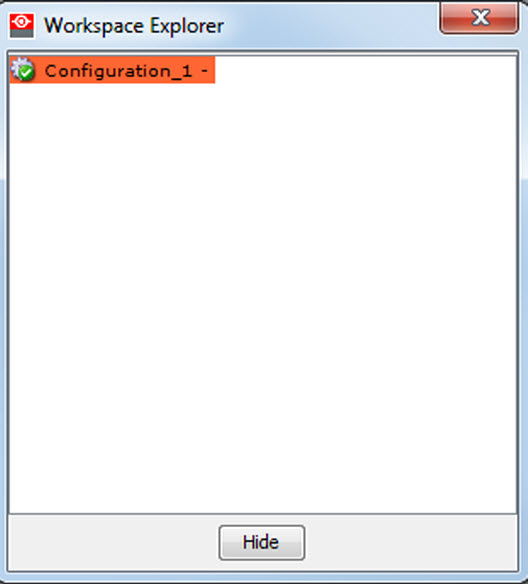
The workspace explorer window gives an overview of the existing Configurations.
To select a configuration, just click on it. The background of the selected configuration changes to blue. When the same item is open (active) the background remains blue.
When another configuration is selected, the background of this new configuration becomes blue and the background of the active (open) configuration changes to orange.
To activate (open) another configuration, double click on it. The background becomes blue. All other configurations will have no background.
An asterisk (*) behind a configuration means that a configuration setting is changed since the last saved version. A save is necessary to store the changes.