23.4 Certificate Functionality

About certificate functionality

For UDX and UDM projectors without certificate, a request for certificate can be generated. That request must be sent to Barco’s service department for approval. When the request is approved, a new certificate will be created and send to the customer who can up load it via the upload functionality. The uploaded certificate will be validated and the value next to Valid will change to true.

Download certificate request

While in the Service module, click Run Certificate.

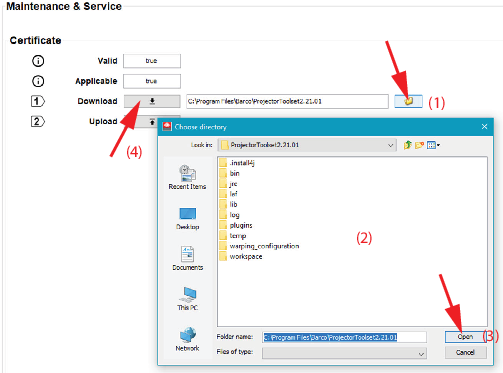
  1. Set the location to store the request for certificate (1-3).

    Image 23–7 Download certificate request

    The default location is the install folder for Projector Toolset.

  2. Click on the Download button (4).

    A certificate request xml file is created. The file name contains the serial number of the projector.

  3. Send this file to Barco’s service organization for processing.
Upload certificate
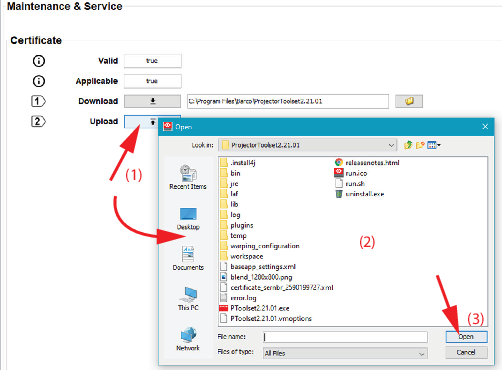
  1. Click on the Upload button (1).

    Image 23–8 Upload certificate

    A browser window opens.

  2. Browse to the location of the certificate file, select the file (2) and click on Open (3).

    The uploaded certificate will be evaluated and the value next to Valid will change to true.