About bow adjustment
A bow distortion can be adjusted so that a normal image is displayed. Positive adjustments introduce more outside bow distortion. Negative adjustments introduce more inside bow distortion.
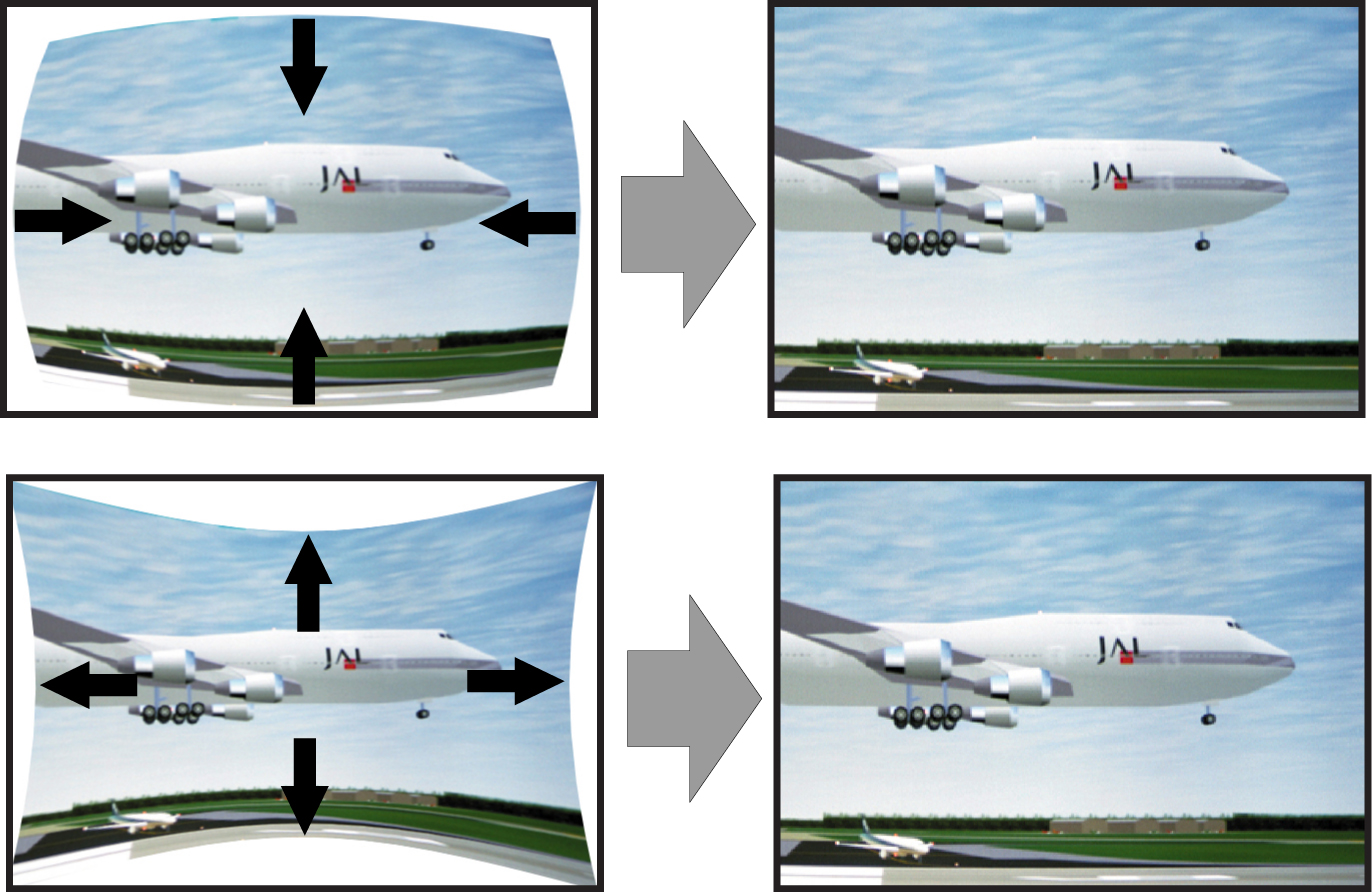

A bow distortion can be adjusted so that a normal image is displayed. Positive adjustments introduce more outside bow distortion. Negative adjustments introduce more inside bow distortion.
In the pane, select a corner (1). Click on the radio button of your choice.
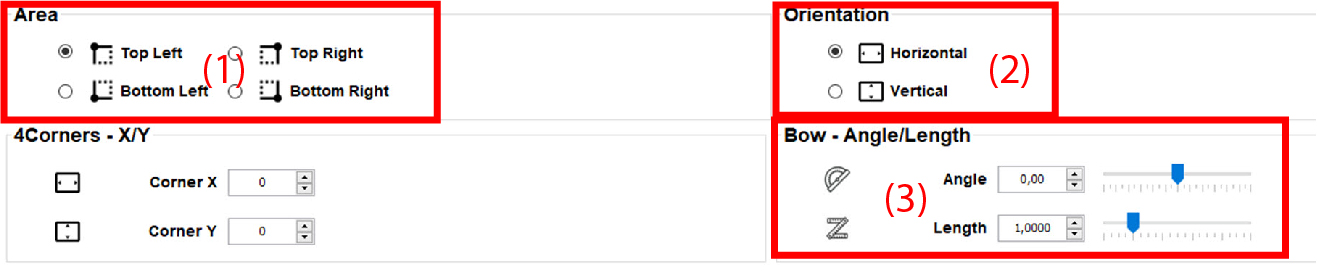
In the pane (3):
Click on a handle and move it up down, left and right until the created bow matches almost with the screen.
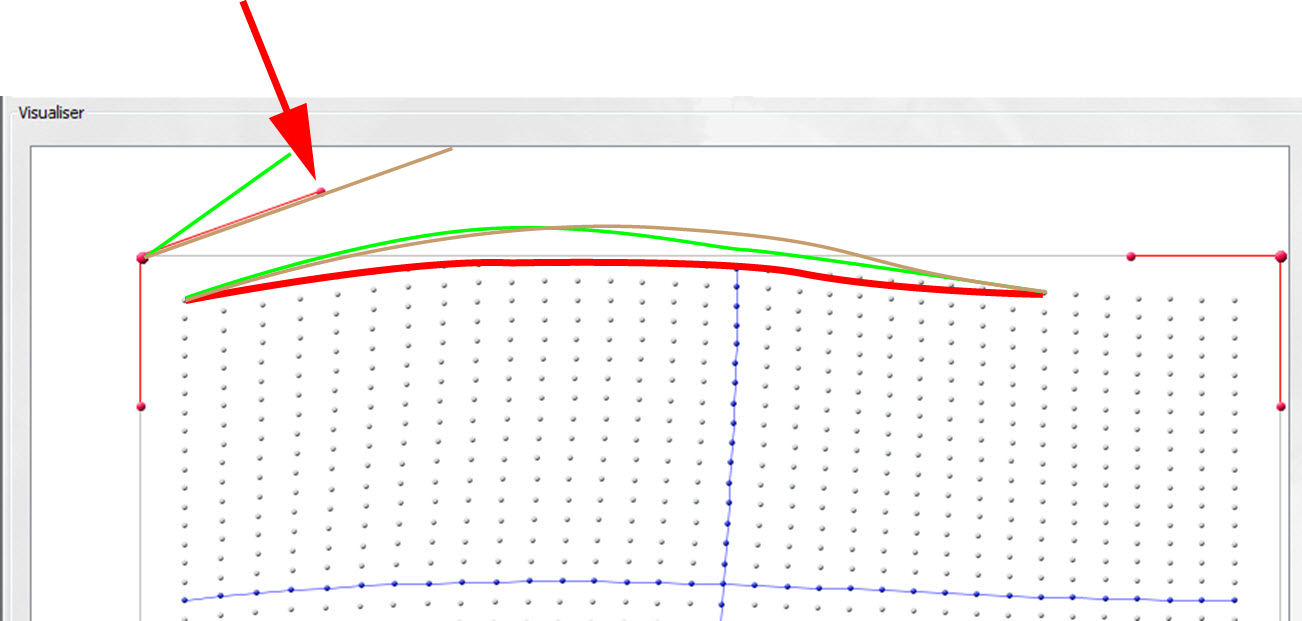
The new angle and length will be indicated in the pane.