23.8 Focus Drift Wizard

About focus drift and dynamic focus

Due to the design of TLD+ lenses and ultra-short throw lenses (UST lenses), these type of lenses tends to heat up over time when used in projectors. This has the side-effect of a slight shift in focus between the lens in its cold state and the lens in its heated state. For this reason it is important to only adjust focus on the mounted lens while it is in its heated state. This can be achieved by projecting an image for 10 minutes or more.

Next to that, content that shifts a lot between dark and bright images can cause the focus to “drift” a little.

While there are external solutions available that perform a “focus drift compensation”, a dynamic focus feature has been implemented that handles this focus drift on projectors that support TLD+ lenses. While enabled, the projector will perform the necessary calculations in order to handle this drift in focus.


Tip: The amount of focus drift can differ between lenses. For that reason it is important to calibrate the focus drift when a new lens is mounted in the projector.
How to calibrate
  1. Make sure the light source has been on for a while with content and the lens has been calibrated.

    Tip: Leaving the light source on is to “acclimatize” the lens to real-life circumstances. It is advised to play content for 30 minutes up to 2 hours to have the best possible result.
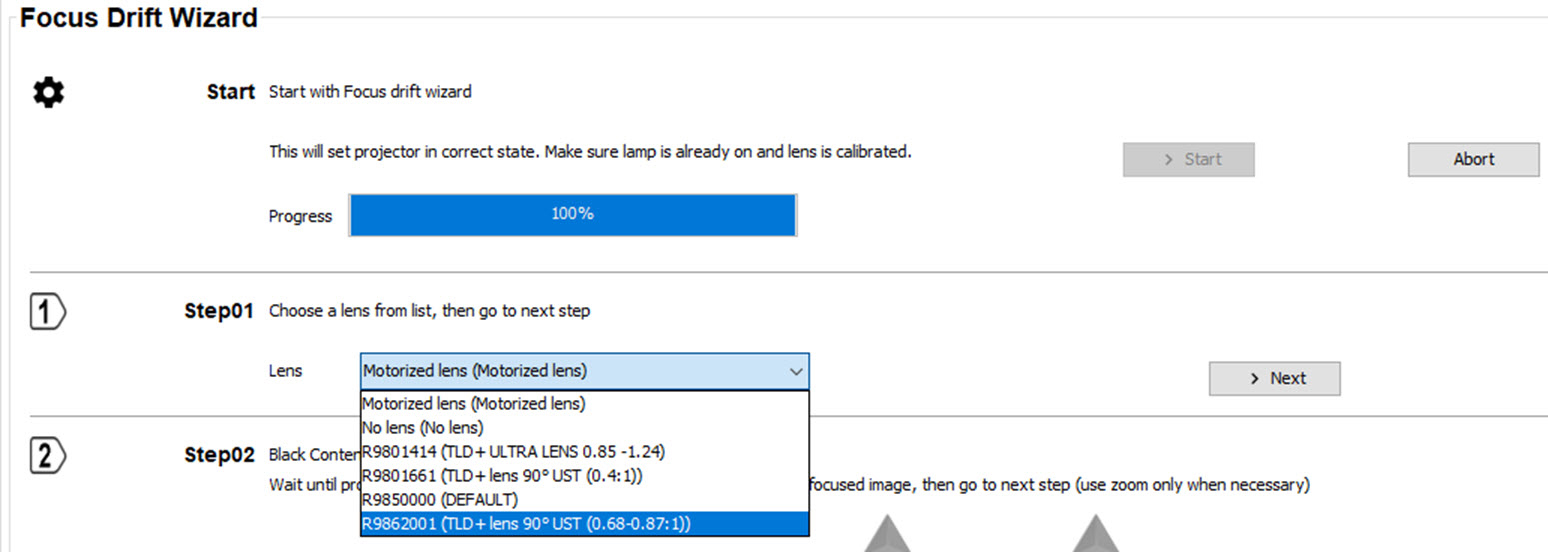
  2. Click Start.

    Image 23–13

    The projector will be set in the correct state

  3. Click on the drop down next to Lens and select the installed lens.

    Image 23–14
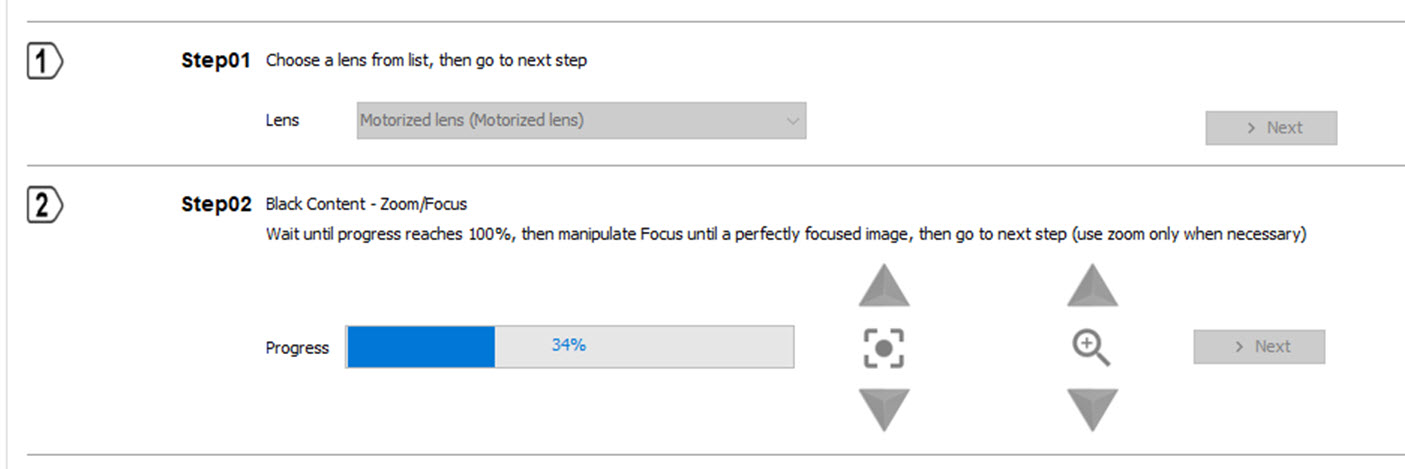
  4. Click Next.

    Step 02 will be executed, black content, zoom/focus.

    Wait until progress reaches 100%, then manipulate Focus until a perfectly focused image, then go to next step. Use zoom only when necessary!

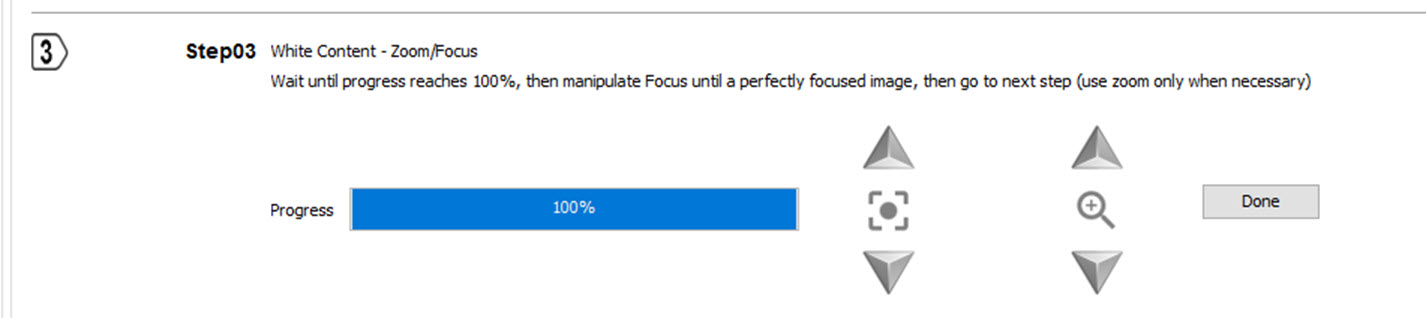
  5. When step 02 is finished, click Next to start step 03, white content, zoom/focus.

    Image 23–15

    Wait until progress reaches 100%, then manipulate Focus until a perfectly focused image, then go to next step. Use zoom only when necessary!

  6. When the 3 steps are finished, click Done.

    Image 23–16
Activate - deactivate Focus Drift Setting
  1. Click on Toggle On or Toggle Off to activate or deactivate the focus drift setting

    Image 23–17

    Toggle On: Focus drift is activated. ON next to Focus Drift will indicate this.

    Toggle Off: Focus drift is deactivated. OFF next to Focus Drift will indicate this.